Windows 11

biggest-windows-11-update-in-2-years-nearly-finalized,-enters-release-preview

Biggest Windows 11 update in 2 years nearly finalized, enters Release Preview

getting there —

24H2 update includes big changes, will be released “later this calendar year.”

Biggest Windows 11 update in 2 years nearly finalized, enters Release Preview

Microsoft

The Windows 11 24H2 update isn’t scheduled to be released until sometime this fall, but testers can get a near-final version of it early. Microsoft has released Windows 11 24H2 build 26100.712 to its Release Preview testing channel for Windows Insiders, a sign that the update is nearly complete and that the company has shifted into bug-fixing mode ahead of general availability.

Microsoft has generally stuck to smaller but more frequent feature updates during the Windows 11 era, but the annual fall updates still tend to be a bigger deal. They’re the ones that determine whether you’re still eligible for security updates, and they often (but not always) come with more significant under-the-hood changes than the normal feature drops.

Case in point: Windows 11 24H2 includes an updated compiler, kernel, and scheduler, all lower-level system changes made at least in part to better support Arm-based PCs. Existing Windows-on-Arm systems should also see a 10 or 20 percent performance boost when using x86 applications, thanks to improvements in the translation layer (which Microsoft is now calling Prism).

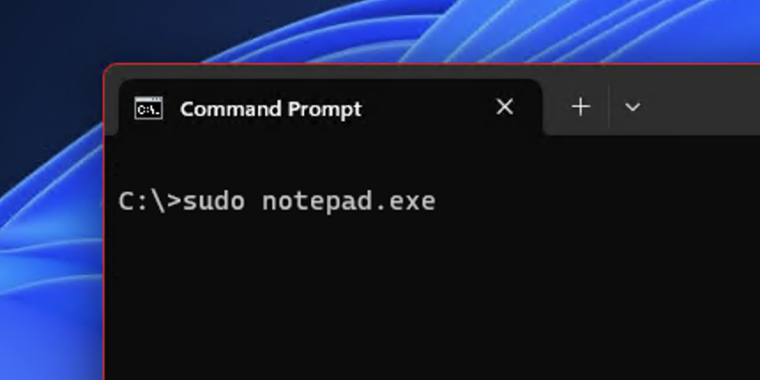
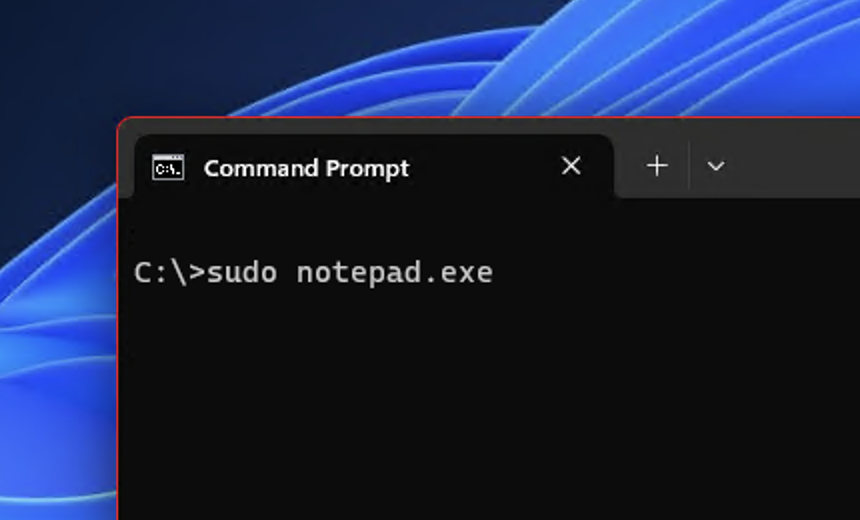
There are more user-visible changes, too. 24H2 includes Sudo for Windows, the ability to create TAR and 7-zip archives from the File Explorer, Wi-Fi 7 support, a new “energy saver” mode, and better support for Bluetooth Low Energy Audio. It also allows users to run the Copilot AI chatbot in a regular resizable window that can be pinned to the taskbar instead of always giving it a dedicated strip of screen space.

Other new Windows features are tied to the 24H2 update but will only be available on Copilot+ PCs, which have their own specific system requirements: 16 GB of memory, 256 GB of storage, and a neural processing unit (NPU) capable of at least 40 trillion operations per second (TOPS). As of right now, the only chips that fit the bill are Qualcomm’s Snapdragon X Plus and X Elite processors, though Intel and AMD systems with faster NPUs should be released later this year. Microsoft will maintain a separate list of processors that support the Copilot+ features.

The biggest 24H2 feature specific to Copilot+ PCs is Recall, which continually takes snapshots of everything you do with your PC so that you can look up your own activities later. This comes with obvious privacy and security risks, though Microsoft says that all of Recall’s data is encrypted on disk and processed entirely locally by the NPU rather than leveraging the cloud. Other Copilot+ features include Live Captions for captioning video files or video calls in real time and features for generating new images and enhancing existing images.

Collectively, all of these changes make 24H2 the most significant Windows 11 release since the 22H2 update came out a year and a half ago. 22H2 has served as the foundation for most new Windows features since then, including the Copilot chatbot, and 23H2 was mostly just a version number change released to reset the clock on Microsoft’s security update timeline.

Despite all of these changes and additions, the 24H2 update is still called Windows 11, still looks like Windows 11, and doesn’t change Windows 11’s official minimum system requirements. Unsupported installs will stop working on a few generations’ worth of older 64-bit x86 CPUs, though these chips are old and slow enough that they wouldn’t run Windows 11 particularly well in the first place.

For people who want to start fresh, ISO files of the release are available from Microsoft’s download page here (this is a slightly older build of the OS, 26100.560, but it should update to the current version with no issues after installation). You can update a current Windows 11 install from the Insider section in the Settings app. Microsoft says to expect the full release “later this calendar year.” Based on past precedent, it’s most likely to come out in the fall, but it will probably ship a bit early on the first wave of Copilot+ Arm PCs that will be available in mid-June.

Biggest Windows 11 update in 2 years nearly finalized, enters Release Preview Read More »
copilot-key-is-based-on-a-button-you-probably-haven’t-seen-since-ibm’s-model-m

Copilot key is based on a button you probably haven’t seen since IBM’s Model M

Microsoft chatbot button —

Left-Shift + Windows key + F23

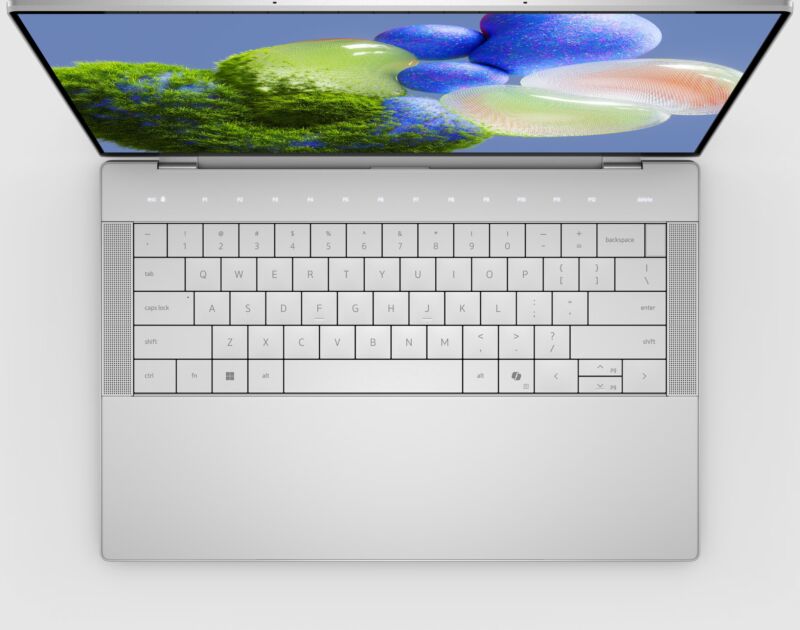
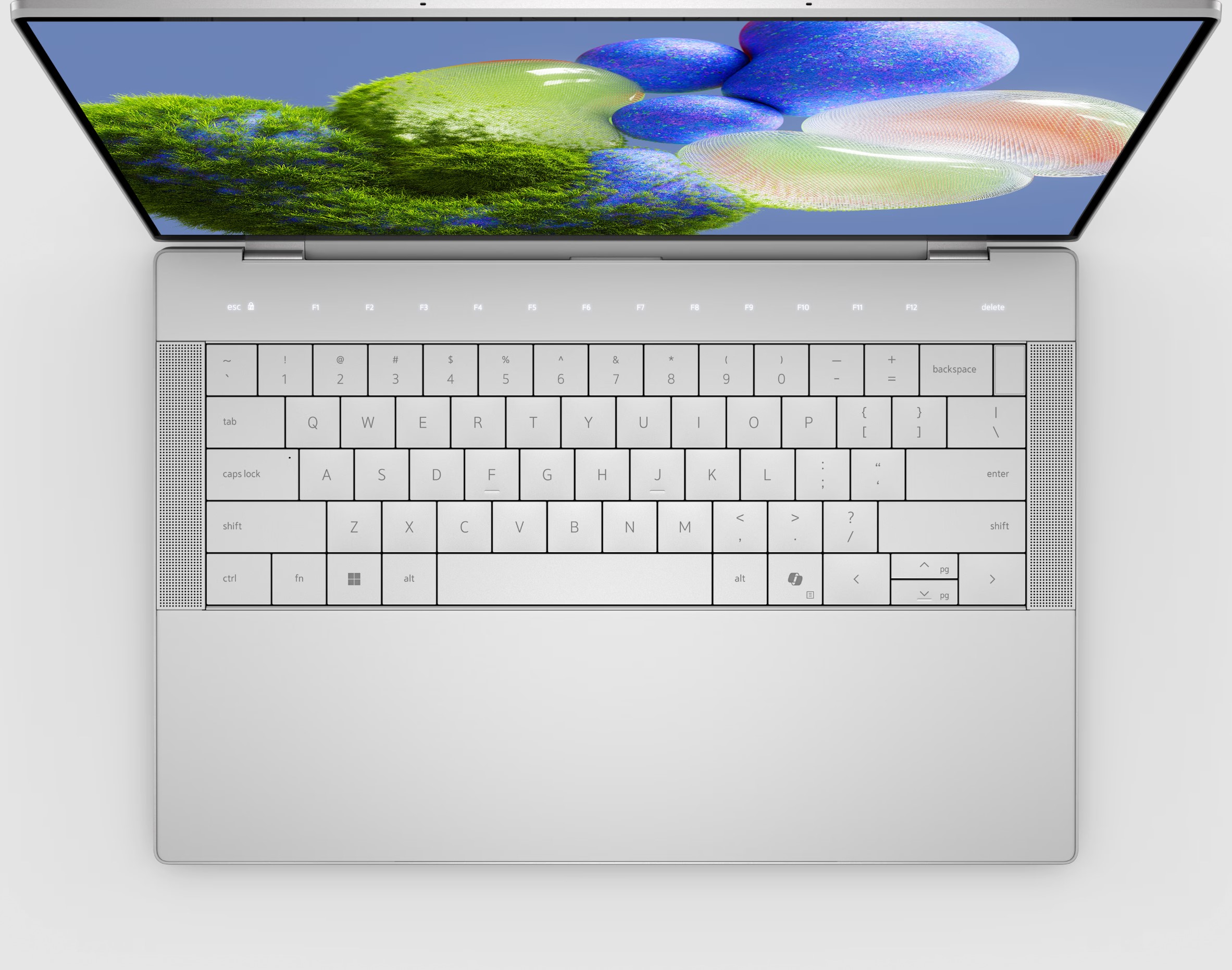
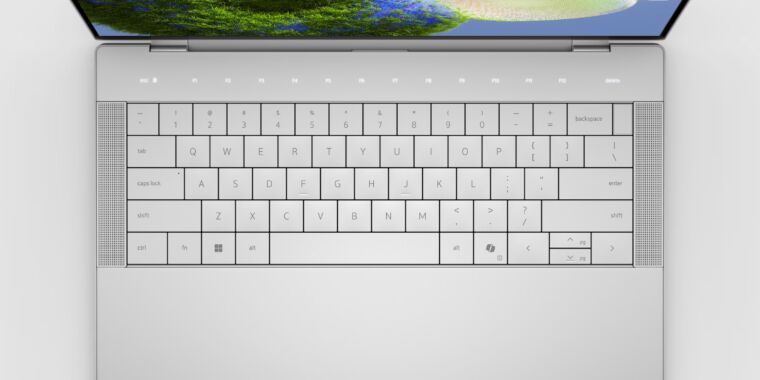
A Dell XPS 14 laptop with a Copilot key.

Enlarge / A Dell XPS 14 laptop. The Copilot key is to the right of the right-Alt button.

In January, Microsoft introduced a new key to Windows PC keyboards for the first time in 30 years. The Copilot key, dedicated to launching Microsoft’s eponymous generative AI assistant, is already on some Windows laptops released this year. On Monday, Tom’s Hardware dug into the new addition and determined exactly what pressing the button does, which is actually pretty simple. Pushing a computer’s integrated Copilot button is like pressing left-Shift + Windows key + F23 simultaneously.

Tom’s Hardware confirmed this after wondering if the Copilot key introduced a new scan code to Windows or if it worked differently. Using the scripting program AuthoHotkey with a new laptop with a Copilot button, Tom’s Hardware discovered the keystrokes registered when a user presses the Copilot key. The publication confirmed with Dell that “this key assignment is standard for the Copilot key and done at Microsoft’s direction.”

F23

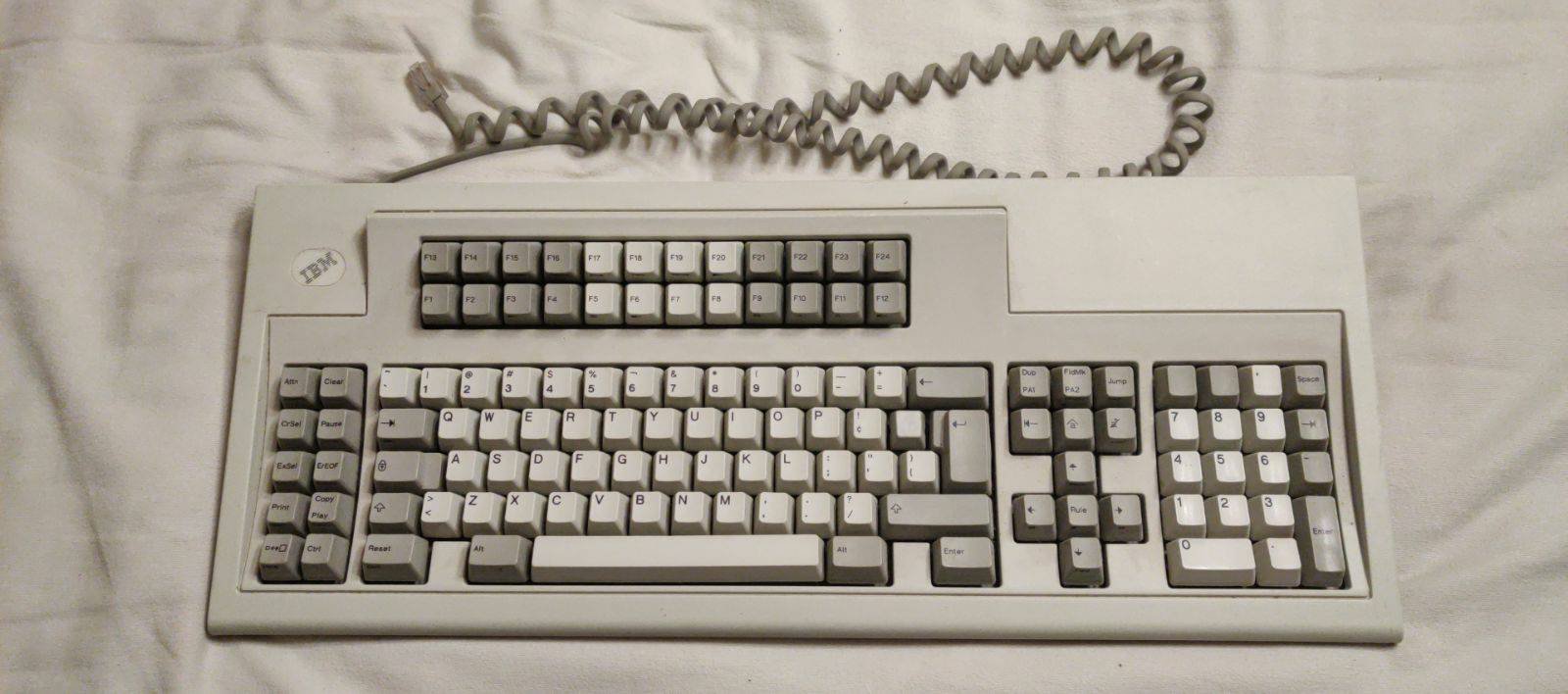
Surprising to see in that string of keys is F23. Having a computer keyboard with a function row or rows that take you from F1 all the way to F23 is quite rare today. When I try to imagine a keyboard that comes with an F23 button, vintage keyboards come to mind, more specifically buckling spring keyboards from IBM.

IBM’s Model F, which debuted in 1981 and used buckling spring switches over a capacitive PCB, and the Model M, which launched in 1985 and used buckling spring switches over a membrane sheet, both offered layouts with 122 keys. These layouts included not one, but two rows of function keys that would leave today’s 60 percent keyboard fans sweating over the wasted space.

But having 122 keys was helpful for keyboards tied to IBM business terminals. The keyboard layout even included a bank of keys to the left of the primary alpha block of keys for even more forms of input.

An IBM Model M keyboard with an F23 key.

Enlarge / An IBM Model M keyboard with an F23 key.

The 122-key keyboard layout with F23 lives on. Beyond people who still swear by old Model F and M keyboards, Model F Labs and Unicomp both currently sell modern buckling spring keyboards with built-in F23 buttons. Another reason a modern Windows PC user might have access to an F23 key is if they use a macro pad.

But even with those uses in mind, the F23 key remains rare. That helps explain why Microsoft would use the key for launching Copilot; users are unlikely to have F23 programmed for other functions. This was also likely less work than making a key with an entirely new scan code.

The Copilot button is reprogrammable

When I previewed Dell’s 2024 XPS laptops, a Dell representative told me that the integrated Copilot key wasn’t reprogrammable. However, in addition to providing some interesting information about the newest PC key since the Windows button, Tom’s Hardware’s revelation shows why the Copilot key is actually reprogrammable, even if OEMs don’t give users a way to do so out of the box. (If you need help, check out the website’s tutorial for reprogramming the Windows Copilot key.)

I suspect there’s a strong interest in reprogramming that button. For one, generative AI, despite all its hype and potential, is still an emerging technology. Many don’t need or want access to any chatbot—let alone Microsoft’s—instantly or even at all. Those who don’t use their system with a Microsoft account have no use for the button, since being logged in to a Microsoft account is required for the button to launch Copilot.

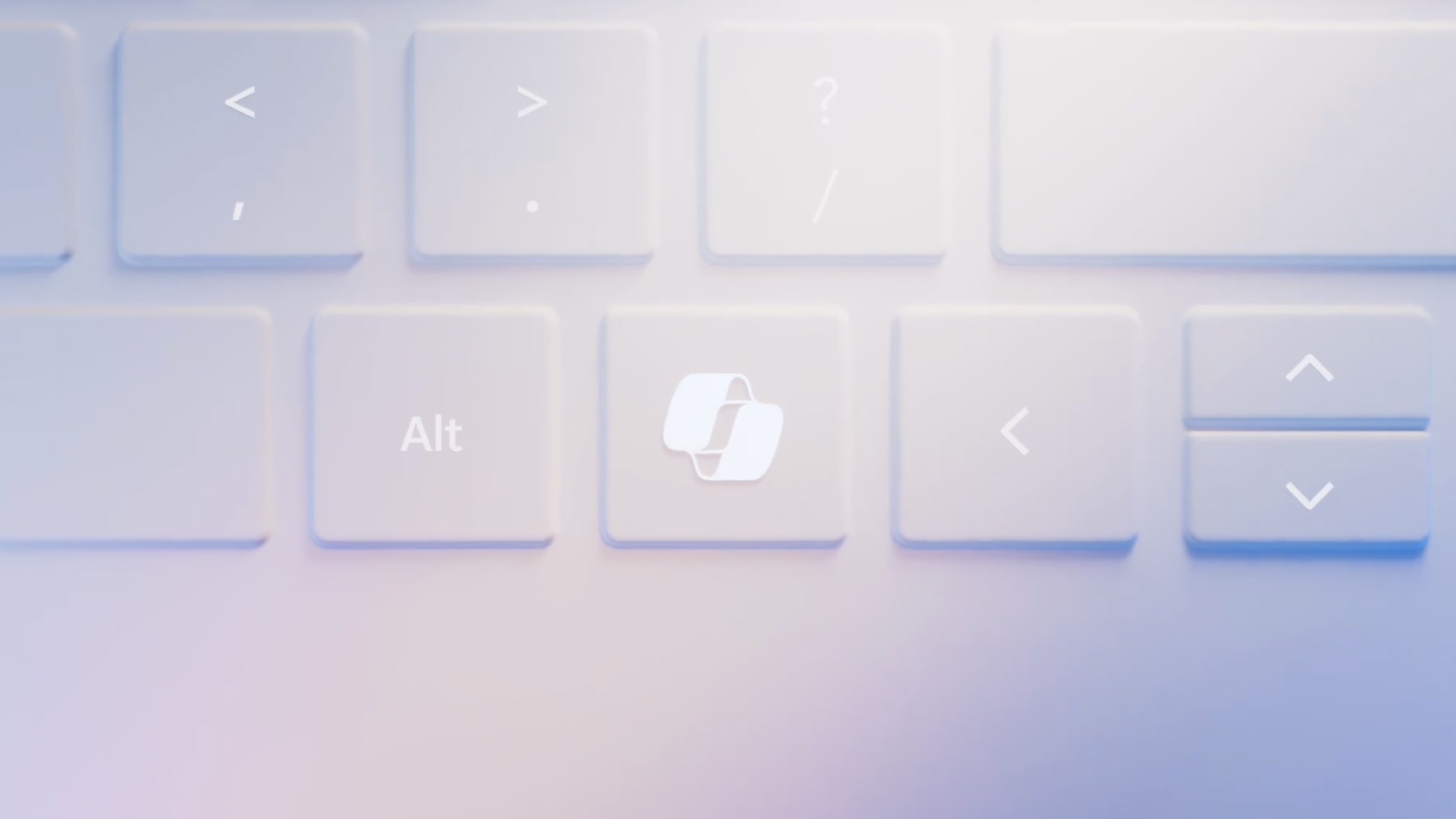
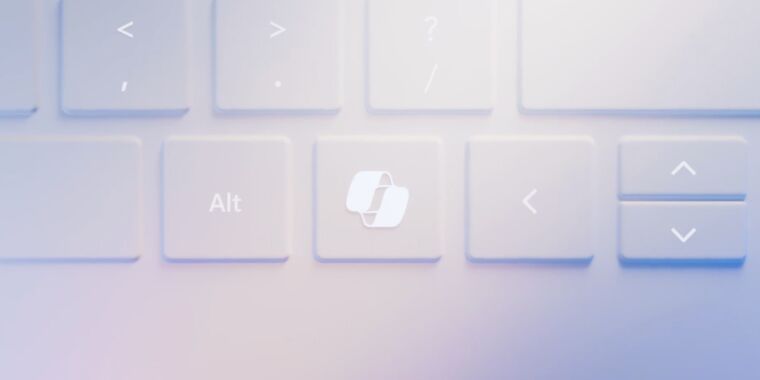
A rendering of the Copilot button.

Enlarge / A rendering of the Copilot button.

Microsoft

Additionally, there are other easy ways to launch Copilot on a computer that has the program downloaded, like double-clicking an icon or pressing Windows + C, that make a dedicated button unnecessary. (Ars Technica asked Microsoft why the Copilot key doesn’t just register Windows + C, but the company declined to comment. Windows + C has launched other apps in the past, including Cortana, so it’s possible that Microsoft wanted to avoid the Copilot key performing a different function when pressed on computers that use Windows images without Copilot.)

In general, shoehorning the Copilot key into Windows laptops seems premature. Copilot is young and still a preview; just a few months ago, it was called Bing Chat. Further, the future of generative AI, including its popularity and top uses, is still forming and could evolve substantially during the lifetime of a Windows laptop. Microsoft’s generative AI efforts could also flounder over the years. Imagine if Microsoft went all-in on Bing back in the day and made all Windows keyboards have a Bing button, for example. Just because Microsoft wants something to become mainstream doesn’t mean that it will.

This all has made the Copilot button seem more like a way to force the adoption of Microsoft’s chatbot than a way to improve Windows keyboards. Microsoft has also made the Copilot button a requirement for its AI PC certification (which also requires an integrated neural processing unit and having Copilot pre-installed). Microsoft plans to make Copilot keys a requirement for Windows 11 OEM PCs eventually, it told Ars Technica in January.

At least for now, the basic way that the Copilot button works means you can turn the key into something more useful. Now, the tricky part would be finding a replacement keycap to eradicate Copilot’s influence from your keyboard.

Listing image by Microsoft

Copilot key is based on a button you probably haven’t seen since IBM’s Model M Read More »
“temporary”-disk-formatting-ui-from-1994-still-lives-on-in-windows-11

“Temporary” disk formatting UI from 1994 still lives on in Windows 11

some things never change —

“It wasn’t elegant, but it would do until the elegant UI arrived.” It never did.

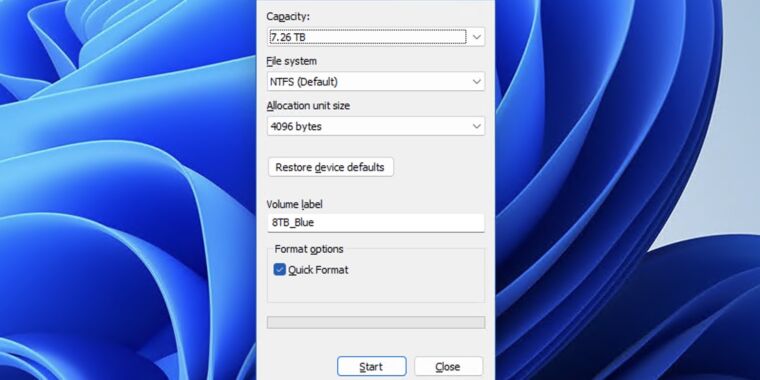
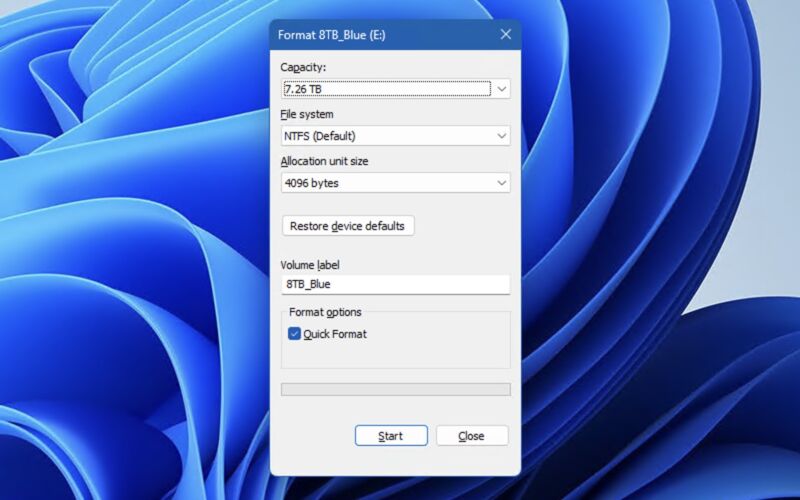
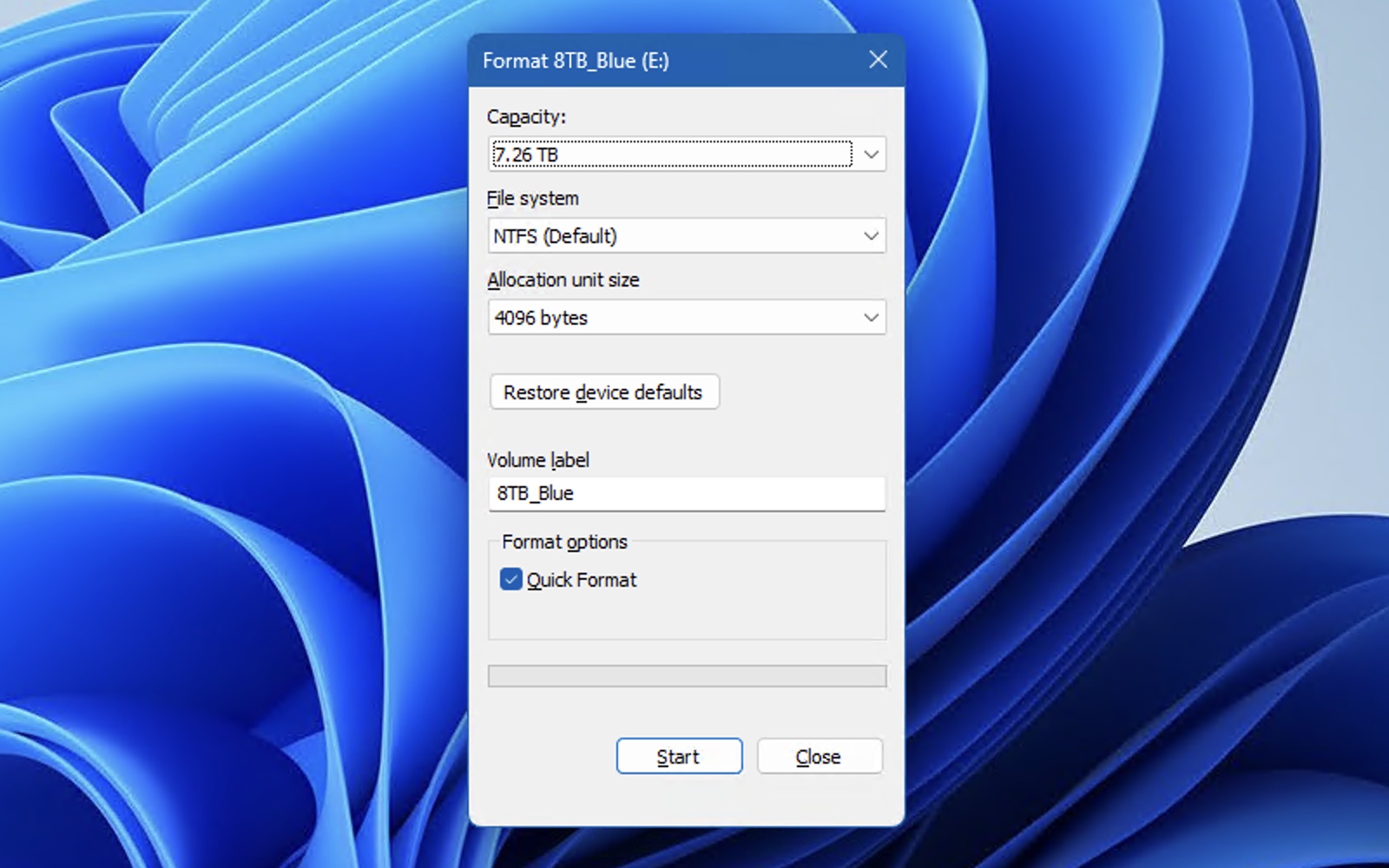
If you've formatted a disk in Windows in the last 30 years, you may have come across this dialog box.

Enlarge / If you’ve formatted a disk in Windows in the last 30 years, you may have come across this dialog box.

Andrew Cunningham

Windows 11 has done a lot to update and modernize long-neglected parts of Windows’ user interface, including many Settings menus and venerable apps like Notepad and Paint. But if you dig deep enough, you’ll still find parts of the user interface that look and work like they did in the mid-’90s, either for compatibility reasons or because no one ever thought to go back and update them.

Former Microsoft programmer Dave Plummer shared some history about one of those finely aged bits: the Format dialogue box, which is still used in fully updated Windows 11 installs to this day when you format a disk using Windows Explorer.

Plummer says he wrote the Format dialog in late 1994, when the team was busy porting the user interface from the consumer-focused Windows 95 (released in mid-1995) to the more-stable but more resource-intensive Windows NT (NT 4.0, released in mid-1996, was the first to use the 95-style UI).

Formatting disks “was just one of those areas where Windows NT was different enough from Windows 95 that we had to come up with some custom UI,” wrote Plummer on X, formerly Twitter. Plummer didn’t specify what those differences were, but even the early versions of Windows NT could already handle multiple filesystems like FAT and NTFS, whereas Windows 95 mostly used FAT16 for everything.

“I got out a piece of paper and wrote down all the options and choices you could make with respect to formatting a disk, like filesystem, label, cluster size, compression, encryption, and so on,” Plummer continued. “Then I busted out [Visual] C++ 2.0 and used the Resource Editor to lay out a simple vertical stack of all the choices you had to make, in the approximate order you had to make. It wasn’t elegant, but it would do until the elegant UI arrived. That was some 30 years ago, and the dialog is still my temporary one from that Thursday morning, so be careful about checking in ‘temporary’ solutions!”

The Windows NT version of the Format dialog is the one that survives today because the consumer and professional versions of Windows began using the NT codebase in the late ’90s and early 2000s with the Windows 2000 and Windows XP releases. Plenty has changed since then, but system files like the kernel still have “Windows NT” labels in Windows 11.

Plummer also said the Format tool’s 32GB limit for FAT volumes was an arbitrary decision he made that we’re still living with among modern Windows versions—FAT32 drives formatted at the command line or using other tools max out between 2TB and 16TB, depending on sector size. It seems quaint, but PC ads from late 1994 advertise hard drives that are, at most, a few hundred megabytes in size, and 3.5-inch 1.44MB floppies and CD-ROM drives were about the best you could do for removable storage. From that vantage point, it would be hard to conceive of fingernail-sized disks that could give you 256GB of storage for $20.

Plummer was involved with many bits and pieces of ’90s- and early 2000s-era MS-DOS and Windows apps, including the Task Manager, the Space Cadet Pinball game, and the first version of the product activation system that shipped with Windows XP. Plummer left Microsoft in 2003.

Listing image by Getty

“Temporary” disk formatting UI from 1994 still lives on in Windows 11 Read More »
windows-notepad’s-midlife-renaissance-continues-with-spellcheck-and-autocorrect

Windows Notepad’s midlife renaissance continues with spellcheck and autocorrect

noteworthy —

Now Windows’ only built-in text editor, there’s more room for Notepad to grow.

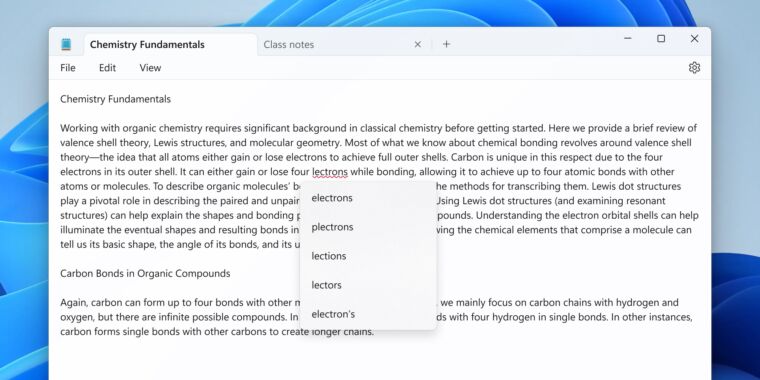
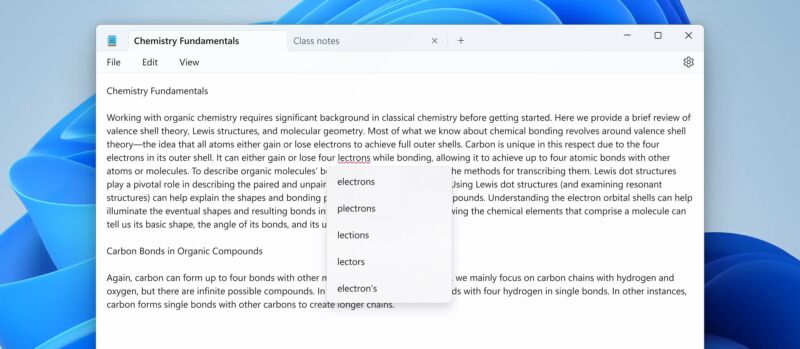
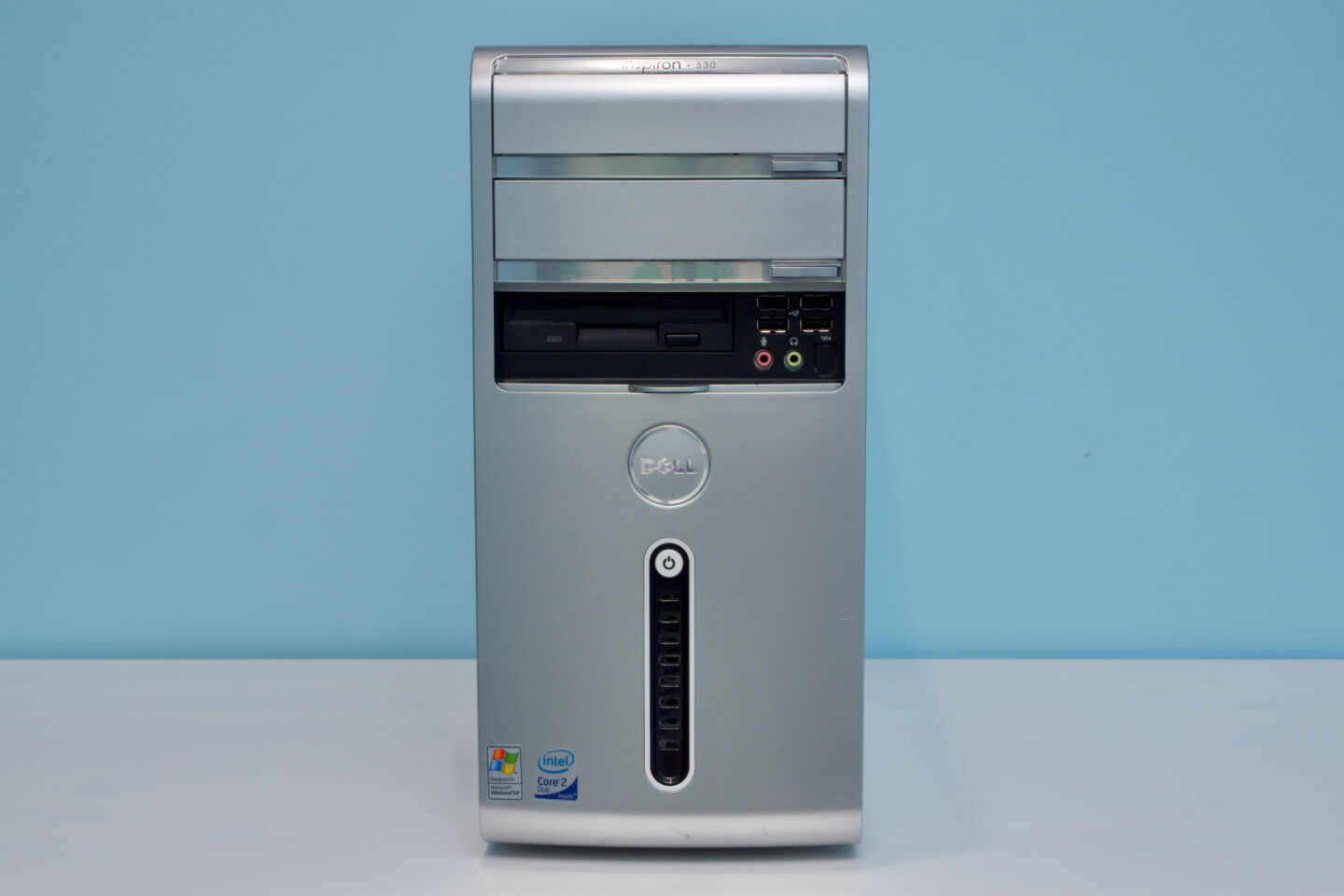
Enlarge / “Notepad.exe but with spellcheck” looks pretty much exactly like you’d expect it to.

Microsoft

Whatever else you can say about Windows 11—and whatever you think about its pushy tendencies and the Copilot feature that has been rolled out to pretty much everyone despite being labeled a “preview”—the operating system has ushered in a bit of a renaissance for decades-old built-in apps like Paint and Notepad.

Notepad’s development in particular has been striking; it had gotten small under-the-hood updates over the years, but in many ways, the version that was still in Windows 11 at launch in 2021 was the same app that Microsoft shipped with Windows XP, Windows 95, Windows 3.1, or even Windows 1.0.

An updated version of Notepad currently rolling out to Windows Insiders in the Canary and Dev channels is adding two more modern features to the old app: spellcheck and autocorrect. Per usual, spellcheck in Notepad highlights misspellings with red squiggly underlines, and right-clicking the word or pressing Shift + F10 will pop up a short menu of suggested fixes.

Recognizing that Notepad is often used to view or edit log or config files, Microsoft says that spellcheck “is off by default in log files and other file types typically associated with coding.” Spellcheck can be enabled or disabled for any given file type (or for individual files) in Notepad’s settings. Individual words can also be ignored in that document or added to your dictionary so they’ll always be ignored in every document you open.

If you’re upgrading from the Windows 10 version of Notepad, the spellcheck and autocorrect features join the tabbed interface, redesigned Settings screen, an auto-resume feature, and a handful of other tricks that the app has learned throughout Windows 11’s development.

Notepad is still well short of becoming a rich text editor, but there’s room for it to pick up a few more basic text and document editing features since Microsoft formally killed off WordPad in a recent Windows 11 update. Unlike Notepad, WordPad had been mostly left alone since a Windows 7-era refresh that added a user interface ribbon like the one in the (then-current) Office 2007 update. For free-of-charge rich text editing, Microsoft pushes users toward the online version of Microsoft Word instead.

Microsoft is currently testing Windows 11 24H2 in the Canary and Dev Windows Insider channels, a preview of this fall’s major update that will mark the operating system’s third anniversary. Updates to Notepad and other apps could roll out before then, though, in keeping with Microsoft’s “release them when they’re ready” approach to feature additions in the Windows 11 era.

Windows Insiders also got some new Paint features earlier this month; Microsoft tweaked the way the brush size selector works and has added the option to designate one of your image layers as the background layer. Wonders never cease.

Windows Notepad’s midlife renaissance continues with spellcheck and autocorrect Read More »
microsoft-debuts-major-surface-overhauls-that-regular-people-can’t-buy

Microsoft debuts major Surface overhauls that regular people can’t buy

business time —

Not the first business-exclusive Surfaces, but they’re the most significant.

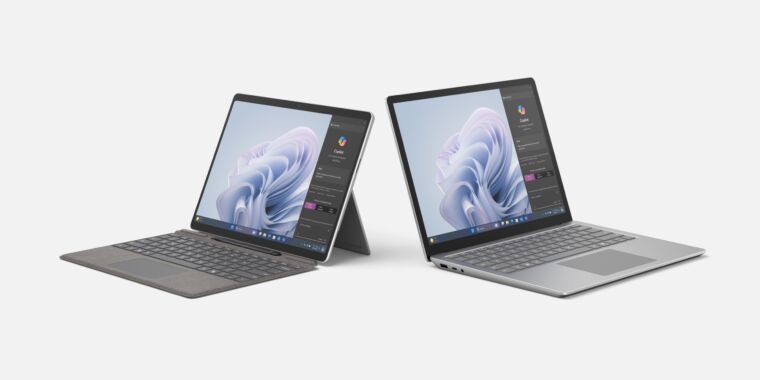
  • Microsoft

  • Yes, both devices launch with Microsoft’s new Copilot key.

    Microsoft

  • The Surface Pro 10. Looks familiar.

    Microsoft

  • An NFC reader supports physical security keys.

    Microsoft

  • The 13.5- and 15-inch Surface Laptop 6.

    Microsoft

  • The 15-inch Laptop 6 can be configured with a security card reader, another business thing.

    Microsoft

Microsoft is debuting major updates to two of its Surface PCs today: both the Surface Pro 10 and the 13.5- and 15-inch Surface Laptop 6 are major internal upgrades to Microsoft’s mainstream Surface devices. Both were last updated nearly a year and a half ago, and they’re both getting new Intel chips with significantly faster integrated GPUs, upgraded webcams, the Copilot key, and better battery life (according to Microsoft’s spec sheets).

The catch is that both of these Surfaces are being sold exclusively to businesses and commercial customers; as of this writing, regular people will not be able to buy one directly from Microsoft, and they won’t show up in most retail stores.

These aren’t the first Surface products released exclusively for businesses. Microsoft introduced a new business-exclusive Surface Go 3 tablet last fall, and a Surface Pro 7+ variant for businesses in early 2021. It is, however, the first time Microsoft has introduced new versions of its flagship tablet and laptop without also making them available to consumers. You can find some of these business-only PCs for sale at some third-party retailers, but usually with extended shipping times and higher prices than consumer systems.

Though this seems like a step back from the consumer PC market, Microsoft is still reportedly planning new consumer Surfaces. The Verge reports that Microsoft is planning a new Surface with Qualcomm’s upcoming Snapdragon X chip, to debut in May. It’s that device, rather than today’s traditional Intel-based Surface Pro 10, that will apparently take over as the flagship consumer Surface PC.

“We absolutely remain committed to consumer devices,” a Microsoft spokesperson told Ars. “Building great devices that people love to use aligns closely with our company mission to empower individuals as well as organizations. We are excited to be bringing devices to market that deliver great AI experiences to our customers. This commercial announcement is only the first part of this effort.”

This would be a big departure for Microsoft, which for a few years now has offered the Intel-based Surface tablets as its primary convertible tablets and the Arm-based Surface Pro X and Surface Pro 9 with 5G as separate niche variants. Older Qualcomm chips’ mediocre performance and lingering software and hardware compatibility issues with the Arm version of Windows have held those devices back, though Snapdragon X at least promises to solve the performance issues. If Microsoft plans to go all-in on Arm for its flagship consumer Surface device, it at least makes a little sense to retain the Intel-based Surface for businesses that will be more sensitive to those performance and compatibility problems.

What’s new in the Surface Pro 10 and Surface Laptop 6?

As for the hardware itself, for people who might be getting them at work or people who go out of their way to find one: The biggest upgrade is that both Surface devices have been updated with Intel Core Ultra CPUs based on the Meteor Lake architecture. While the processor performance improvements in these chips are a bit underwhelming, their Arc-integrated GPUs are significantly faster than the old Iris Xe GPUs. And the chips also include a neural processing unit (NPU) that can accelerate some AI and machine-learning workloads; Microsoft currently uses them mostly for fancy webcam effects, but more software will likely take advantage of them as they become more widely available.

Those new chips (and small battery capacity increases) have also bumped all of Microsoft’s battery life estimates up a bit. The Surface Pro 10 is said to be good for 19 hours of “typical device usage,” up from 15.5 hours from the Intel version of the Surface Pro 9. The 13.5 and 15-inch Surface Laptop 6 gets 18.5 and 19 hours of battery life, respectively, up from 18 and 17 hours for the Surface Laptop 5.

The downside is that the Surface Laptops are a bit heavier than the Laptop 5: 3.06 pounds and 3.7 pounds, compared to 2.86 and 3.44 pounds for the 13.5- and 15-inch models.

Both models also get new webcam hardware to go with those NPU-accelerated video effects. The Surface Pro goes from a 1080p webcam to a 1440p webcam, and the Surface Laptop goes from 720p to 1080p. The Surface Pro 10’s camera also features an “ultrawide field of view.” Both cameras support Windows Hello biometric logins using a scan of your face, and the Surface Pro 10 also has an NFC reader for use with hardware security keys. As business machines, both devices also have dedicated hardware TPM modules to support drive encryption and other features, instead of the firmware TPMs that the Surface Pro 9 and Surface Laptop 5 used. Neither supports Microsoft’s Pluton technology.

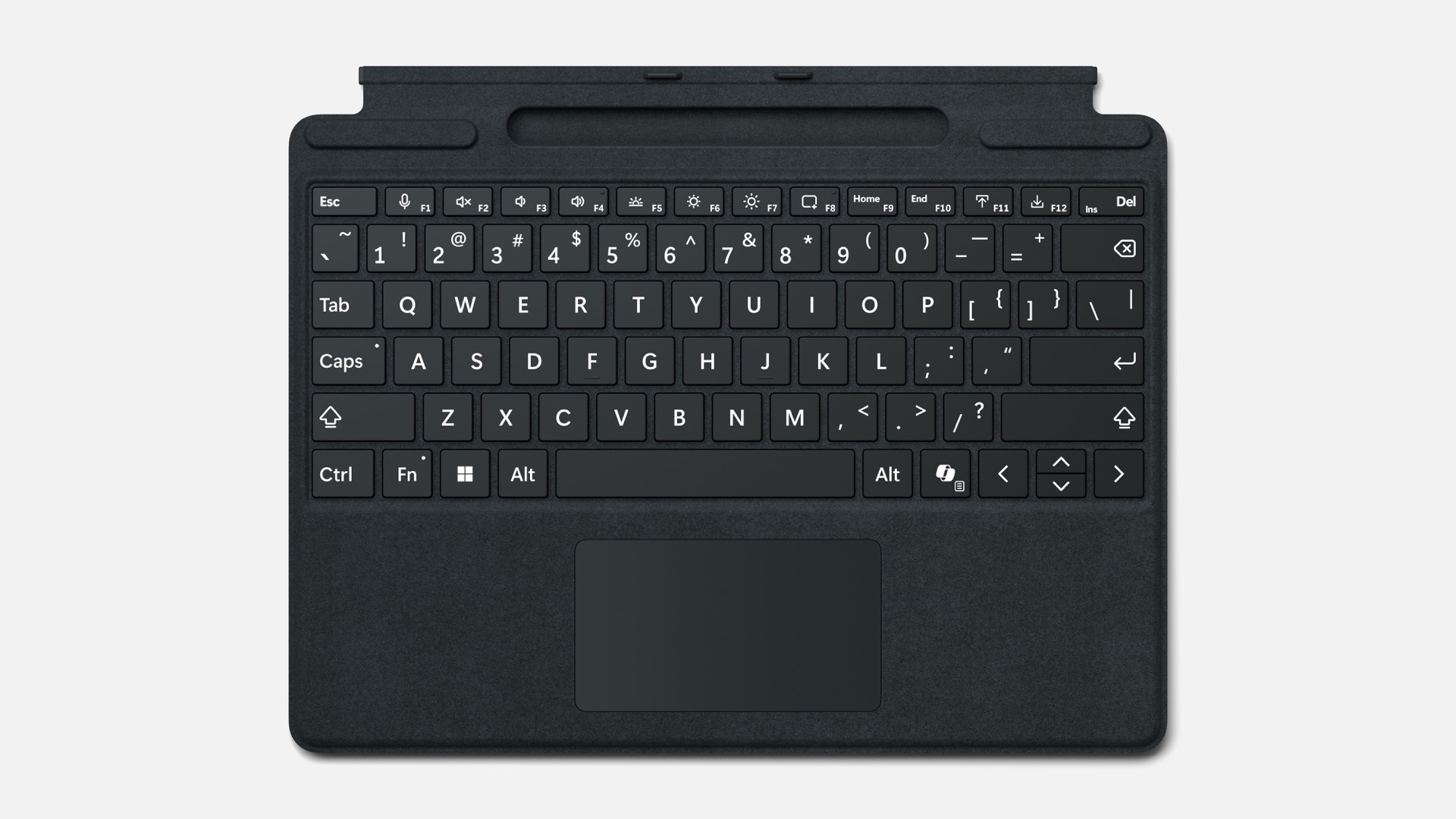
A new Type Cover with a brighter backlight and bolder legends was made for users with low vision or those who want to reduce eyestrain.

Enlarge / A new Type Cover with a brighter backlight and bolder legends was made for users with low vision or those who want to reduce eyestrain.

Microsoft

Neither device gets a big screen update, though there are small improvements. Microsoft says the Surface Pro 10’s 13-inch, 2880×1920 touchscreen is 33 percent brighter than before, with a maximum brightness of 600 nits. The screen has a slightly better contrast ratio than before and an anti-reflective coating; it also still supports a 120 Hz refresh rate. The Surface Laptop 6 doesn’t get a brightness bump but does have better contrast and an anti-reflective coating. Both devices are still using regular IPS LCD panels rather than OLED or something fancier.

And finally, some odds and ends. The 15-inch Surface Laptop 6 picks up a second Thunderbolt port and optional support for a smart card reader. The Surface Pro now has a “bold keyset” keyboard option, with an easier-to-read font and brighter backlight for users with low vision. These keyboards should also work with some older Surface devices, if you can find them.

The systems will be available to pre-order “in select markets” on March 21, and they’ll begin shipping on April 9. Microsoft didn’t share any specifics about pricing, though as business machines, we’d generally expect them to cost a little more than equivalent consumer PCs.

Listing image by Microsoft

Microsoft debuts major Surface overhauls that regular people can’t buy Read More »
what-i-do-to-clean-up-a-“clean-install”-of-windows-11-23h2-and-edge

What I do to clean up a “clean install” of Windows 11 23H2 and Edge

What I do to clean up a “clean install” of Windows 11 23H2 and Edge

Aurich Lawson | Getty Images

I’ve written before about my nostalgia for the Windows XP- or Windows 7-era “clean install,” when you could substantially improve any given pre-made PC merely by taking an official direct-from-Microsoft Windows install disk and blowing away the factory install, ridding yourself of 60-day antivirus trials, WildTangent games, outdated drivers, and whatever other software your PC maker threw on it to help subsidize its cost.

You can still do that with Windows 11—in fact, it’s considerably easier than it was in those ’00s versions of Windows, with multiple official Microsoft-sanctioned ways to download and create an install disk, something you used to need to acquire on your own. But the resulting Windows installation is a lot less “clean” than it used to be, given the continual creep of new Microsoft apps and services into more and more parts of the core Windows experience.

I frequently write about Windows, Edge, and other Microsoft-adjacent technologies as part of my day job, and I sign into my daily-use PCs with a Microsoft account, so my usage patterns may be atypical for many Ars Technica readers. But for anyone who uses Windows, Edge, or both, I thought it might be useful to detail what I’m doing to clean up a clean install of Windows, minimizing (if not totally eliminating) the number of annoying notifications, Microsoft services, and unasked-for apps that we have to deal with.

That said, this is not a guide about creating a minimally stripped-down, telemetry-free version of Windows that removes anything other than what Microsoft allows you to remove. There are plenty of experimental hacks dedicated to that sort of thing—NTDev’s Tiny11 project is one—but removing built-in Windows components can cause unexpected compatibility and security problems, and Tiny11 has historically had issues with basic table-stakes stuff like “installing security updates.”

Avoiding Microsoft account sign-in

The most contentious part of Windows 11’s setup process relative to earlier Windows versions is that it mandates Microsoft account sign-in, with none of the readily apparent “limited account” fallbacks that existed in Windows 10. As of Windows 11 22H2, that’s true of both the Home and Pro editions.

There are two reasons I can think of not to sign in with a Microsoft account. The first is that you want nothing to do with a Microsoft account, thank you very much. Signing in makes you more of a target for Microsoft 365, OneDrive, or Game Pass subscription upsells since all you need to do is add them to an account that already exists, and Windows setup will offer subscriptions to each if you sign in first.

The second—which is my situation—is that you do use a Microsoft account because it offers some handy benefits like automated encryption of your local drive (having those encryption keys saved to my account has saved me a couple of times) or syncing of browser info and some preferences. But you don’t want to sign in at setup, either because you’re just testing something or you prefer your user folder to be located at “C:UsersAndrew” rather than “C:Users.”

Regardless of your reasoning, if you don’t want to bother with sign-in at setup, you have two options (three for Windows 11 Pro users):

Use the command line

During Windows 11 Setup, after selecting a language and keyboard layout but before connecting to a network, hit Shift+F10 to open the command prompt. Type OOBEBYPASSNRO, hit Enter, and wait for the PC to reboot.

When it comes back, click “I don’t have Internet” on the network setup screen, and you’ll have recovered the option to use “limited setup” (aka a local account) again, like older versions of Windows 10 and 11 offered.

For Windows 11 Pro

Windows 11 Pro users, take a journey with me.

Proceed through the Windows 11 setup as you normally would, including connecting to a network and allowing the system to check for updates. Eventually, you’ll be asked whether you’re setting your PC up for personal use or for “work or school.”

Select the work or school option, then sign-in options, at which point you’ll finally be asked whether you plan to join the PC to a domain. Tell it you are (even though you aren’t), and you’ll see the normal workflow for creating a “limited” local account.

This one won’t work if you don’t want to start your relationship with a new computer by lying to it, but it also doesn’t require going to the command line.

What I do to clean up a “clean install” of Windows 11 23H2 and Edge Read More »

windows-11-24h2-goes-from-“unsupported”-to-“unbootable”-on-some-older-pcs

Windows 11 24H2 goes from “unsupported” to “unbootable” on some older PCs

is anyone still reading this using a Core 2 Duo? —

New Windows version needs CPU features that became common in the late 00s.

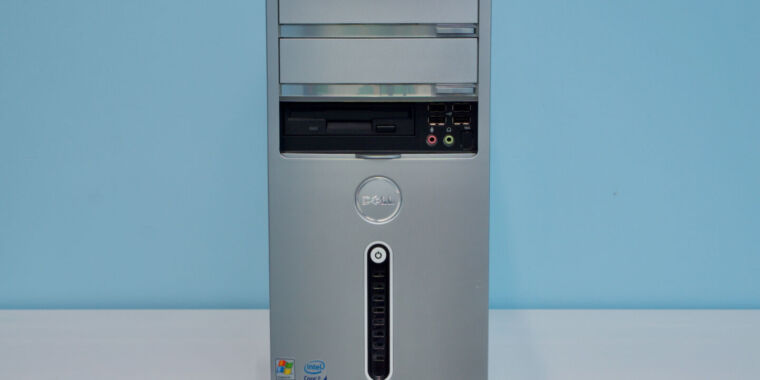
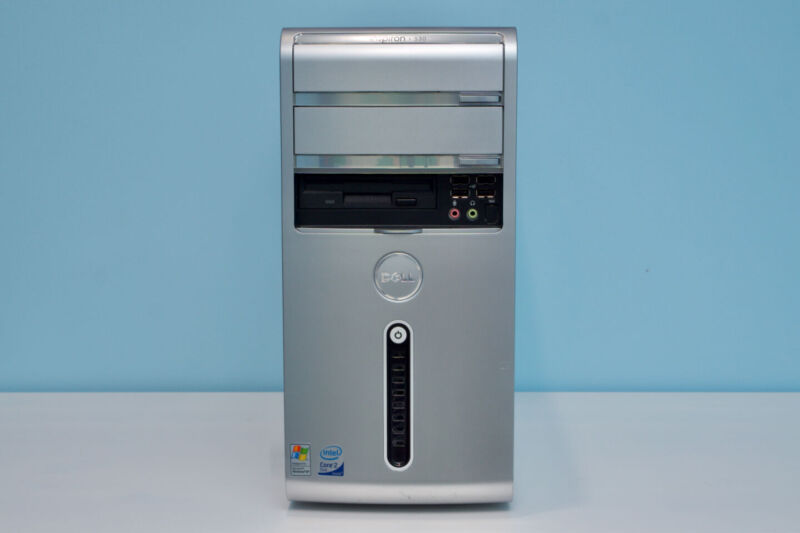
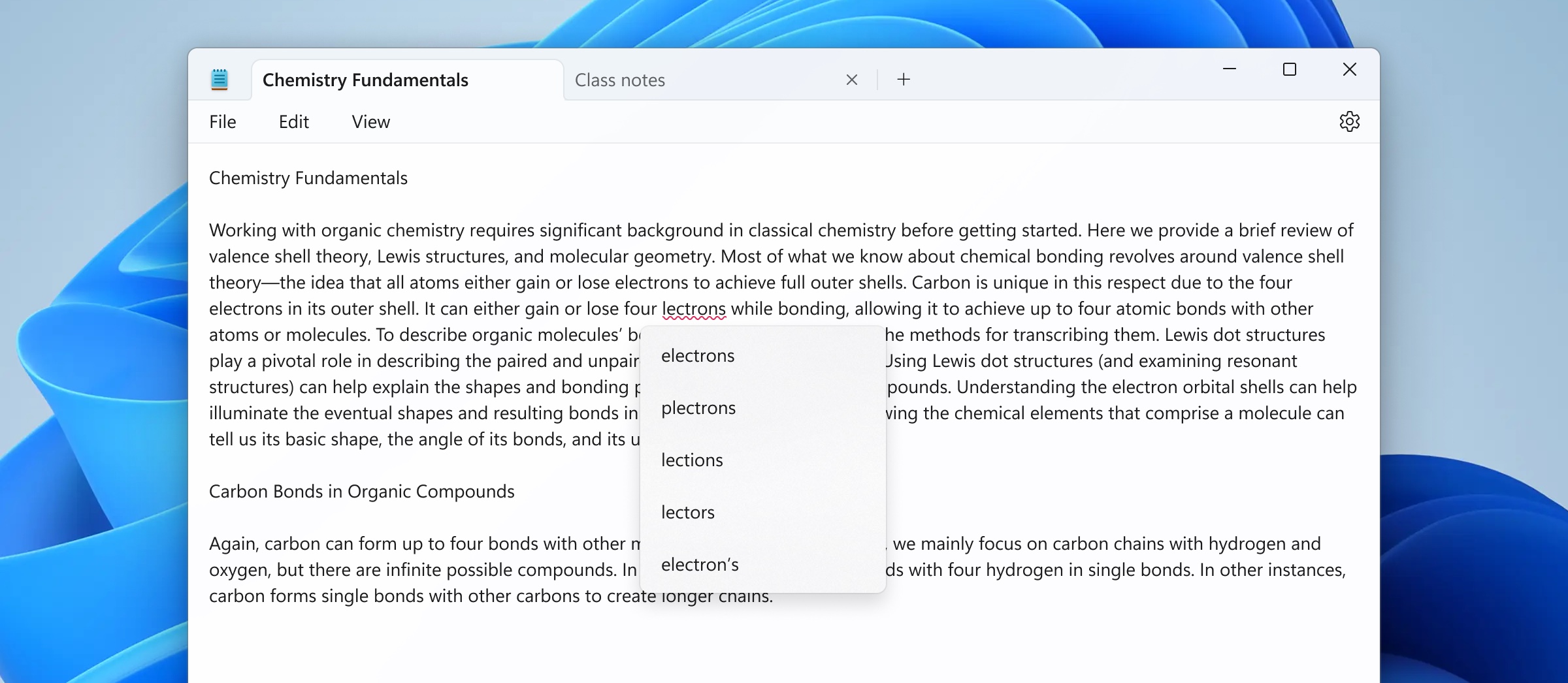
We've installed Windows 11 on systems as old as this Core 2 Duo Inspiron tower. As of version 24H2, the OS may no longer be bootable on these systems.

Enlarge / We’ve installed Windows 11 on systems as old as this Core 2 Duo Inspiron tower. As of version 24H2, the OS may no longer be bootable on these systems.

Andrew Cunningham

Officially, Windows 11 has higher system requirements than Windows 10. But to date, once you’ve bypassed those requirement checks, there have been few consequences to running Windows 11 on old hardware. Unsupported or not, Windows 11 would run on pretty much any 64-bit PC that could boot Windows 10—we’ve run it on PCs as old as a Windows XP-era Core 2 Duo desktop.

That’s apparently changing a bit in Windows 11’s 24H2 update, which Microsoft began testing earlier this month. According to posts from a user named Bob Pony on X, formerly Twitter, the latest Windows 11 builds refuse to boot on older processors that don’t support a relatively obscure instruction called “POPCNT.” Short for “population count,” it’s used for “counting the number of bits in a machine word,” according to an explainer by programmer Vaibhav Sagar.

It’s unclear why POPCNT has become the load-bearing CPU instruction for a whole bunch of Windows components, but it looks like the Windows kernel, the system’s USB and network drivers, and other core system files now require the instruction as of Windows 11 24H2.

In modern x86 CPUs, POPCNT is implemented as part of the SSE4 instruction set. For Intel’s chips, it was added as part of SSE4.2 in the original first-generation Core architecture, codenamed Nehalem. In AMD’s processors, it’s included in SSE4a, first used in Phenom, Athlon, and Sempron CPUs based on the K10 architecture. These architectures date back to 2008 and 2007, respectively.

That effectively bars mid-2000s Intel Core 2 Duo systems and early Athlon 64-era PCs from booting Windows 11 at all, not that they officially supported it in the first place. This means the change should mainly affect retro-computing enthusiasts who spend their days making YouTube videos in the “we installed Windows 11 on a potato, let’s see how it runs” genre rather than users of actual systems. Even if you upgraded these PCs with 4 or 8GB of RAM and changed out the creaky old hard drives for SSDs, these are not PCs that will run Windows 10, Windows 11, or any modern apps particularly well.

These same retro-computing enthusiasts may also find a way around this requirement eventually. Windows 10 and 11 won’t boot on systems without SSE2 support, for example, but that hasn’t stopped people from finding a way to do it anyway.

Though Windows 11’s system requirements suggest CPU clock speed and the amounts of RAM and storage your PC has, system requirements in the modern era have become more granular and esoteric. For example, it seems as though Windows 11’s CPU requirement (an 8th-gen Intel Core CPU or newer, or an AMD Ryzen 2000-series CPU or newer) is driven at least partly by support for “mode-based execution control” (MBEC), a security feature that accelerates some of the operating system’s memory integrity protections. No CPU manufacturer is including stuff like POPCNT or MBEC in their marketing materials, but modern Windows support is increasingly dictated by these kinds of features.

Listing image by Microsoft

Windows 11 24H2 goes from “unsupported” to “unbootable” on some older PCs Read More »

microsoft-starts-testing-windows-11-24h2-as-this-year’s-big-update-takes-shape

Microsoft starts testing Windows 11 24H2 as this year’s big update takes shape

24h1 isn’t even over yet —

Windows 11 23H2 didn’t make its first appearance until much later in the year.

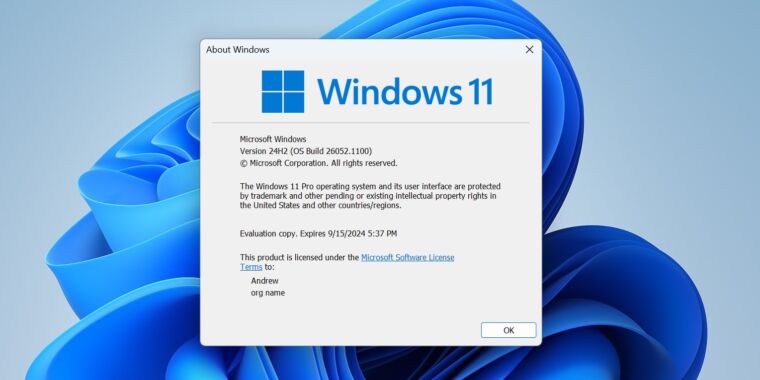
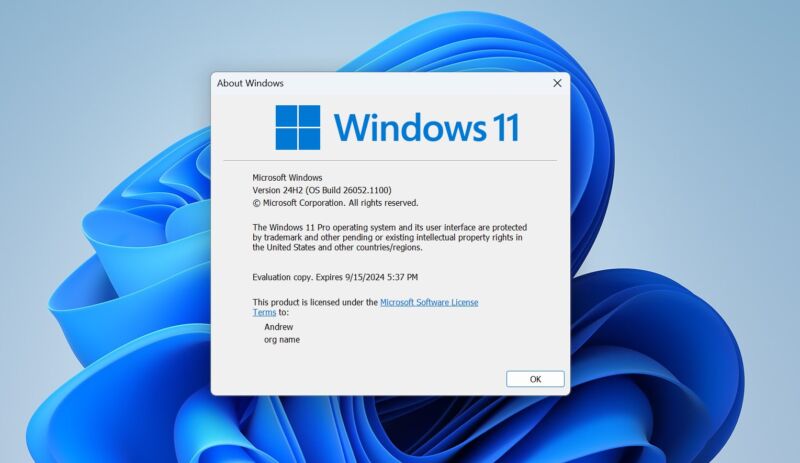
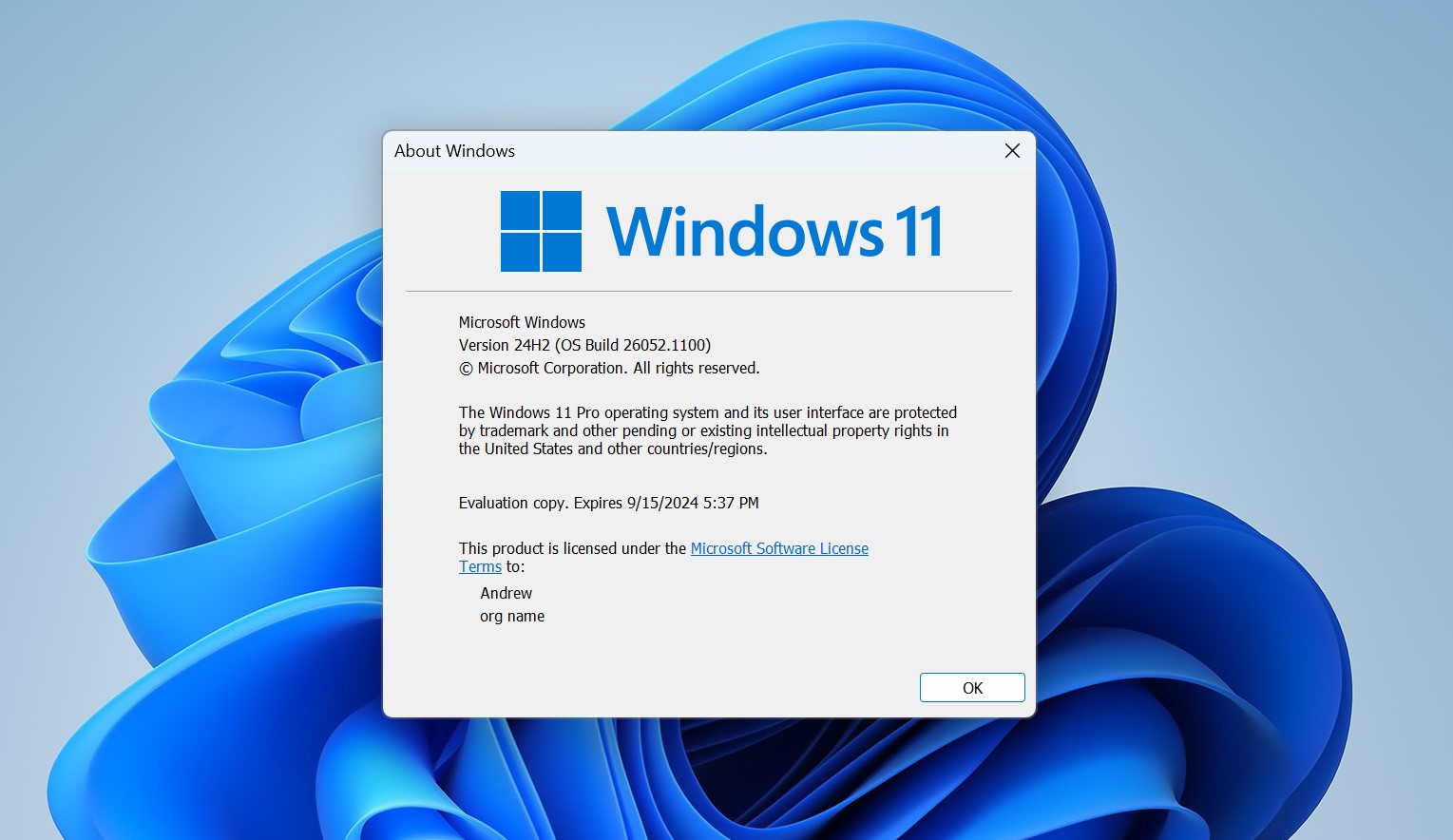
Windows 11 24H2 has made its first appearance.

Enlarge / Windows 11 24H2 has made its first appearance.

Andrew Cunningham

The next major release of Windows isn’t due until the end of the year, but it looks like Microsoft is getting an early start. New Windows Insider builds released to the Canary and Dev channels both roll their version numbers to “24H2,” indicating that they’re the earliest builds of what Microsoft will eventually release to all Windows users sometime this fall.

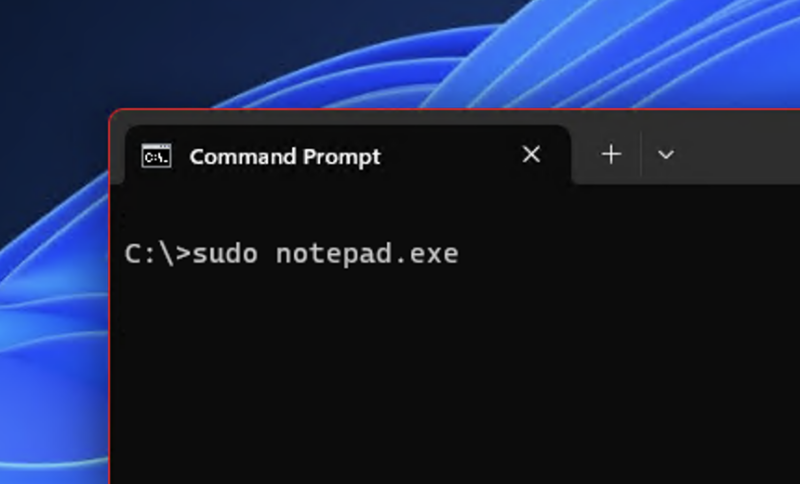
New features in 24H2 include a smattering of things Microsoft has already been testing in public since the big batch of new features that dropped last September, plus a handful of new things. The biggest new one is the addition of Sudo for Windows, a version of a Linux/Unix terminal command that first broke cover in a preview build earlier this month. The new build also includes better support for hearing aids, support for creating 7-zip and TAR archives in File Explorer, an energy-saving mode, and new changes to the SMB protocol. This build also removes both the WordPad and the Tips apps.

Some of these features may be released to all Windows 11 users before the end of the year. During the Windows 11 era, it’s been Microsoft’s practice to drop new features in several small batches throughout the year.

The early change to the 24H2 numbering is a departure from last year, where Windows 11 23H2 didn’t appear publicly until the end of October. And even then, it was mostly just an update that rolled over the version number and Microsoft’s support clock for software updates—most of its “new” features had actually rolled out to PCs running Windows 11 22H2 the month before.

There are some signs that this update will be fairly significant in scope. In addition to all the features Microsoft listed, there are signs that the company is revising things like the Windows setup process that you go through when installing the OS from scratch. The current setup screens have remained essentially unchanged since Windows Vista in 2006, with only light and mostly cosmetic tweaks since then (and even in the redesigned version, window borders are still done in the Vista/7 style).

Logistically, this initial build of Windows 11 24H2 allows Windows Insider testers in the most unstable Canary channel to switch to the less unstable Dev channel without completely reinstalling Windows. Eventually, this… window will close, and the Canary channel will jump into a new series of build numbers.

Whither Windows 12?

Some news outlets and users have taken this update’s announcement as proof that the rumored “Windows 12” won’t happen this year. The existence of Windows 12, largely inferred based on rumors and stray statements from PC makers and analysts, has never been officially confirmed or denied by Microsoft.

A 24H2 update does suggest that Windows 11 will continue on for at least another year, but it doesn’t necessarily preclude a Windows 12 launch this year. Windows 10 received a 21H2 update the year Windows 11 came out and a 22H2 update the year after that (not that either came with significant new features). Microsoft could decide to rename the upcoming feature update on relatively short notice—like it originally did with Windows 11, which began as a design overhaul for Windows 10. Windows 12 might happen, or it might not, but I wouldn’t take this Windows 11 24H2 update as decisive evidence one way or the other.

AI was said to be a major focus for the hypothetical Windows 12, as it has been for the last few major Windows 11 updates. Trendforce went as far as to say that “AI PCs” running “the next generation of Windows” would need a “baseline” of 16GB of RAM, though when asked about this, a Microsoft representative told us that the company “doesn’t comment on rumors and speculation.” Trendforce also said that these AI PCs would need neural processing units (NPUs) that met certain performance standards.

To date, Microsoft hasn’t imposed any specific system requirements for Copilot or Windows’ other generative AI features, aside from 4GB RAM and 720p screen requirements for the Windows 10 version of Copilot, but this could change if more of Windows’ AI features begin relying on local processing rather than cloud processing.

Listing image by Microsoft

Microsoft starts testing Windows 11 24H2 as this year’s big update takes shape Read More »

windows-version-of-the-venerable-linux-“sudo”-command-shows-up-in-preview-build

Windows version of the venerable Linux “sudo” command shows up in preview build

sudo start your photocopiers —

Feature is experimental and, at least currently, not actually functional.

Not now, but maybe soon?

Enlarge / Not now, but maybe soon?

Andrew Cunningham

Microsoft opened its arms to Linux during the Windows 10 era, inventing an entire virtualized subsystem to allow users and developers to access a real-deal Linux command line without leaving the Windows environment. Now, it looks like Microsoft may embrace yet another Linux feature: the sudo command.

Short for “superuser do” or “substitute user do” and immortalized in nerd-leaning pop culture by an early xkcd comic, sudo is most commonly used at the command line when the user needs administrator access to the system—usually to install or update software, or to make changes to system files. Users who aren’t in the sudo user group on a given system can’t run the command, protecting the rest of the files on the system from being accessed or changed.

In a post on X, formerly Twitter, user @thebookisclosed found settings for a Sudo command in a preview version of Windows 11 that was posted to the experimental Canary channel in late January. WindowsLatest experimented with the setting in a build of Windows Server 2025, which currently requires Developer Mode to be enabled in the Settings app. There’s a toggle to turn the sudo command on and off and a separate drop-down to tweak how the command behaves when you use it, though as of this writing the command itself doesn’t actually work yet.

The sudo command is also part of the Windows Subsystem for Linux (WSL), but that version of the sudo command only covers Linux software. This one seems likely to run native Windows commands, though obviously we won’t know exactly how it works before it’s enabled and fully functional. Currently, users who want a sudo-like command in Windows need to rely on third-party software like gsudo to accomplish the task.

The benefit of the sudo command for Windows users—whether they’re using Windows Server or otherwise—would be the ability to elevate the privilege level without having to open an entirely separate command prompt or Windows Terminal window. According to the options available in the preview build, commands run with sudo could be opened up in a new window automatically, or they could happen inline, but you’d never need to do the “right-click, run-as-administrator” dance again if you didn’t want to.

Microsoft regularly tests new Windows features that don’t make it into the generally released public versions of the operating system. This feature could also remain exclusive to Windows Server without making it into the consumer version of Windows. But given the command’s presence in Linux and macOS, it will be a nice quality-of-life improvement for Windows users who spend lots of time staring at the command prompt.

Microsoft is borrowing a longstanding Linux feature here, but that road goes both ways—a recent update to the Linux systemd software added a Windows-inspired “blue screen of death” designed to give users more information about crashes when they happen.

Windows version of the venerable Linux “sudo” command shows up in preview build Read More »

wordpad-out;-80gbps-usb-support-and-other-win-11-features-in-testing-this-month

WordPad out; 80Gbps USB support and other Win 11 features in testing this month

Can’t stop won’t stop —

Microsoft’s next batch of Windows 11 feature updates is taking shape.

Green USB-C cable

Windows 11’s big feature update in September included a long list of minor changes, plus the Copilot AI assistant; that update was followed by Windows 11 23H2 in late October, which reset the operating system’s timeline for technical support and security updates but didn’t add much else in and of itself. But Windows development never stops these days, and this month’s Insider Preview builds have already shown us a few things that could end up in the stable version of the operating system in the next couple of months.

One major addition, which rolled out to Dev Channel builds on January 11 and Beta Channel builds today, is support for 80Gbps USB 4 ports. These speeds are part of the USB4 Version 2.0 spec—named with the USB-IF’s typical flair for clarity and consistency—that was published in 2022. Full 80Gbps speeds are still rare and will be for the foreseeable future, but Microsoft says that they’ll be included the Razer Blade 18 and a handful of other PCs with Intel’s 14th-generation HX-series laptop processors. We’d expect the new speeds to proliferate slowly and mostly in high-end systems over the next few months and years.

Another addition to that January 11 Dev Channel build is a change in how the Copilot generative AI assistant works. Normally, Copilot is launched by the user manually, either by clicking the icon on the taskbar, hitting the Win+C key combo, or (in some new PCs) by using the dedicated Copilot button on the keyboard. In recent Dev Channel builds, the Copilot window will open automatically on certain PCs as soon as you log into Windows, becoming part of your default desktop unless you turn it off in Settings.

The Copilot panel will only open by default on screens that meet minimum size and resolution requirements, things that Windows already detects and takes into account when setting your PC’s default zoom and showing available Snap Layouts, among other things. Microsoft says it’s testing the feature on screens that are 27 inches or larger with 1,920 or more horizontal pixels (for most screens, this means a minimum resolution of 1080p). For PCs without Copilot, including those that haven’t been signed into a Microsoft account, the feature will continue to be absent.

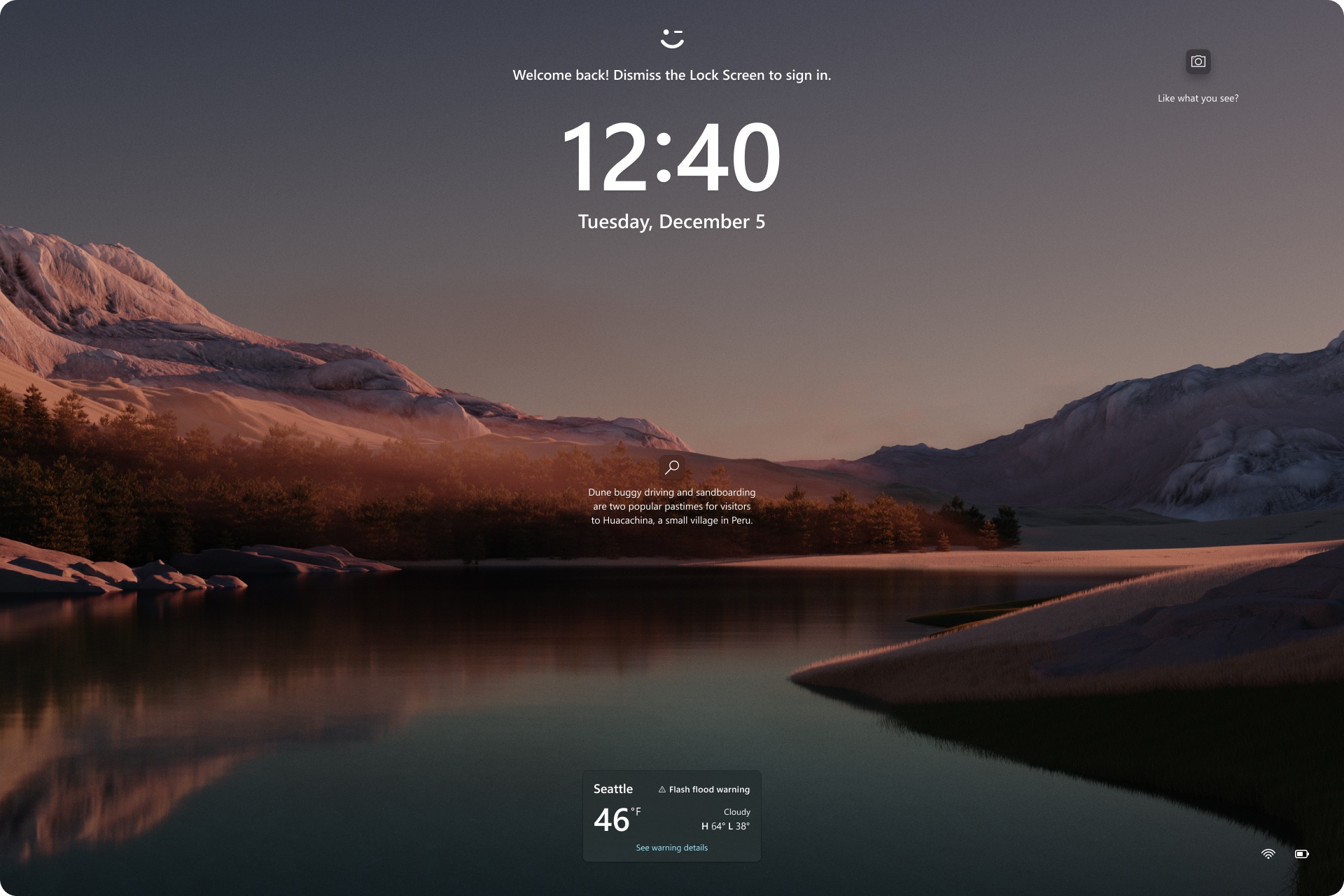
The

Enlarge / The “richer weather experience on the Lock screen,” seen in the bottom-center of this screenshot.

Microsoft

Other additions to the Dev Channel builds this month include easy Snipping Tool editing for Android screenshots from phones that have been paired to your PC, custom user-created voice commands, the ability to share URLs directly to services like WhatsApp and Gmail from the Windows share window, a new Weather widget for the Windows lock screen, and app install notifications from the Microsoft store.

Microsoft hasn’t publicized any of the changes it has made to its Canary channel builds since January 4—this is typical since it changes the fastest, and the tested features are the most likely to be removed or significantly tweaked before being released to the public. Most of the significant additions from that announcement have since made it out to the other channels, but there are a couple of things worth noting. First, there’s a new Energy Saver taskbar icon for desktop PCs without batteries, making it easier to tell when the feature is on without creating confusion. And the venerable WordPad app, originally marked for deletion in September, has also been removed from these builds and can’t be reinstalled.

Microsoft doesn’t publish Windows feature updates on an exact cadence beyond its commitment to deliver one with a new version number once per year in the fall. Last year’s first major batch of Windows 11 additions rolled out at the end of February, so a late winter or early spring launch window for the next batch of features could make sense.

WordPad out; 80Gbps USB support and other Win 11 features in testing this month Read More »

bing-search-shows-few,-if-any,-signs-of-market-share-increase-from-ai-features

Bing Search shows few, if any, signs of market share increase from AI features

high hopes —

Bing’s US and worldwide market share is about the same as it has been for years.

Bing Search shows few, if any, signs of market share increase from AI features

Microsoft

Not quite one year ago, Microsoft announced a “multi-year, multi-billion dollar investment” in OpenAI, a company that had made waves in 2022 with its ChatGPT chatbot and DALL-E image creator. The next month, Microsoft announced that it was integrating a generative AI chatbot into its Bing search engine and Edge browser, and similar generative AI features were announced for Windows in the apps formerly known as Microsoft Office, Microsoft Teams, and other products.

Adding AI features to Bing was meant to give it an edge over Google, and reports indicated that Google was worried enough about it to accelerate its own internal generative AI efforts. Microsoft announced in March 2023 that Bing surpassed the 100 million monthly active users mark based on interest in Bing Chat and its ilk; by Microsoft’s estimates, each percentage of Google’s search market share that Bing could siphon away was worth as much as $2 billion to Microsoft.

A year later, it looks like Microsoft’s AI efforts may have helped Bing on the margins, but they haven’t meaningfully eroded Google’s search market share, according to Bloomberg. Per Bloomberg’s analysis of data from Sensor Tower, Bing usage had been down around 33 percent year over year just before the AI-powered features were added, but those numbers had rebounded by the middle of 2023.

Microsoft hasn’t given an official update on Bing’s monthly active users in quite a while—we’ve asked the company for an update, and will share it if we get one—though Microsoft Chief Marketing Officer Yusuf Medhi told Bloomberg that “millions and millions of people” were still using the new AI features.

StatCounter data mostly tells a similar story. According to its data, Google’s worldwide market share is currently in the low 90s, and it has been for virtually the entire 15-year period for which StatCounter offers data. Bing’s worldwide market share number over the same period has been remarkably stable; it was about 3.5 percent in the summer of 2009, when what had been known as Live Search was renamed Bing in the first place, and as of December 2023, it was still stuck at around 3.4 percent.

Recent US data is slightly more flattering for Microsoft, where Bing’s usage rose from 6.7 percent in December 2022 to 7.7 percent in December 2023. But that doesn’t necessarily suggest any kind of AI-fueled influx in new Bing search users—usage remained in the mid-to-high 6 percent range through most of 2023 before ticking up right at the end of the year—and Bing’s US usage has floated in that same 6–7 percent zone for most of the last decade.

It even seems like Microsoft is making moves to distance its AI efforts from Bing a bit. What began as “Bing Chat” or “the new Bing” is now known as Windows Copilot—both inside Windows 11 and elsewhere. Earlier this week, the Bing Image Creator became “Image Creator from Designer.” Both products still feature Bing branding prominently—the Copilot screen in Windows 11 still says “with Bing” at the top of it, and the Image Creator tool is still hosted on the Bing.com domain. But if these new AI features aren’t driving Bing’s market share up, then it makes sense for Microsoft to create room for them to stand on their own.

That’s not to say Google’s search dominance is assured. Leipzig University researchers published a study earlier this week (PDF) suggesting Google, Bing, and the Bing-powered DuckDuckGo had seen “an overall downward trend in text quality,” especially for heavily SEO-optimized categories like purchase recommendations and product reviews.

Bing Search shows few, if any, signs of market share increase from AI features Read More »

microsoft-is-adding-a-new-key-to-pc-keyboards-for-the-first-time-since-1994

Microsoft is adding a new key to PC keyboards for the first time since 1994

key change —

Copilot key will eventually be required in new PC keyboards, though not yet.

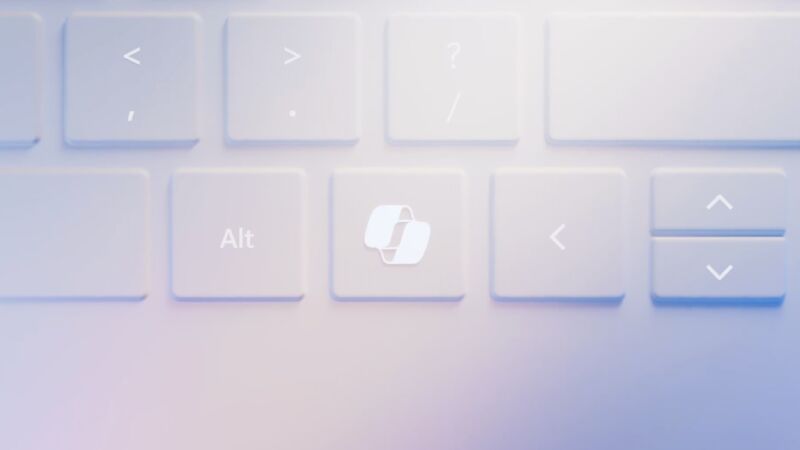
A rendering of Microsoft's Copilot key, as seen on a Surface-esque laptop keyboard.

Enlarge / A rendering of Microsoft’s Copilot key, as seen on a Surface-esque laptop keyboard.

Microsoft

Microsoft pushed throughout 2023 to add generative AI capabilities to its software, even extending its new Copilot AI assistant to Windows 10 late last year. Now, those efforts to transform PCs at a software level is extending to the hardware: Microsoft is adding a dedicated Copilot key to PC keyboards, adjusting the standard Windows keyboard layout for the first time since the Windows key first appeared on its Natural Keyboard in 1994.

The Copilot key will, predictably, open up the Copilot generative AI assistant within Windows 10 and Windows 11. On an up-to-date Windows PC with Copilot enabled, you can currently do the same thing by pressing Windows + C. For PCs without Copilot enabled, including those that aren’t signed into Microsoft accounts, the Copilot key will open Windows Search instead (though this is sort of redundant, since pressing the Windows key and then typing directly into the Start menu also activates the Search function).

A quick Microsoft demo video shows the Copilot key in between the cluster of arrow keys and the right Alt button, a place where many keyboards usually put a menu button, a right Ctrl key, another Windows key, or something similar. The exact positioning, and the key being replaced, may vary depending on the size and layout of the keyboard.

We asked Microsoft if a Copilot key would be required on OEM PCs going forward; the company told us that the key isn’t mandatory now, but that it expects Copilot keys to be required on Windows 11 keyboards “over time.” Microsoft often imposes some additional hardware requirements on major PC makers that sell Windows on their devices, beyond what is strictly necessary to run Windows itself.

If nothing else, this new key is a sign of how much Microsoft wants people to use Copilot and its other generative AI products. Plenty of past company initiatives—Bing, Edge, Cortana, and the Microsoft Store, to name a few—never managed to become baked into the hardware like this. In the Windows 8 epoch, Microsoft required OEMs to build a Windows button into the display bezel of devices with touchscreens, but that requirement eventually disappeared. If Copilot fizzles or is deemphasized the way Cortana was, the Copilot key could become a way to quickly date a Windows PC from the mid-2020s, the way that changes to the Windows logo date keyboards from earlier eras.

We’ll definitely see more AI features from Microsoft this year, too—Microsoft Chief Marketing Officer Yusuf Medhi called 2024 “the year of the AI PC” in today’s announcement.

Chipmakers like Intel, AMD, and Qualcomm are all building neural processing units (NPUs) into their latest silicon, and we’ll likely see more updates for Windows apps and features that can take advantage of this new on-device processing capability. Rumors also indicate that we could see a “Windows 12” release as soon as this year; while Windows 11 has mostly had AI features stacked on top of it, a new OS could launch with AI features more deeply integrated into the UI and apps, as well as additional hardware requirements for some features.

Microsoft says the Copilot key will debut in some PCs that will be announced at the Consumer Electronics Show this month. Surface devices with the revised keyboard layout are “upcoming.”

Microsoft is adding a new key to PC keyboards for the first time since 1994 Read More »