Windows 11

microsoft-shares-its-process-(and-discarded-ideas)-for-redone-windows-11-start-menu

Microsoft shares its process (and discarded ideas) for redone Windows 11 Start menu

Microsoft put a lot of focus on Windows 11’s design when it released the operating system in 2021, making a clean break with the design language of Windows 10 (which had, itself, simply tweaked and adapted Windows 8’s design language from 2012). Since then, Microsoft has continued to modify the software’s design in bits and pieces, both for individual apps and for foundational UI elements like the Taskbar, system tray, and Windows Explorer.

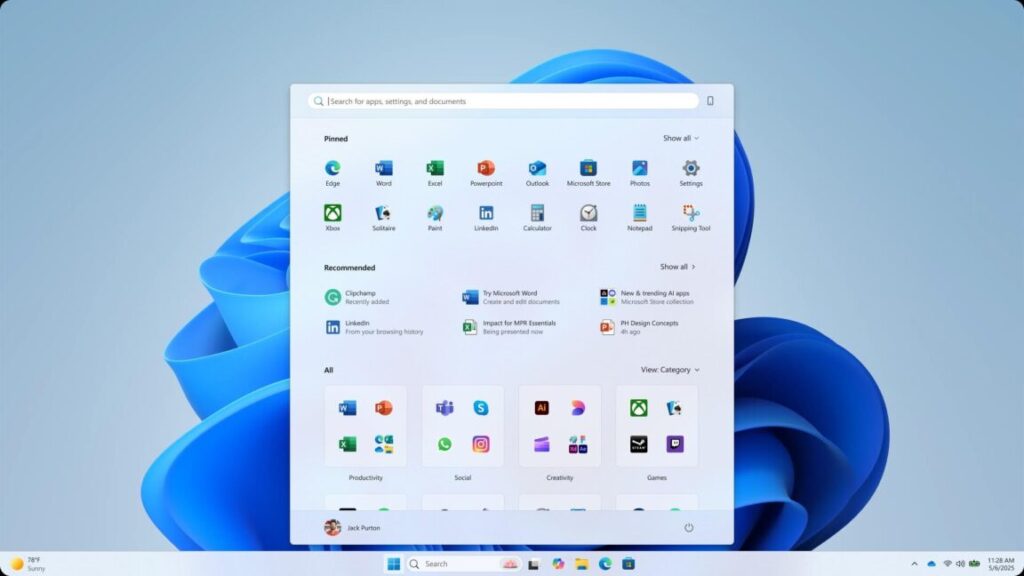
Microsoft is currently testing a redesigned version of the Windows 11 Start menu, one that reuses most of the familiar elements from the current design but reorganizes them and gives users a few additional customization options. On its Microsoft Design blog today, the company walked through the new design and showed some of the ideas that were tried and discarded in the process.

This discarded Start menu design toyed with an almost Windows XP-ish left-hand sidebar, among other elements. Microsoft

Microsoft says it tested its menu designs with “over 300 Windows 11 fans” in unmoderated studies, “and dozens more” in “live co-creation calls.” These testers’ behavior and reactions informed what Microsoft kept and what it discarded.

Many of the discarded menu ideas include larger previews for recently opened files, more space given to calendar reminders, and recommended “For You” content areas; one has a “create” button that would presumably activate some generative AI feature. Looking at the discarded designs, it’s easier to appreciate that Microsoft went with a somewhat more restrained redesign of the Start menu that remixes existing elements rather than dramatically reimagining it.

Microsoft has also tweaked the side menu that’s available when you have a phone paired to your PC, making it toggleable via a button in the upper-right corner. That area is used to display recent texts and calls and other phone notifications, recent contacts, and battery information, among a couple other things.

Microsoft’s team wanted to make sure the new menu “felt like it belonged on both a [10.5-inch] Surface Go and a 49-inch ultrawide,” a nod to the variety of hardware Microsoft needs to consider when making any design changes to Windows. The menu the team landed on is essentially what has been visible in Windows Insider Preview builds for a month or so now: two rows of pinned icons, a “Recommended” section with recently installed apps, recently opened files, a (sigh) Windows Store app that Microsoft thinks you should try, and a few different ways to access all the apps on your PC. By default, these will be arranged by category, though you can also view a hierarchical alphabetized list like you can in the current Start menu; the big difference is that this view is at the top level of the Start menu in the new version, rather than being tucked away behind a button.

For more on the history of the Start menu from its inception in the early ’90s through the release of Windows 10, we’ve collected tons of screenshots and other reminiscences here.

Photo of Andrew Cunningham

Andrew is a Senior Technology Reporter at Ars Technica, with a focus on consumer tech including computer hardware and in-depth reviews of operating systems like Windows and macOS. Andrew lives in Philadelphia and co-hosts a weekly book podcast called Overdue.

Microsoft shares its process (and discarded ideas) for redone Windows 11 Start menu Read More »
office-apps-on-windows-10-are-no-longer-tied-to-its-october-2025-end-of-support-date

Office apps on Windows 10 are no longer tied to its October 2025 end-of-support date

For most users, Windows 10 will stop receiving security updates and other official support from Microsoft on October 14, 2025, about five months from today. Until recently, Microsoft had also said that users running the Microsoft Office apps on Windows 10 would also lose support on that date, whether they were using the continually updated Microsoft 365 versions of those apps or the buy-once-own-forever versions included in Office 2021 or Office 2024.

Microsoft has recently tweaked this policy, however (as seen by The Verge). Now, Windows 10 users of the Microsoft 365 apps will still be eligible to receive software updates and support through October of 2028, “in the interest of maintaining your security while you upgrade to Windows 11.” Microsoft is taking a similar approach to Windows Defender malware definitions, which will be offered to Windows 10 users “through at least October 2028.”

The policy is a change from a few months ago, when Microsoft insisted that Office apps running on Windows 10 would become officially unsupported on October 14. The perpetually licensed versions of Office will be supported in accordance with Microsoft’s “Fixed Lifecycle Policy,” which guarantees support and security updates for a fixed number of years after a software product’s initial release. For Office 2021, this means Windows 10 users will get support through October of 2026; for Office 2024, this should extend to October of 2029.

Office apps on Windows 10 are no longer tied to its October 2025 end-of-support date Read More »

in-depth-with-windows-11-recall—and-what-microsoft-has-(and-hasn’t)-fixed

In depth with Windows 11 Recall—and what Microsoft has (and hasn’t) fixed


Original botched launch still haunts new version of data-scraping AI feature.

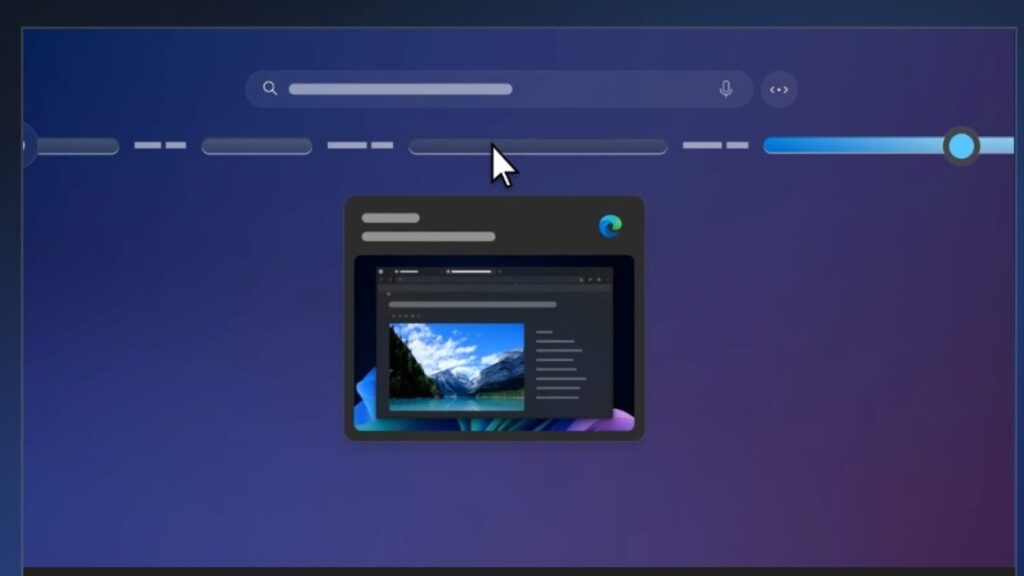
Recall is coming back. Credit: Andrew Cunningham

Recall is coming back. Credit: Andrew Cunningham

Microsoft is preparing to reintroduce Recall to Windows 11. A feature limited to Copilot+ PCs—a label that just a fraction of a fraction of Windows 11 systems even qualify for—Recall has been controversial in part because it builds an extensive database of text and screenshots that records almost everything you do on your PC.

But the main problem with the initial version of Recall—the one that was delayed at the last minute after a large-scale outcry from security researchers, reporters, and users—was not just that it recorded everything you did on your PC but that it was a rushed, enabled-by-default feature with gaping security holes that made it trivial for anyone with any kind of access to your PC to see your entire Recall database.

It made no efforts to automatically exclude sensitive data like bank information or credit card numbers, offering just a few mechanisms to users to manually exclude specific apps or websites. It had been built quickly, outside of the normal extensive Windows Insider preview and testing process. And all of this was happening at the same time that the company was pledging to prioritize security over all other considerations, following several serious and highly public breaches.

Any coverage of the current version of Recall should mention what has changed since then.

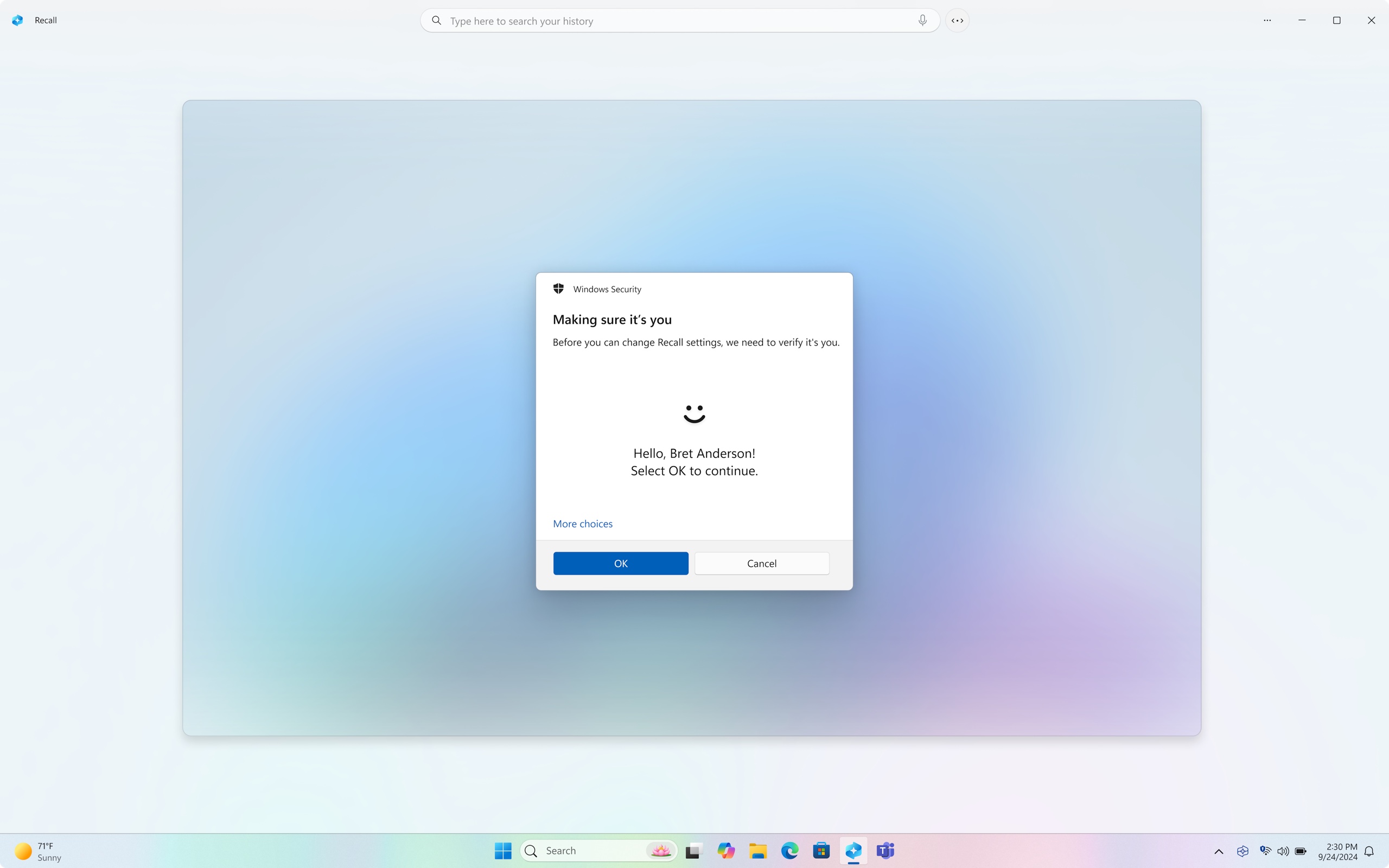
Recall is being rolled out to Microsoft’s Windows Insider Release Preview channel after months of testing in the more experimental and less-stable channels, just like most other Windows features. It’s turned off by default and can be removed from Windows root-and-branch by users and IT administrators who don’t want it there. Microsoft has overhauled the feature’s underlying security architecture, encrypting data at rest so it can’t be accessed by other users on the PC, adding automated filters to screen out sensitive information, and requiring frequent reauthentication with Windows Hello anytime a user accesses their own Recall database.

Testing how Recall works

I installed the Release Preview Windows 11 build with Recall on a Snapdragon X Elite version of the Surface Laptop and a couple of Ryzen AI PCs, which all have NPUs fast enough to support the Copilot+ features.

No Windows PCs without this NPU will offer Recall or any other Copilot+ features—that’s every single PC sold before mid-2024 and the vast majority of PCs since then. Users may come up with ways to run those features on unsupported hardware some other way. But by default, Recall isn’t something most of Windows’ current user base will have to worry about.

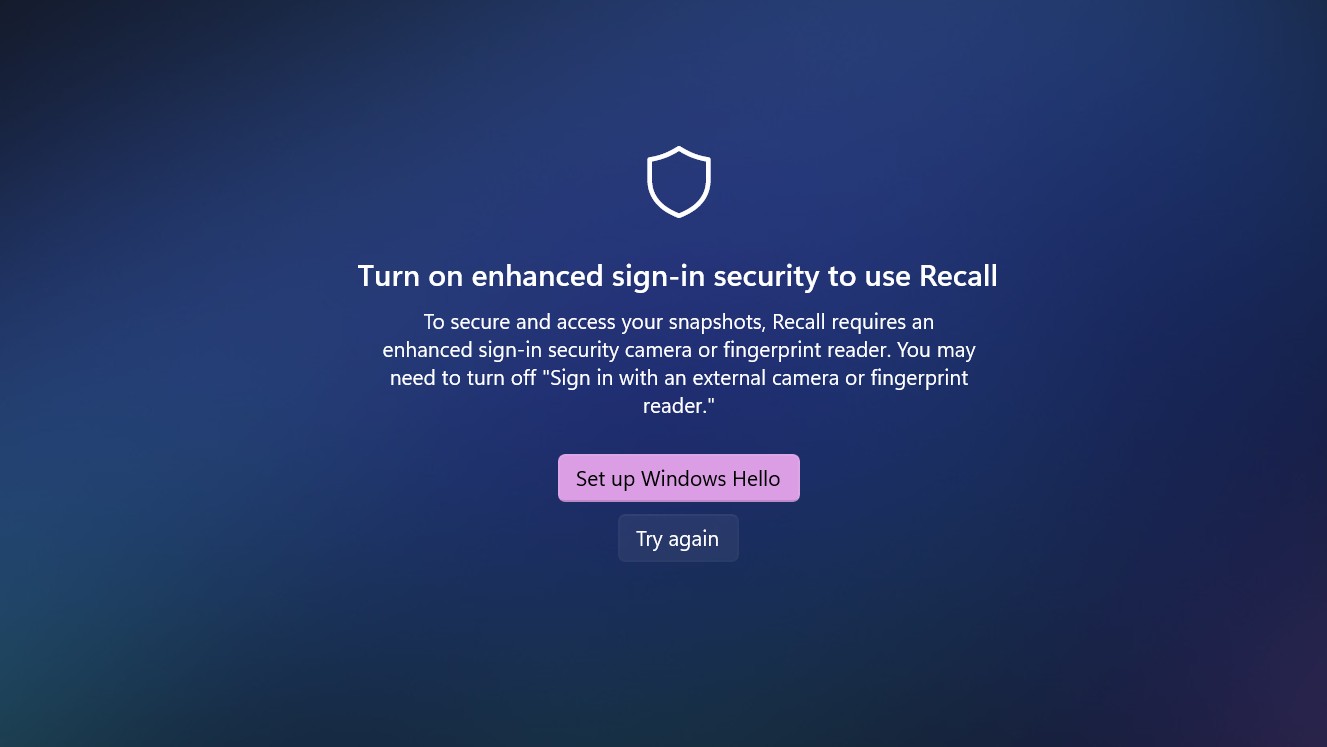
Microsoft is taking data protection more seriously this time around. If Windows Hello isn’t enabled or drive encryption isn’t turned on, Recall will refuse to start working until you fix the issues. Credit: Andrew Cunningham

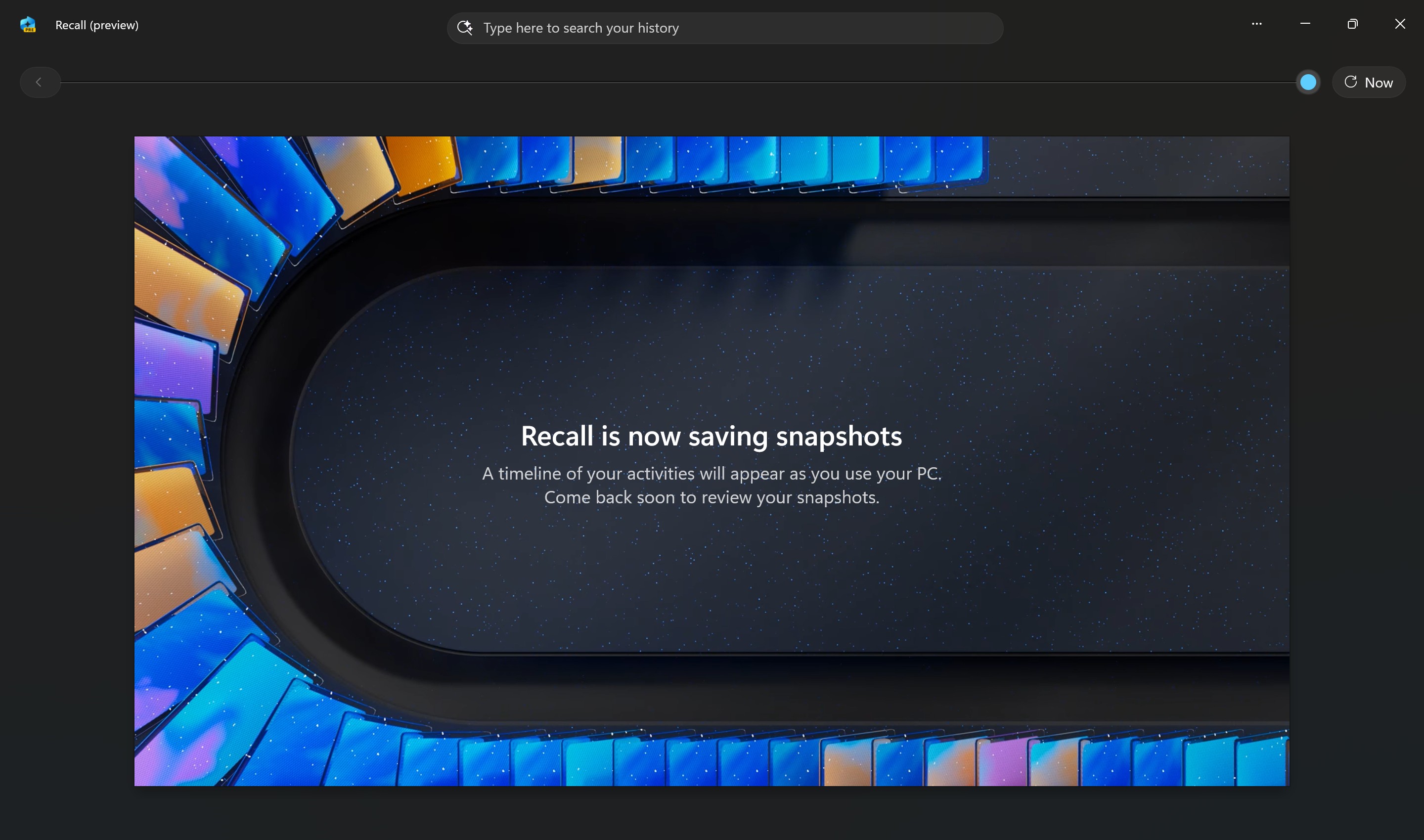
After installing the update, you’ll see a single OOBE-style setup screen describing Recall and offering to turn it on; as promised, it is now off by default until you opt in. And even if you accept Recall on this screen, you have to opt in a second time as part of the Recall setup to actually turn the feature on. We’ll be on high alert for a bait-and-switch when Microsoft is ready to remove Recall’s “preview” label, whenever that happens, but at least for now, opt-in means opt-in.

Enable Recall, and the snapshotting begins. As before, it’s storing two things: actual screenshots of the active area of your screen, minus the taskbar, and a searchable database of text that it scrapes from those screenshots using OCR. Somewhat oddly, there are limits on what Recall will offer to OCR for you; even if you’re using multiple apps onscreen at the same time, only the active, currently-in-focus app seems to have its text scraped and stored.

This is also more or less how Recall handles multi-monitor support; only the active display has screenshots taken, and only the active window on the active display is OCR’d. This does prevent Recall from taking gigabytes and gigabytes of screenshots of static or empty monitors, though it means the app may miss capturing content that updates passively if you don’t interact with those windows periodically.

All of this OCR’d text is fully searchable and can be copied directly from Recall to be pasted somewhere else. Recall will also offer to open whatever app or website is visible in the screenshot, and it gives you the option to delete that specific screenshot and all screenshots from specific apps (handy, if you decide you want to add an entire app to your filtering settings and you want to get rid of all existing snapshots of it).

Here are some basic facts about how Recall works on a PC since there’s a lot of FUD circulating about this, and much of the information on the Internet is about the older, insecure version from last year:

  • Recall is per-user. Setting up Recall for one user account does not turn on Recall for all users of a PC.
  • Recall does not require a Microsoft account.
  • Recall does not require an Internet connection or any cloud-side processing to work.
  • Recall does require your local disk to be encrypted with Device Encryption/BitLocker.
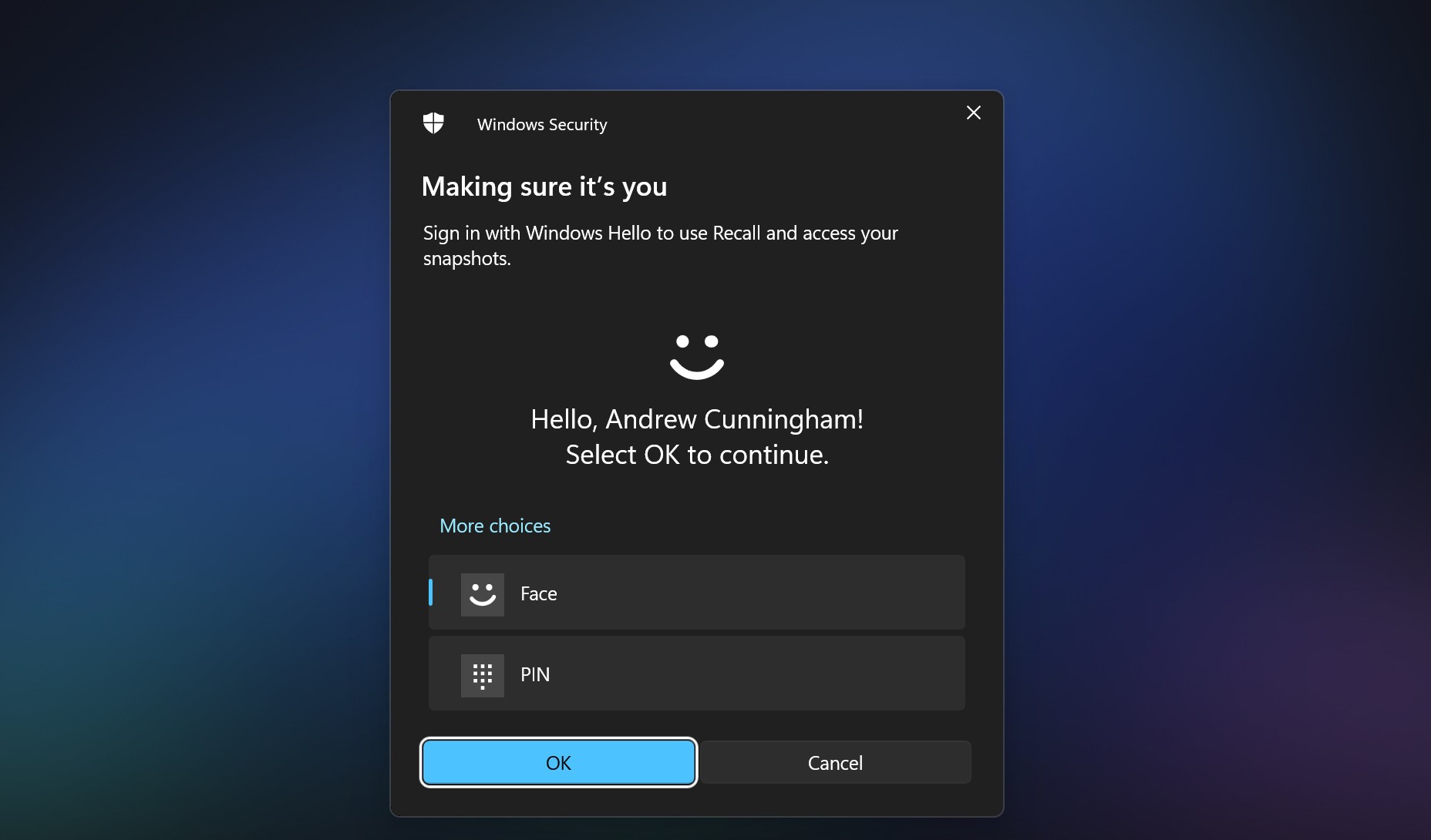
  • Recall does require Windows Hello and either a fingerprint reader or face-scanning camera for setup, though once it’s set up, it can be unlocked with a Windows Hello PIN.
  • Windows Hello authentication happens every time you open the Recall app.
  • Enabling Recall and changing its settings does not require an administrator account.
  • Recall can be uninstalled entirely by unchecking it in the legacy Windows Features control panel (you can also search for “turn Windows features on and off”).

If you read our coverage of the initial version, there’s a whole lot about how Recall functions that’s essentially the same as it was before. In Settings, you can see how much storage the feature is using and limit the total amount of storage Recall can use. The amount of time a snapshot can be kept is normally determined by the amount of space available, not by the age of the snapshot, but you can optionally choose a second age-based expiration date for snapshots (options range from 30 to 180 days).

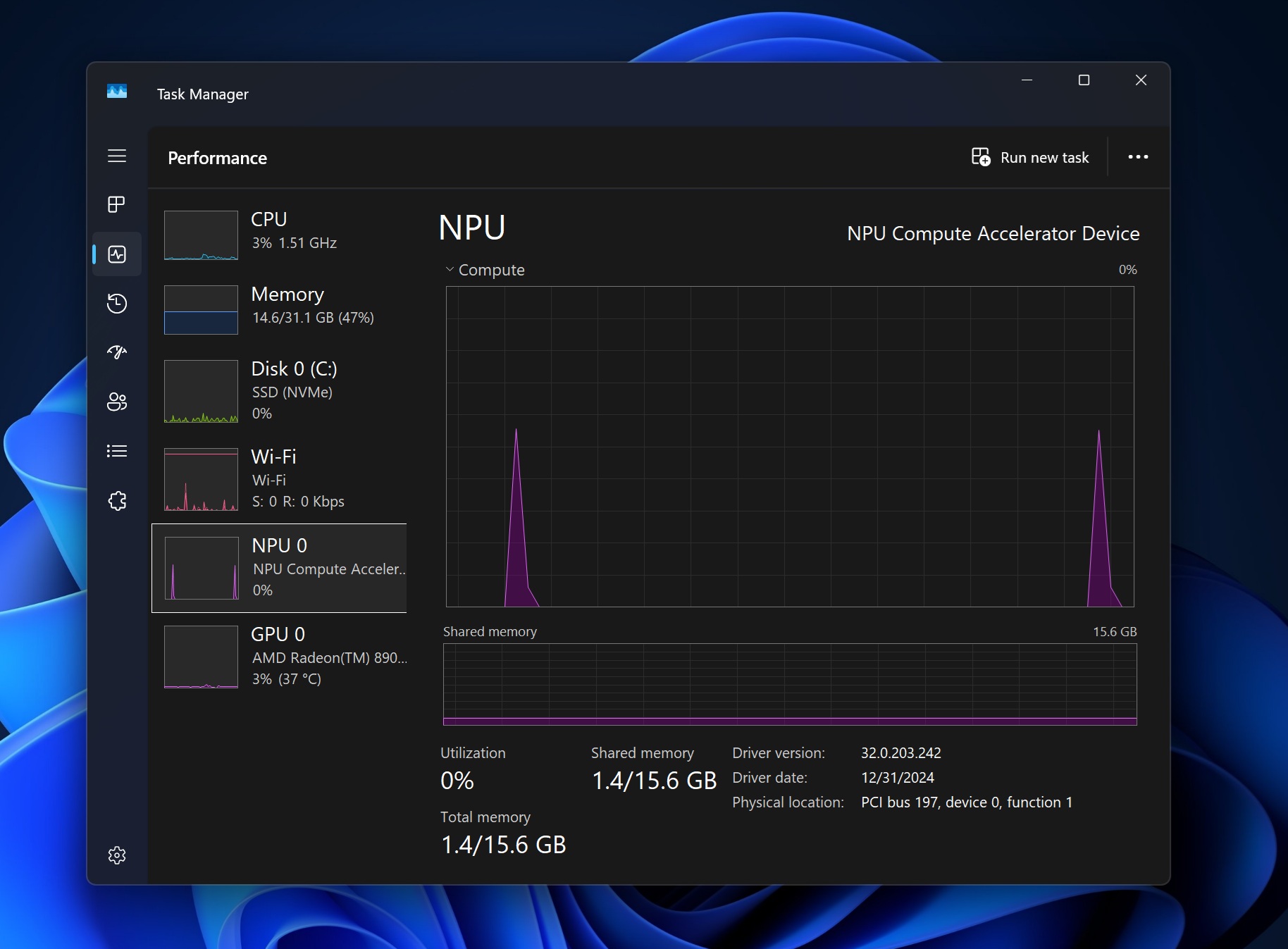
You can see Recall hit the system’s NPU periodically every time it takes a snapshot (this is on an AMD Ryzen AI system, but it should be the same for Qualcomm Snapdragon PCs and Intel Core Ultra/Lunar Lake systems). Browsing your Recall database doesn’t use the NPU. Credit: Andrew Cunningham

It’s also possible to delete the entire database or all recent snapshots (those from the past hour, past day, past week, or past month), toggle the automated filtering of sensitive content, or add specific apps and websites you’d like to have filtered. Recall can temporarily be paused by clicking the system tray icon (which is always visible when you have Recall turned on), and it can be turned off entirely in Settings. Neither of these options will delete existing snapshots; they just stop your PC from creating new ones.

The amount of space Recall needs to do its thing will depend on a bunch of factors, including how actively you use your PC and how many things you filter out. But in my experience, it can easily generate a couple of hundred megabytes per day of images. A Ryzen system with a 1TB SSD allocated 150GB of space to Recall snapshots by default, but even a smaller 25GB Recall database could easily store a few months of data.

Fixes: Improved filtering, encryption at rest

For apps and sites that you know you don’t want to end up in Recall, you can manually add them to the exclusion lists in the Settings app. As a rule, major browsers running in private or incognito modes are also generally not snapshotted.

If you have an app that’s being filtered onscreen for any reason—even if it’s onscreen at the same time as an app that’s not being filtered, Recall won’t take pictures of your desktop at all. I ran an InPrivate Microsoft Edge window next to a regular window, and Microsoft’s solution is just to avoid capturing and storing screenshots entirely rather than filtering or blanking out the filtered app or site in some way.

This is probably the best way to do it! It minimizes the risk of anything being captured accidentally just because it’s running in the background, for example. But it could mean you don’t end up capturing much in Recall at all if you’re frequently mixing filtered and unfiltered apps.

New to this version of Recall is an attempt at automated content filtering to address one of the major concerns about the original iteration of Recall—that it can capture and store sensitive information like credit card numbers and passwords. This filtering is based on the technology Microsoft uses for Microsoft Purview Information Protection, an enterprise feature used to tag sensitive information on business, healthcare, and government systems.

This automated content filtering is hit and miss. Recall wouldn’t take snapshots of a webpage with a visible credit card field, or my online banking site, or an image of my driver’s license, or a recent pay stub, or of the Bitwarden password manager while viewing credentials. But I managed to find edge cases in less than five minutes, and you’ll be able to find them, too; Recall saved snapshots showing a recent check, with the account holder’s name, address, and account and routing numbers visible, and others testing it have still caught it recording credit card information in some cases.

The automated filtering is still a big improvement from before, when it would capture this kind of information indiscriminately. But things will inevitably slip through, and the automated filtering won’t help at all with other kinds of data; Recall will take pictures of email and messaging apps without distinguishing between what’s sensitive (school information for my kid, emails about Microsoft’s own product embargoes) and what isn’t.

Recall can be removed entirely. If you take it out, it’s totally gone—the options to configure it won’t even appear in Settings anymore. Credit: Andrew Cunningham

The upshot is that if you capture months and months and gigabytes and gigabytes of Recall data on your PC, it’s inevitable that it will capture something you probably wouldn’t want to be preserved in an easily searchable database.

One issue is that there’s no easy way to check and confirm what Recall is and isn’t filtering without actually scrolling through the database and checking snapshots manually. The system tray status icon does change to display a small triangle and will show you a “some content is being filtered” status message when something is being filtered, but the system won’t tell you what it is; I have some kind of filtered app or browser tab open somewhere right now, and I have no idea which one it is because Windows won’t tell me. That any attempt at automated filtering is hit-and-miss should be expected, but more transparency would help instill trust and help users fine-tune their filtering settings.

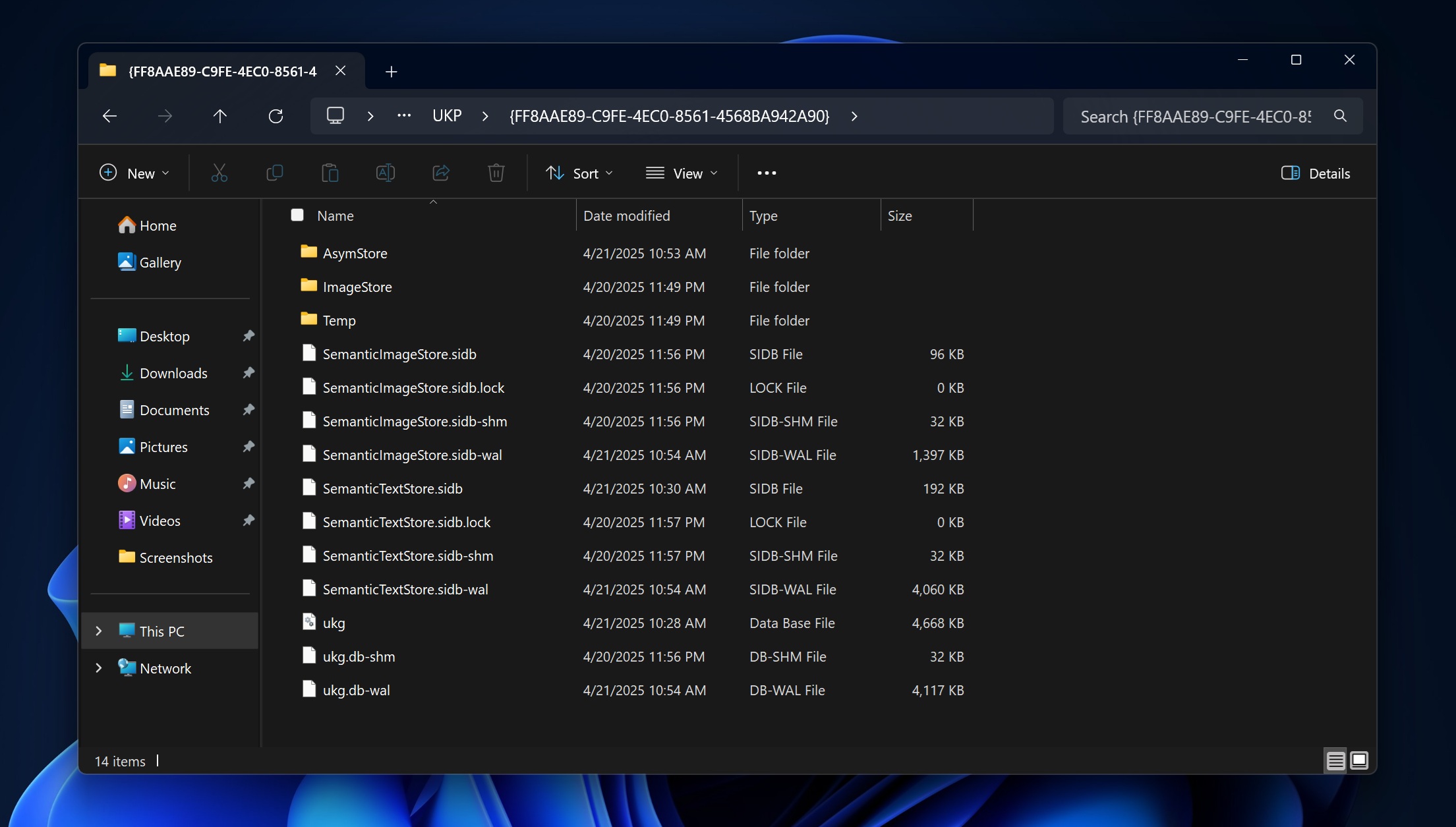
Recall’s files are still clearly visible and trivial to access, but with one improvement: They’re all actually encrypted now. Credit: Andrew Cunningham

Microsoft also seems to have fixed the single largest problem with Recall: previously, all screenshots and the entire text database were stored in plaintext with zero encryption. It was technicallyusually encrypted, insofar as the entire SSD in a modern PC is encrypted when you sign into a Microsoft account or enable Bitlocker, but any user with any kind of access to your PC (either physical or remote) could easily grab those files and view them anywhere with no additional authentication necessary.

This is fixed now. Recall’s entire file structure is available for anyone to look at, stored away in the user’s AppData folder in a directory called CoreAIPlatform.00UKP. Other administrators on the same PC can still navigate to these folders from a different user account and move or copy the files. Encryption renders them (hypothetically) unreadable.

Microsoft has gone into some detail about exactly how it’s protecting and storing the encryption keys used to encrypt these files—the company says “all encryption keys [are] protected by a hypervisor or TPM.” Rate-limiting and “anti-hammering” protections are also in place to protect Recall data, though I kind of have to take Microsoft at its word on that one.

That said, I don’t love that it’s still possible to get at those files at all. It leaves open the possibility that someone could theoretically grab a few megabytes’ worth of data. But it’s now much harder to get at that data, and better filtering means what is in there should be slightly less all-encompassing.

Lingering technical issues

As we mentioned already, Microsoft’s automated content filtering is hit-and-miss. Certainly, there’s a lot of stuff that the original version of Recall would capture that the new one won’t, but I didn’t have to work hard to find corner-cases, and you probably won’t, either. Turning Recall on still means assuming risk and being comfortable with the data and authentication protections Microsoft has implemented.

We’d also like there to be a way for apps to tell Recall to exclude them by default, which would be useful for password managers, encrypted messaging apps, and any other software where privacy is meant to be the point. Yes, users can choose to exclude these apps from Recall backups themselves. But as with Recall itself, opting in to having that data collected would be preferable to needing to opt out.

You need a fingerprint reader or face-scanning camera to get Recall set up, but once it is set up, anyone with your PIN and access to your PC can get in and see all your stuff. Credit: Andrew Cunningham

Another issue is that, while Recall does require a fingerprint reader or face-scanning camera when you set it up the very first time, you can unlock it with a Windows Hello PIN after it’s already going.

Microsoft has said that this is meant to be a fallback option in case you need to access your Recall database and there’s some kind of hardware issue with your fingerprint sensor. But in practice, it feels like too easy a workaround for a domestic abuser or someone else with access to your PC and a reason to know your PIN (and note that the PIN also gets them into your PC in the first place, so encryption isn’t really a fix for this). It feels like too broad a solution for a relatively rare problem.

Security researcher Kevin Beaumont, whose testing helped call attention to the problems with the original version of Recall last year, identified this as one of Recall’s biggest outstanding technical problems in a blog post shared with Ars Technica shortly before its publication (as of this writing, it’s available here; he and I also exchanged multiple text over the weekend comparing our findings).

“In my opinion, requiring devices to have enhanced biometrics with Windows Hello  but then not requiring said biometrics to actually access Recall snapshots is a big problem,” Beaumont wrote. “It will create a false sense of security in customers and false downstream advertising about the security of Recall.”

Beaumont also noted that, while the encryption on the Recall snapshots and database made it a “much, much better design,” “all hell would break loose” if attackers ever worked out a way to bypass this encryption.

“Microsoft know this and have invested in trying to stop it by encrypting the database files, but given I live in the trenches where ransomware groups are running around with zero days in Windows on an almost monthly basis nowadays, where patches arrive months later… Lord, this could go wrong,” he wrote.

But most of what’s wrong with Recall is harder to fix

Microsoft has actually addressed many of the specific, substantive Recall complaints raised by security researchers and our own reporting. It’s gone through the standard Windows testing process and has been available in public preview in its current form since late November. And yet the knee-jerk reaction to Recall news is still generally to treat it as though it were the same botched, bug-riddled software that nearly shipped last summer.

Some of this is the asymmetrical nature of how news spreads on the Internet—without revealing traffic data, I’ll just say that articles about Recall having problems have been read many, many more times by many more people than pieces about the steps Microsoft has taken to fix Recall. The latter reports simply aren’t being encountered by many of the minds Microsoft needs to change.

But the other problem goes deeper than the technology itself and gets back to something I brought up in my first Recall preview nearly a year ago—regardless of how it is architected and regardless of how many privacy policies and reassurances the company publishes, people simply don’t trust Microsoft enough to be excited about “the feature that records and stores every single thing you do with your PC.”

Recall continues to demand an extraordinary level of trust that Microsoft hasn’t earned. However secure and private it is—and, again, the version people will actually get is much better than the version that caused the original controversy—it just feels creepy to open up the app and see confidential work materials and pictures of your kid. You’re already trusting Microsoft with those things any time you use your PC, but there’s something viscerally unsettling about actually seeing evidence that your computer is tracking you, even if you’re not doing anything you’re worried about hiding, even if you’ve excluded certain apps or sites, and even if you “know” that part of the reason why Recall requires a Copilot+ PC is because it’s processing everything locally rather than on a server somewhere.

This was a problem that Microsoft made exponentially worse by screwing up the Recall rollout so badly in the first place. Recall made the kind of ugly first impression that it’s hard to dig out from under, no matter how thoroughly you fix the underlying problems. It’s Windows Vista. It’s Apple Maps. It’s the Android tablet.

And in doing that kind of damage to Recall (and possibly also to the broader Copilot+ branding project), Microsoft has practically guaranteed that many users will refuse to turn it on or uninstall it entirely, no matter how it actually works or how well the initial problems have been addressed.

Unfortunately, those people probably have it right. I can see no signs that Recall data is as easily accessed or compromised as before or that Microsoft is sending any Recall data from my PC to anywhere else. But today’s Microsoft has earned itself distrust-by-default from many users, thanks not just to the sloppy Recall rollout but also to the endless ads and aggressive cross-promotion of its own products that dominate modern Windows versions. That’s the kind of problem you can’t patch your way out of.

Listing image: Andrew Cunningham

Photo of Andrew Cunningham

Andrew is a Senior Technology Reporter at Ars Technica, with a focus on consumer tech including computer hardware and in-depth reviews of operating systems like Windows and macOS. Andrew lives in Philadelphia and co-hosts a weekly book podcast called Overdue.

In depth with Windows 11 Recall—and what Microsoft has (and hasn’t) fixed Read More »

windows-11’s-copilot-vision-wants-to-help-you-learn-to-use-complicated-apps

Windows 11’s Copilot Vision wants to help you learn to use complicated apps

Some elements of Microsoft’s Copilot assistant in Windows 11 have felt like a solution in search of a problem—and it hasn’t helped that Microsoft has frequently changed Copilot’s capabilities, turning it from a native Windows app into a web app and back again.

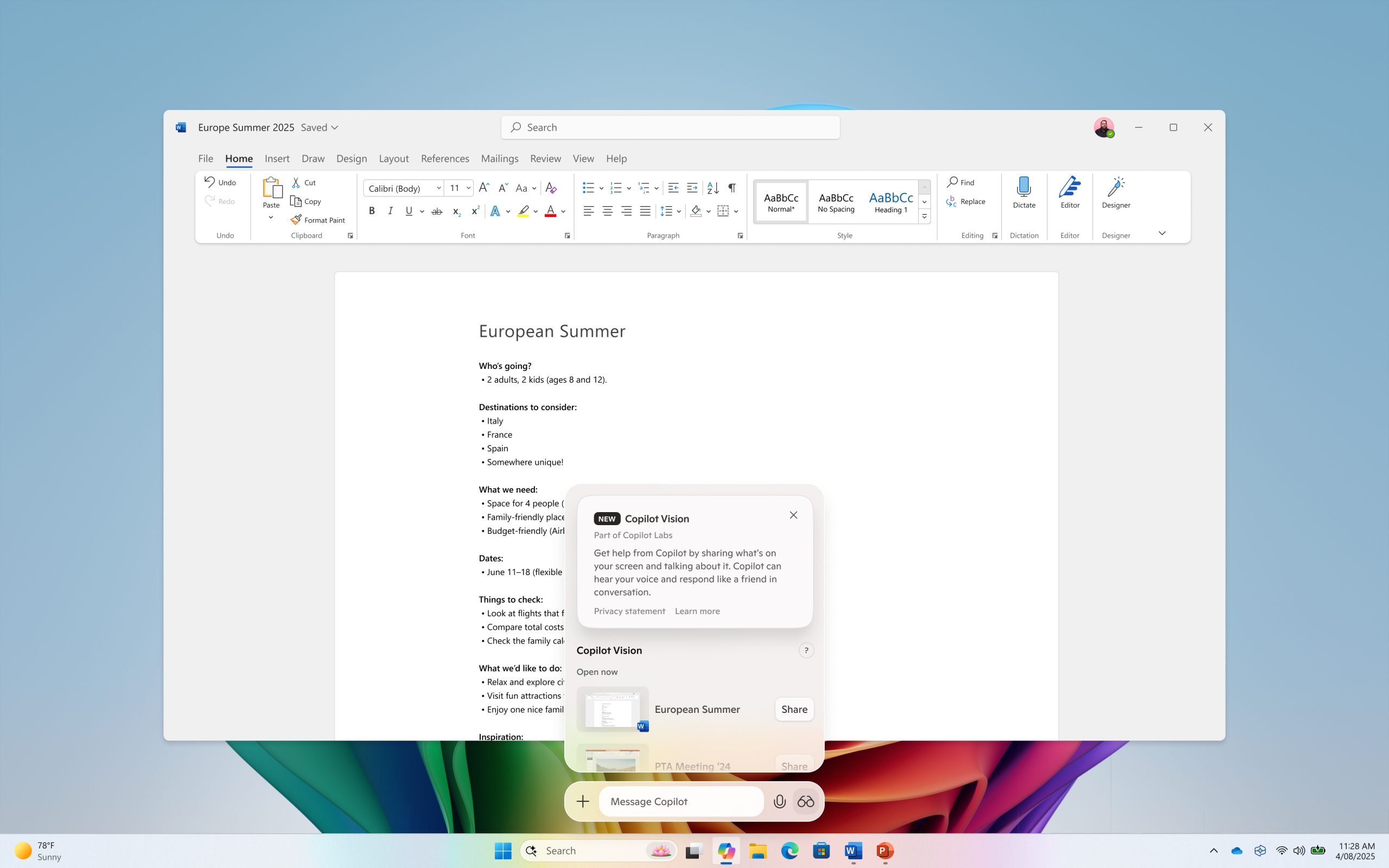
But I find myself intrigued by a new addition to Copilot Vision that Microsoft began rolling out this week to testers in its Windows Insider program. Copilot Vision launched late last year as a feature that could look at pages in the Microsoft Edge browser and answer questions based on those pages’ contents. The new Vision update extends that capability to any app window, allowing you to ask Copilot not just about the contents of a document but also about the user interface of the app itself.

Microsoft’s Copilot Vision update can see the contents of any app window you share with it. Credit: Microsoft

Provided the app works as intended—not a given for any software, but especially for AI features—Copilot Vision could replace “frantic Googling” as a way to learn how to use a new app or how to do something new or obscure in complex PC apps like Word, Excel, or Photoshop. I recently switched from Photoshop to Affinity Photo, for example, and I’m still finding myself tripped up by small differences in workflows and UI between the two apps. Copilot Vision could, in theory, ease that sort of transition.

Windows 11’s Copilot Vision wants to help you learn to use complicated apps Read More »

new-windows-11-build-makes-mandatory-microsoft-account-sign-in-even-more-mandatory

New Windows 11 build makes mandatory Microsoft Account sign-in even more mandatory

Microsoft released a new Windows Insider build of Windows 11 to its experimental Dev Channel today, with a fairly extensive batch of new features and tweaks. But the most important one for enthusiasts and PC administrators is buried halfway down the list: This build removes a command prompt script called bypassnro, which up until now has been a relatively easy and reliable way to circumvent the otherwise mandatory Microsoft Account sign-in requirement on new Windows 11 PCs and fresh installs of Windows 11 on existing PCs.

Microsoft’s Windows Insider Program lead Amanda Langowski and Principal Product Manager Brandon LeBlanc were clear that this change is considered a feature and not a bug.

“We’re removing the bypassnro.cmd script from the build to enhance security and user experience of Windows 11,” Langowski and LeBlanc write in the post. “This change ensures that all users exit setup with internet connectivity and a Microsoft Account.”

Of course, the removal of bypassnro makes life harder for people who want to exit Windows setup without Internet connectivity or a Microsoft Account. You might be setting up a computer in a place with no Internet connection, or you might simply prefer a local user account like the ones that all past Windows versions allowed you to use.

There are benefits to a Microsoft Account—easy access to any existing Microsoft 365 or OneDrive subscriptions, automated encryption for your local disk and backup of your drive’s encryption key for recovery purposes, and syncing of certain settings between PCs. But using a local account reduces the number of notifications and other upsells that Windows 11 will bother you with. Whatever your reasoning, you’ll need to find a different workaround for future Windows versions.

New Windows 11 build makes mandatory Microsoft Account sign-in even more mandatory Read More »

windows-11-updates-are-accidentally-getting-rid-of-copilot,-at-least-for-now

Windows 11 updates are accidentally getting rid of Copilot, at least for now

Microsoft’s Windows updates over the last couple of years have mostly been focused on adding generative AI features to the operating system, including multiple versions of the Copilot assistant. Copilot has made it into Windows 11 (and even, to a more limited extent, the aging Windows 10) as a native app, and then a wrapper around a web app, and soon as a native app again.

But this month’s Windows updates are removing the Copilot app from some Windows 11 PCs and unpinning it from the taskbar, according to this Microsoft support document. This bug obviously won’t affect systems where Copilot had already been uninstalled, but it has already led to confusion among some Windows users.

Microsoft says it is “working on a resolution to address the issue” but that users who want to get Copilot back can reinstall the app from the Microsoft Store and repin it to the taskbar, the same process you use to install Copilot on PCs where it has been removed.

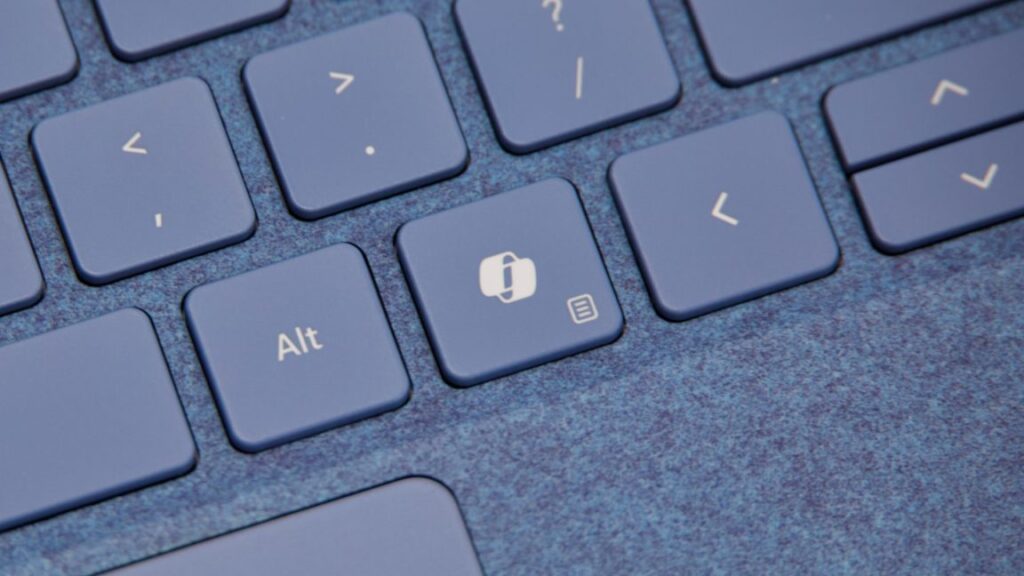
Though some version of Copilot has been included in fresh Windows 11 installs since mid-2023, and Microsoft even added a Copilot key into the standard Windows keyboard in early 2024, Copilot’s appearance and capabilities have shifted multiple times since then.

Windows 11 updates are accidentally getting rid of Copilot, at least for now Read More »

microsoft-reiterates-“non-negotiable”-tpm-2.0-requirement-for-windows-11

Microsoft reiterates “non-negotiable” TPM 2.0 requirement for Windows 11

Windows 11 has other system requirements, though they weren’t the focus of this TPM-centric blog post. Windows 11 systems must have Secure Boot enabled, and they have to use a supported processor—an 8th-gen Intel Core CPU, an AMD Ryzen 2000 CPU, or a Qualcomm Snapdragon 850 CPU or newer. In fact, these CPU requirements exclude a couple of generations’ worth of Intel and AMD chips with built-in TPM 2.0 support.

Windows 11 also has nominal requirements for RAM and processor speed, but any system that meets the CPU or TPM requirements will easily clear those bars. If you have a supported CPU and your PC doesn’t appear to support TPM 2.0, you should be able to enable it in your system’s BIOS, either manually or by installing a BIOS update for your motherboard.

Windows 11 can be installed on unsupported systems, either those with an older TPM 1.2 module or no TPM enabled at all. It’s more annoying to install major updates on those systems, and Microsoft reserves the right to pull updates from those systems at any time, but aside from that, Windows 11 usually runs about as well on these PCs as Windows 10 did.

Microsoft reiterates “non-negotiable” TPM 2.0 requirement for Windows 11 Read More »

microsoft’s-controversial-recall-scraper-is-finally-entering-public-preview

Microsoft’s controversial Recall scraper is finally entering public preview

Users will be asked to reauthenticate with Windows Hello every time they access their Recall database. Credit: Microsoft

Microsoft has now delayed the feature multiple times to address those concerns, and it outlined multiple security-focused additions to Recall in a blog post in September. Among other changes, the feature is now opt-in by default and is protected by additional encryption. Users must also re-authenticate with Windows Hello each time they access the database. Turning on the feature requires Secure Boot, BitLocker disk encryption, and Windows Hello to be enabled. In addition to the manual exclusion lists for sites and apps, the new Recall also attempts to mask sensitive data like passwords and credit card numbers so they aren’t stored in the Recall database.

The new version of Recall can also be completely uninstalled for users who have no interest in it, or by IT administrators who don’t want to risk it exposing sensitive data.

Testers will need to kick the tires on all of these changes to make sure that they meaningfully address all the risks and issues that the original version of Recall had, and this Windows Insider preview is their chance to do it.

“Do security”

Part of the original Recall controversy was that Microsoft wasn’t going to run it through the usual Windows Insider process—it was intended to be launched directly to users of the new Copilot+ PCs via a day-one software update. This in itself was a big red flag; usually, even features as small as spellcheck for the Notepad app go through multiple weeks of Windows Insider testing before Microsoft releases them to the public. This gives the company a chance to fix bugs, collect and address user feedback, and even scrub new features altogether.

Microsoft is supposedly re-orienting itself to put security over all other initiatives and features. CEO Satya Nadella recently urged employees to “do security” when presented with the option to either launch something quickly or launch something securely. In Recall’s case, the company’s rush to embrace generative AI features almost won out over that “do security” mandate. If future AI features go through the typical Windows Insider testing process first, that will be a sign that Microsoft is taking its commitment to security seriously.

Microsoft’s controversial Recall scraper is finally entering public preview Read More »

microsoft-pushes-full-screen-ads-for-copilot+-pcs-on-windows-10-users

Microsoft pushes full-screen ads for Copilot+ PCs on Windows 10 users

Windows 10’s free, guaranteed security updates stop in October 2025, less than a year from now. Windows 10 users with supported PCs have been offered the Windows 11 upgrade plenty of times before. But now Microsoft is apparently making a fresh push to get users to upgrade, sending them full-screen reminders recommending they buy new computers.

The reminders, which users have seen within the last few days, all mention the end of Windows 10 support but otherwise seem to differ from computer to computer. My Ars colleague Kyle Orland got one focused on Windows 11’s gaming features, while posters on X (formerly Twitter) got screens that emphasized the ease of migrating from old PCs to new ones and other Windows 11 features. One specifically recommended upgrading to a Copilot+ PC, which supports a handful of extra AI features that other Windows 11 PCs don’t, but other messages didn’t mention Copilot+ specifically.

None of the messages mention upgrading to Windows 11 directly, though Kyle said his PC meets Windows 11’s requirements. These messages may be intended mostly for people using older PCs that can’t officially install the Windows 11 update.

Microsoft pushes full-screen ads for Copilot+ PCs on Windows 10 users Read More »

microsoft-finally-releases-generic-install-isos-for-the-arm-version-of-windows

Microsoft finally releases generic install ISOs for the Arm version of Windows

For some PC buyers, doing a clean install of Windows right out of the box is part of the setup ritual. But for Arm-based PCs, including the Copilot+ PCs with Snapdragon X Plus and Elite chips in them, it hasn’t been possible in the same way. Microsoft (mostly) hasn’t offered generic install media that can be used to reinstall Windows on an Arm PC from scratch.

Microsoft is fixing that today—the company finally has a download page for the official Arm release of Windows 11, linked to but separate from the ISOs for the x86 versions of Windows. These are useful not just for because-I-feel-like-it clean installs, but for reinstalling Windows after you’ve upgraded your SSD and setting up Windows virtual machines on Arm-based PCs and Macs.

Previously, Microsoft did offer install media for some Windows Insider Preview Arm builds, though these are for beta versions of Windows that may or may not be feature-complete or stable. Various apps, scripts, and websites also exist to grab files from Microsoft’s servers and build “unofficial” ISOs for the Arm version of Windows, though obviously this is more complicated than just downloading a single file directly.

Microsoft finally releases generic install ISOs for the Arm version of Windows Read More »

notepad.exe,-now-an-actively-maintained-app,-has-gotten-its-inevitable-ai-update

Notepad.exe, now an actively maintained app, has gotten its inevitable AI update

Among the decades-old Windows apps to get renewed attention from Microsoft during the Windows 11 era is Notepad, the basic built-in text editor that was much the same in early 2021 as it had been in the ’90 and 2000s. Since then, it has gotten a raft of updates, including a visual redesign, spellcheck and autocorrect, and window tabs.

Given Microsoft’s continuing obsession with all things AI, it’s perhaps not surprising that the app’s latest update (currently in preview for Canary and Dev Windows Insiders) is a generative AI feature called Rewrite that promises to adjust the length, tone, and phrasing of highlighted sentences or paragraphs using generative AI. Users will be offered three rewritten options based on what they’ve highlighted, and they can select the one they like best or tell the app to try again.

Rewrite appears to be based on the same technology as the Copilot assistant, since it uses cloud-side processing (rather than your local CPU, GPU, or NPU) and requires Microsoft account sign-in to work. The initial preview is available to users in the US, France, the UK, Canada, Italy, and Germany.

If you don’t care about AI or you don’t sign in with a Microsoft account, note that Microsoft is also promising substantial improvements in launch time with this version of Notepad. “Most users will see app launch times improve by more than 35 percent, with some users seeing improvements of 55 percent or more,” reads the blog post by Microsoft’s Windows apps manager Dave Grochocki.

Notepad.exe, now an actively maintained app, has gotten its inevitable AI update Read More »

microsoft-delays-rollout-of-the-windows-11-recall-feature-yet-again

Microsoft delays rollout of the Windows 11 Recall feature yet again

“We are committed to delivering a secure and trusted experience with Recall. To ensure we deliver on these important updates, we’re taking additional time to refine the experience before previewing it with Windows Insiders,” said Microsoft Windows Insider Senior Program Manager Brandon LeBlanc in a statement provided to The Verge.

LeBlanc didn’t offer additional details on the latest Recall delay or make any new announcements about other security precautions Microsoft is taking with the feature. The company’s September blog post detailed how data was being protected using Windows’ Virtualization-Based Security (VBS) features and Windows Hello authentication and reiterated that Recall will be opt-in by default and that it will be fully removable for Windows users who aren’t interested in using it.

When it does start to roll out, Recall will still require a Copilot+ PC, which gets some AI-related features not available to typical Windows 11 PCs. To meet the Copilot+ requirements, PCs must have at least 16GB of RAM and 256GB of storage, plus a neural processing unit (NPU) that can perform at least 40 trillion operations per second (TOPS). Users will also need their PCs to be enrolled in the Windows Insider Program; we have no idea when non-Windows Insider PCs will start getting Recall, though at this point, it seems likely it won’t be until sometime in 2025.

Microsoft delays rollout of the Windows 11 Recall feature yet again Read More »