Tech

lg’s-$1,800-tv-for-seniors-makes-misguided-assumptions

LG’s $1,800 TV for seniors makes misguided assumptions

LG is looking to create a new market: TVs for senior citizens. However, I can’t help thinking that the answer for a TV that truly prioritizes the needs of older people is much simpler—and cheaper.

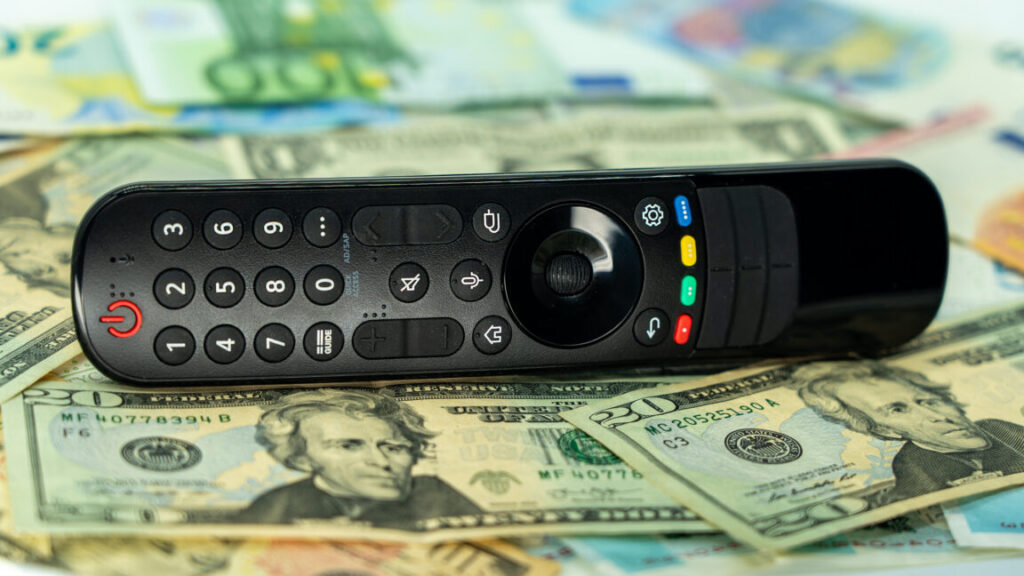
On Thursday, LG announced the Easy TV in South Korea, aiming it at the “senior TV market,” according to a Google translation of the press release. One of the features that LG has included in attempts to appeal to this demographic is a remote control with numbers. Many remotes for smart TVs, streaming sticks, and boxes don’t have numbered buttons, with much of the controller’s real estate dedicated to other inputs.

The Easy TV's remote.

The Easy TV’s remote.

Credit: LG

The Easy TV’s remote. Credit: LG

LG released a new version of its Magic Remote in January with a particularly limited button selection that is likely to confuse or frustrate newcomers. In addition to not having keys for individual numbers, there are no buttons for switching inputs, play/pause, or fast forward/rewind.

LG AI remote

LG’s 2025 Magic Remote.

LG’s 2025 Magic Remote. Credit: Tom’s Guide/YouTube

The Easy TV’s remote has all of those buttons, plus mute, zoom, and bigger labels. The translated press release also highlights a button that sounds like “back” and says that seniors can push it to quickly return to the previous broadcast. The company framed it as a way for users to return to what they were watching after something unexpected occurs, such as an app launching accidentally or a screen going dark after another device is plugged into the TV.

You’ll also find the same sort of buttons that you typically find with new smart TV remotes these days, including buttons for launching specific streaming services.

Beyond the remote, LG tweaked its operating system for TVs, webOS, to focus on “five senior-focused features and favorite apps” and use a larger font, the translated announcement said.

Some Easy TV features are similar to those available on LG’s other TVs, but tailored to use cases that LG believes seniors are interested in. For instance, LG says seniors can use a reminder feature for medication alerts, set up integrated video calling features to quickly connect with family members who can assist with TV problems or an emergency, and play built-in games aimed at brain health.

LG’s $1,800 TV for seniors makes misguided assumptions Read More »
youtube-music-is-testing-ai-hosts-that-will-interrupt-your-tunes

YouTube Music is testing AI hosts that will interrupt your tunes

YouTube has a new Labs program, allowing listeners to “discover the next generation of YouTube.” In case you were wondering, that generation is apparently all about AI. The streaming site says Labs will offer a glimpse of the AI features it’s developing for YouTube Music, and it starts with AI “hosts” that will chime in while you’re listening to music. Yes, really.

The new AI music hosts are supposed to provide a richer listening experience, according to YouTube. As you’re listening to tunes, the AI will generate audio snippets similar to, but shorter than, the fake podcasts you can create in NotebookLM. The “Beyond the Beat” host will break in every so often with relevant stories, trivia, and commentary about your musical tastes. YouTube says this feature will appear when you are listening to mixes and radio stations.

The experimental feature is intended to be a bit like having a radio host drop some playful banter while cueing up the next song. It sounds a bit like Spotify’s AI DJ, but the YouTube AI doesn’t create playlists like Spotify’s robot. This is still generative AI, which comes with the risk of hallucinations and low-quality slop, neither of which belongs in your music. That said, Google’s Audio Overviews are often surprisingly good in small doses.

YouTube Music is testing AI hosts that will interrupt your tunes Read More »

you-should-care-more-about-the-stabilizers-in-your-mechanical-keyboard—here’s-why

You should care more about the stabilizers in your mechanical keyboard—here’s why

While most people don’t spend a lot of time thinking about the keys they tap all day, mechanical keyboard enthusiasts certainly do. As interest in DIY keyboards expands, there are plenty of things to obsess over, such as keycap sets, layout, knobs, and switches. But you have to get deep into the hobby before you realize there’s something more important than all that: the stabilizers.

Even if you have the fanciest switches and a monolithic aluminum case, bad stabilizers can make a keyboard feel and sound like garbage. Luckily, there’s a growing ecosystem of weirdly fancy stabilizers that can upgrade your typing experience, packing an impressive amount of innovation into a few tiny bits of plastic and metal.

What is a stabilizer, and why should you care?

Most keys on a keyboard are small enough that they go up and down evenly, no matter where you press. That’s not the case for longer keys: Space, Enter, Shift, Backspace, and, depending on the layout, a couple more on the number pad. These keys have wire assemblies underneath called stabilizers, which help them go up and down when the switch does.

A cheap stabilizer will do this, but it won’t necessarily do it well. Stabilizers can be loud and move unevenly, or a wire can even pop out and really ruin your day. But what’s good? A stabilizer is there to, well, stabilize, and that’s all it should do. It facilitates smooth up and down movement of frequently used keys—if stabilizers add noise, friction, or wobble, they’re not doing their job and are, therefore, bad. Most keyboards have bad stabilizers.

Stabilizers assembled

Stabilizer stems poke up through the plate to connect to your keycaps.

Credit: Ryan Whitwam

Stabilizer stems poke up through the plate to connect to your keycaps. Credit: Ryan Whitwam

Like switches, most stabilizers are based on the old-school Cherry Inc. designs, but the specifics have morphed in recent years. Stabilizers have to adhere to certain physical measurements to properly mount on PCBs and connect to standard keycaps. However, designers have come up with a plethora of creative ways to modify and improve stabilizers within that envelope. And yes, premium stabilizers really are better.

You should care more about the stabilizers in your mechanical keyboard—here’s why Read More »

raspberry-pi-500+-puts-the-pi,-16gb-of-ram,-and-a-real-ssd-in-a-mechanical-keyboard

Raspberry Pi 500+ puts the Pi, 16GB of RAM, and a real SSD in a mechanical keyboard

The Raspberry Pi 500 (and 400) systems are versions of the Raspberry Pi built for people who use the Raspberry Pi as a general-purpose computer rather than a hobbyist appliance. Now the company is leaning into that even more with the Raspberry Pi 500+, an amped-up version of the keyboard computer with 16GB of RAM instead of 8GB, a 256GB NVMe SSD instead of microSD storage, and a fancier keyboard with mechanical switches, replaceable keycaps, and individually programmable RGB LEDs.

The computer is currently available to purchase from the usual suspects like CanaKit and Micro Center, and generally starts at $200, twice the price of the Pi 500.

Raspberry Pi CEO Eben Upton’s blog post about the 500+ says that the upgraded version of the computer has been in the works since the regular 500 was released last year.

The Pi 500+ is still a full Pi 5-based computer in a keyboard-shaped case, but the keyboard has gotten a serious upgrade. Credit: Raspberry Pi

Early testers of the Pi 500 noted at the time that there was space on the motherboard—which uses the same components as a regular Raspberry Pi 5, but on a different board that allows all the ports to be on the same side—for an M.2 slot, but that there was nothing soldered to it. The Pi 500+ includes an NVMe slot populated with a 256GB M.2 2280 SSD, but that can be swapped for higher-capacity drives. Upton also notes that the system is still bootable from microSD and USB drives.

Raspberry Pi 500+ puts the Pi, 16GB of RAM, and a real SSD in a mechanical keyboard Read More »

apple-iphone-17-review:-sometimes-boring-is-best

Apple iPhone 17 review: Sometimes boring is best


let’s not confuse “more interesting” with “better”

The least exciting iPhone this year is also the best value for the money.

The iPhone 17 Pro isn’t flashy but it’s probably the best of this year’s upgrades. Credit: Andrew Cunningham

The iPhone 17 Pro isn’t flashy but it’s probably the best of this year’s upgrades. Credit: Andrew Cunningham

Apple seems determined to leave a persistent gap between the cameras of its Pro iPhones and the regular ones, but most other features—the edge-to-edge-screen design with FaceID, the Dynamic Island, OLED display panels, Apple Intelligence compatibility—eventually trickle down to the regular-old iPhone after a generation or two of timed exclusivity.

One feature that Apple has been particularly slow to move down the chain is ProMotion, the branding the company uses to refer to a screen that can refresh up to 120 times per second rather than the more typical 60 times per second. ProMotion isn’t a necessary feature, but since Apple added it to the iPhone 13 Pro in 2021, the extra fluidity and smoothness, plus the always-on display feature, have been big selling points for the Pro phones.

This year, ProMotion finally comes to the regular-old iPhone 17, years after midrange and even lower-end Android phones made the swap to 90 or 120 Hz display panels. And it sounds like a small thing, but the screen upgrade—together with a doubling of base storage from 128GB to 256GB—makes the gap between this year’s iPhone and iPhone Pro feel narrower than it’s been in a long time. If you jumped on the Pro train a few years back and don’t want to spend that much again, this might be a good year to switch back. If you’ve ever been tempted by the Pro but never made the upgrade, you can continue not doing that and miss out on relatively little.

The iPhone 17 has very little that we haven’t seen in an iPhone before, compared to the redesigned Pro or the all-new Air. But it’s this year’s best upgrade, and it’s not particularly close.

You’ve seen this one before

Externally, the iPhone 17 is near-identical to the iPhone 16, which itself used the same basic design Apple had been using since the iPhone 12. The most significant update in that five-year span was probably the iPhone 15, which switched from the display notch to the Dynamic Island and from the Lightning port to USB-C.

The iPhone 12 generation was also probably the last time the regular iPhone and the Pro were this similar. Those phones used the same basic design, the same basic chip, and the same basic screen, leaving mostly camera-related improvements and the Max model as the main points of differentiation. That’s all broadly true of the split between the iPhone 17 and the 17 Pro, as well.

The iPhone Air and Pro both depart from the last half-decade of iPhone designs in different ways, but the iPhone 17 sticks with the tried-and-true. Credit: Andrew Cunningham

The iPhone 17’s design has changed just enough since last year that you’ll need to find a new iPhone 17-compatible case and screen protector for your phone rather than buying something that fits a previous-generation model (it’s imperceptibly taller than the iPhone 16). The screen size has been increased from 6.1 inches to 6.3, the same as the iPhone Pro. But the aluminum-framed-glass-sandwich design is much less of a departure from recent precedent than either the iPhone Air or the Pro.

The screen is the real star of the show in the iPhone 17, bringing 120 Hz ProMotion technology and the Pro’s always-on display feature to the regular iPhone for the first time. According to Apple’s spec sheets (and my eyes, admittedly not a scientific measurement), the 17 and the Pro appear to be using identical display panels, with the same functionally infinite contrast, resolution (2622 x 1206), and brightness specs (1,000 nits typical, 1,600 nits for HDR, 3,000 nits peak in outdoor light).

It’s easy to think of the basic iPhone as “the cheap one” because it is the least expensive of the four new phones Apple puts out every year, but $799 is still well into premium-phone range, and even middle-of-the-road phones from the likes of Google and Samsung have been shipping high-refresh-rate OLED panels in cheaper phones than this for a few years now. By that metric, it’s faintly ridiculous that Apple isn’t shipping something like this in its $600 iPhone 16e, but in Apple’s ecosystem, we’ll take it as a win that the iPhone 17 doesn’t cost more than the 16 did last year.

Holding an iPhone 17 feels like holding any other regular-sized iPhone made within the last five years, with the exceptions of the new iPhone Air and some of the heavier iPhone Pros. It doesn’t have the exceptionally good screen-size-to-weight ratio or the slim profile of the Air, and it doesn’t have the added bulk or huge camera plateau of the iPhone 17 Pro. It feels about like it looks: unremarkable.

Camera

iPhone 15 Pro, main lens, 1x mode, outdoor light. If you’re just shooting with the main lens, the Air and iPhone 17 win out in color and detail thanks to a newer sensor and ISP. Andrew Cunningham

The iPhone Air’s single camera has the same specs and uses the same sensor as the iPhone 17’s main camera, so we’ve already written a bit about how well it does relative to the iPhone Pro and to an iPhone 15 Pro from a couple of years ago.

Like the last few iPhone generations, the iPhone 17’s main camera uses a 48 MP sensor that saves 24 MP images, using a process called “pixel binning” to decide which pixels are saved and which are discarded when shrinking the images down. To enable an “optical quality” 2x telephoto mode, Apple crops a 12 MP image out of the center of that sensor without doing any resizing or pixel binning. The results are a small step down in quality from the regular 1x mode, but they’re still native resolution images with no digital zoom, and the 2x mode on the iPhone Air or iPhone 17 can actually capture fine detail better than an older iPhone Pro in situations where you’re shooting an object that’s close by and the actual telephoto lens isn’t used.

The iPhone 15 Pro. When you shoot a nearby subject in 2x or even 3x mode, the Pro phones give you a crop of the main sensor rather than switching to the telephoto lens. You need to be farther from your subject for the phone to engage the telephoto lens. Andrew Cunningham

One improvement to the iPhone 17’s camera sensor this year is that the ultrawide camera is also upgraded to a 48 MP sensor so that it can benefit from the same shrinking-and-pixel-binning strategy Apple uses for the main camera. In the iPhone 16, this secondary sensor was still just 12 MP.

Compared to the iPhone 15 Pro and iPhone 16 we have here, wide shots on the iPhone 17 benefit mainly from the added detail you capture in higher-resolution 24- or 48-MP images. The difference is slightly more noticeable with details in the background of an image than with details in the foreground, as visible in the Lego castle surrounding Lego Mario.

The older the phone you’re using is, the more you’ll benefit from sensor and image signal processing improvements. Bits of dust and battle damage on Mario are most distinct on the iPhone 17 than the iPhone 15 Pro, for example, but aside from the resolution, I don’t notice much of a difference between the iPhone 16 and 17.

A true telephoto lens is probably the biggest feature the iPhone 17 Pro has going for it relative to the basic iPhone 17, and Apple has amped it up with its own 48 MP sensor this year. We’ll reuse the 4x and 8x photos from our iPhone Air review to show you what you’re missing—the telephoto camera captures considerably more fine detail on faraway objects, but even as someone who uses the telephoto on the iPhone 15 Pro constantly, I would have to think pretty hard about whether that camera is worth $300, even once you add in the larger battery, ProRAW support, and other things Apple still holds back for the Pro phones.

Specs and speeds and battery

Our iPhone Air review showed that the main difference between the iPhone 17’s Apple A19 chip and the A19 Pro used in the iPhone Air and iPhone Pro is RAM. The iPhone 17 sticks with 8GB of memory, whereas both Air and Pro are bumped up to 12GB.

There are other things that the A19 Pro can enable, including ProRes video support and 10Gbps USB 3 file transfer speeds. But many of those iPhone Pro features, including the sixth GPU core, are mostly switched off for the iPhone Air, suggesting that we could actually be looking at the exact same silicon with a different amount of RAM packaged on top.

Regardless, 8GB of RAM is currently the floor for Apple Intelligence, so there’s no difference in features between the iPhone 17 and the Air or the 17 Pro. Browser tabs and apps may be ejected from memory slightly less frequently, and the 12GB phones may age better as the years wear on. But right now, 8GB of memory puts you above the amount that most iOS 26-compatible phones are using—Apple is still optimizing for plenty of phones with 6GB, 4GB, or even 3GB of memory. 8GB should be more than enough for the foreseeable future, and I noticed zero differences in day-to-day performance between the iPhone 17 and the iPhone Air.

All phones were tested with Adaptive Power turned off.

The iPhone 17 is often actually faster than the iPhone Air, despite both phones using five-core A19-class GPUs. Apple’s thinnest phone has less room to dissipate heat, which leads to more aggressive thermal throttling, especially for 3D apps like games. The iPhone 17 will often outperform Apple’s $999 phone, despite costing $200 less.

All of this also ignores one of the iPhone 17’s best internal upgrades: a bump from 128GB of storage to 256GB of storage at the same $799 starting price as the iPhone 16. Apple’s obnoxious $100-or-$200-per-tier upgrade pricing for storage and RAM is usually the worst part about any of its products, so any upgrade that eliminates that upcharge for anyone is worth calling out.

On the battery front, we didn’t run specific tests, but the iPhone 17 did reliably make it from my typical 7: 30 or 7: 45 am wakeup to my typical 1: 00 or 1: 30 am bedtime with 15 or 20 percent left over. Even a day with Personal Hotspot use and a few dips into Pokémon Go didn’t push the battery hard enough to require a midday top-up. (Like the other new iPhones this year, the iPhone 17 ships with Adaptive Power enabled, which can selectively reduce performance or dim the screen and automatically enables Low Power Mode at 20 percent, all in the name of stretching the battery out a bit and preventing rapid drops.)

Better battery life out of the box is already a good thing, but it also means more wiggle room for the battery to lose capacity over time without seriously inconveniencing you. This is a line that the iPhone Air can’t quite cross, and it will become more and more relevant as your phone approaches two or three years in service.

The one to beat

Apple’s iPhone 17. Credit: Andrew Cunningham

The screen is one of the iPhone Pro’s best features, and the iPhone 17 gets it this year. That plus the 256GB storage bump is pretty much all you need to know; this will be a more noticeable upgrade for anyone with, say, the iPhones 12-to-14 than the iPhone 15 or 16 was. And for $799—$200 more than the 128GB version of the iPhone 16e and $100 more than the 128GB version of the iPhone 16—it’s by far the iPhone lineup’s best value for money right now.

This is also happening at the same time as the iPhone Pro is getting a much chonkier new design, one I don’t particularly love the look of, even though I appreciate the functional camera and battery upgrades it enables. This year’s Pro feels like a phone targeted toward people who are actually using it in a professional photography or videography context, where in other years, it’s felt more like “the regular iPhone plus a bunch of nice, broadly appealing quality-of-life stuff that may or may not trickle down to the regular iPhone over time.”

In this year’s lineup, you get the iPhone Air, which seems to be trying to do something new at the expense of basics like camera quality and battery life. You get the iPhone 17 Pro, which feels like it was specifically built for anyone who looks at the iPhone Air and thinks, “I just want a phone with a bigger battery and a better camera, and I don’t care what it looks like or how light it is” (hello, median Ars Technica readers and employees). And the iPhone 17 is there quietly undercutting them both, as if to say, “Would anyone just like a really good version of the regular iPhone?”

Next and last on our iPhone review list this year: the iPhone 17 Pro. Maybe spending a few days up close with it will help me appreciate the design more?

The good

  • The exact same screen as this year’s iPhone Pro for $300 less, including 120 Hz ProMotion, variable refresh rates, and an always-on screen.
  • Same good main camera as the iPhone Air, plus the added flexibility of an improved wide-angle camera.
  • Good battery life.
  • A19 is often faster than iPhone Air’s A19 Pro thanks to better heat dissipation.
  • Jumps from 128GB to 256GB of storage without increasing the starting price.

The bad

  • 8GB of RAM instead of 12GB. 8GB is fine, but more is also good!
  • I slightly prefer last year’s versions of most of these color options.
  • No two-column layout for apps in landscape mode.
  • The telephoto lens seems like it will be restricted to the iPhone Pro forever.

The ugly

  • People probably won’t be able to tell you have a new iPhone?

Photo of Andrew Cunningham

Andrew is a Senior Technology Reporter at Ars Technica, with a focus on consumer tech including computer hardware and in-depth reviews of operating systems like Windows and macOS. Andrew lives in Philadelphia and co-hosts a weekly book podcast called Overdue.

Apple iPhone 17 review: Sometimes boring is best Read More »

reviewing-ios-26-for-power-users:-reminders,-preview,-and-more

Reviewing iOS 26 for power users: Reminders, Preview, and more


These features try to turn iPhones into more powerful work and organization tools.

iOS 26 came out last week, bringing a new look and interface alongside some new capabilities and updates aimed squarely at iPhone power users.

We gave you our main iOS 26 review last week. This time around, we’re taking a look at some of the updates targeted at people who rely on their iPhones for much more than making phone calls and browsing the Internet. Many of these features rely on Apple Intelligence, meaning they’re only as reliable and helpful as Apple’s generative AI (and only available on newer iPhones, besides). Other adjustments are smaller but could make a big difference to people who use their phone to do work tasks.

Reminders attempt to get smarter

The Reminders app gets the Apple Intelligence treatment in iOS 26, with the AI primarily focused on making it easier to organize content within Reminders lists. Lines in Reminders lists are often short, quickly jotted-down blurbs rather than lengthy, detailed complex instructions. With this in mind, it’s easy to see how the AI can sometimes lack enough information in order to perform certain tasks, like logically grouping different errands into sensible sections.

But Apple also encourages applying the AI-based Reminders features to areas of life that could hold more weight, such as making a list of suggested reminders from emails. For serious or work-critical summaries, Reminders’ new Apple Intelligence capabilities aren’t reliable enough.

Suggested Reminders based on selected text

iOS 26 attempts to elevate Reminders from an app for making lists to an organization tool that helps you identify information or important tasks that you should accomplish. If you share content, such as emails, website text, or a note, with the app, it can create a list of what it thinks are the critical things to remember from the text. But if you’re trying to extract information any more advanced than an ingredients list from a recipe, Reminders misses the mark.

iOS 26 Suggested Reminders

Sometimes I tried sharing longer text with Reminders and didn’t get any suggestions.

Credit: Scharon Harding

Sometimes I tried sharing longer text with Reminders and didn’t get any suggestions. Credit: Scharon Harding

Sometimes, especially when reviewing longer text, Reminders was unable to think of suggested reminders. Other times, the reminders that it suggested, based on lengthy messages, were off-base.

For instance, I had the app pull suggested reminders from a long email with guidelines and instructions from an editor. Highlighting a lot of text can be tedious on a touchscreen, but I did it anyway because the message had lots of helpful information broken up into sections that each had their own bold subheadings. Additionally, most of those sections had their own lists (some using bullet points, some using numbers). I hoped Reminders would at least gather information from all of the email’s lists. But the suggested reminders ended up just being the same text from three—but not all—of the email’s bold subheadings.

When I tried getting suggested reminders from a smaller portion of the same email, I surprisingly got five bullet points that covered more than just the email’s subheadings but that still missed key points, including the email’s primary purpose.

Ultimately, the suggested Reminders feature mostly just boosts the app’s ability to serve as a modern shopping list. Suggested Reminders excels at pulling out ingredients from recipes, turning each ingredient into a suggestion that you can tap to add to a Reminders list. But being able to make a bulleted list out of a bulleted list is far from groundbreaking.

Auto-categorizing lines in Reminders lists

Since iOS 17, Reminders has been able to automatically sort items in grocery lists into distinct categories, like Produce and Proteins. iOS 26 tries taking things further by automatically grouping items in a list into non-culinary sections.

The way Reminders groups user-created tasks in lists is more sensible—and useful—than when it tries to create task suggestions based on shared text.

For example, I made a long list of various errands I needed to do, and Reminders grouped them into these categories: Administrative Tasks, Household Chores, Miscellaneous, Personal Tasks, Shopping, and Travel & Accommodation. The error rate here is respectable, but I would have tweaked some things. For one, I wouldn’t use the word “administrative” to refer to personal errands. The two tasks included under Administrative Tasks would have made more sense to me in Personal Tasks or Miscellaneous, even though those category names are almost too vague to have a distinct meaning.

Preview comes to iOS

With the iOS debut of Preview, Apple brings an app for viewing and editing PDFs and images to iPhones, which macOS users have had for years. As a result, many iPhone users will find the software easy and familiar to use.

But for iPhone owners who have long relied on Files for viewing, marking, and filling out PDFs and the like, Preview doesn’t bring many new capabilities. Anything that you can do in Preview, you could have done by viewing the same document in Files in an older version of iOS, save for a new crop tool and a dedicated button for showing information about the document.

That’s the point, though. When an iPhone has two discrete apps that can read and edit files, it’s far less frustrating to work with multiple documents. While you’re annotating a document in Preview, the Files app is still available, allowing you to have more than one document open at once. It’s a simple adjustment but one that vastly improves multitasking.

More Shortcuts options

Shortcuts gets somewhat more capable in iOS 26. That’s assuming you’re interested in using ChatGPT or Apple Intelligence generative AI in your automated tasks. You can tag in generative AI to create a shortcut that includes summarizing text in bullet points and applying that bulleted list to the shortcut’s next task, for instance.

An example of a Shortcut that uses generative AI.

Credit: Apple

An example of a Shortcut that uses generative AI. Credit: Apple

There are inherent drawbacks here. For one, Apple Intelligence and ChatGPT, like many generative AI tools, are subject to inaccuracies and can frequently overlook and/or misinterpret critical information. iOS 26 makes it easier for power users to incorporate a rewrite of a long text that has a more professional tone into a Shortcut. But that doesn’t mean that AI will properly communicate the information, especially when used across different scenarios with varied text.

You have three options for building Shortcuts that include the use of AI models. Using ChatGPT or Apple Intelligence via Apple’s Private Cloud Compute, which runs the model on an Apple server, requires an Internet connection. Alternatively, you can use an on-device model without connecting to the web.

You can run more advanced models via Private Cloud Compute than you can with Apple Intelligence on-device. In Apple’s testing, models via Private Cloud Compute perform better on things like writing summaries and composition compared to on-device models.

Apple says personal user data sent to Private Cloud Compute “isn’t accessible to anyone other than the user—not even to Apple.” Apple has a strong, yet flawed, reputation for being better about user privacy than other Big Tech firms. But by offering three different models to use with Shortcuts, iOS 26 ensures greater functionality, options, and control.

Something for podcasters

It’s likely that more people rely on iPads (or Macs) than iPhones for podcasting. Nevertheless, a new local capture feature introduced to both iOS 26 and iPadOS 26 makes it a touch more feasible to use iPhones (and iPads especially) for recording interviews for podcasts.

Before the latest updates, iOS and iPadOS only allowed one app to access the device’s microphone at a time. So, if you were interviewing someone via a videoconferencing app, you couldn’t also use your iPhone or iPad to record the discussion, since the videoconferencing app is using your mic to share your voice with whoever is on the other end of the call. Local capture on iOS 26 doesn’t include audio input controls, but its inclusion gives podcasters a way to record interviews or conversations on iPhones without needing additional software or hardware. That capability could save the day in a pinch.

Photo of Scharon Harding

Scharon is a Senior Technology Reporter at Ars Technica writing news, reviews, and analysis on consumer gadgets and services. She’s been reporting on technology for over 10 years, with bylines at Tom’s Hardware, Channelnomics, and CRN UK.

Reviewing iOS 26 for power users: Reminders, Preview, and more Read More »

deepmind-ai-safety-report-explores-the-perils-of-“misaligned”-ai

DeepMind AI safety report explores the perils of “misaligned” AI

DeepMind also addresses something of a meta-concern about AI. The researchers say that a powerful AI in the wrong hands could be dangerous if it is used to accelerate machine learning research, resulting in the creation of more capable and unrestricted AI models. DeepMind says this could “have a significant effect on society’s ability to adapt to and govern powerful AI models.” DeepMind ranks this as a more severe threat than most other CCLs.

The misaligned AI

Most AI security mitigations follow from the assumption that the model is at least trying to follow instructions. Despite years of hallucination, researchers have not managed to make these models completely trustworthy or accurate, but it’s possible that a model’s incentives could be warped, either accidentally or on purpose. If a misaligned AI begins to actively work against humans or ignore instructions, that’s a new kind of problem that goes beyond simple hallucination.

Version 3 of the Frontier Safety Framework introduces an “exploratory approach” to understanding the risks of a misaligned AI. There have already been documented instances of generative AI models engaging in deception and defiant behavior, and DeepMind researchers express concern that it may be difficult to monitor for this kind of behavior in the future.

A misaligned AI might ignore human instructions, produce fraudulent outputs, or refuse to stop operating when requested. For the time being, there’s a fairly straightforward way to combat this outcome. Today’s most advanced simulated reasoning models produce “scratchpad” outputs during the thinking process. Devs are advised to use an automated monitor to double-check the model’s chain-of-thought output for evidence misalignment or deception.

Google says this CCL could become more severe in the future. The team believes models in the coming years may evolve to have effective simulated reasoning without producing a verifiable chain of thought. So your overseer guardrail wouldn’t be able to peer into the reasoning process of such a model. For this theoretical advanced AI, it may be impossible to completely rule out that the model is working against the interests of its human operator.

The framework doesn’t have a good solution to this problem just yet. DeepMind says it is researching possible mitigations for a misaligned AI, but it’s hard to know when or if this problem will become a reality. These “thinking” models have only been common for about a year, and there’s still a lot we don’t know about how they arrive at a given output.

DeepMind AI safety report explores the perils of “misaligned” AI Read More »

a-history-of-the-internet,-part-3:-the-rise-of-the-user

A history of the Internet, part 3: The rise of the user


the best of times, the worst of times

The reins of the Internet are handed over to ordinary users—with uneven results.

Everybody get together. Credit: D3Damon/Getty Images

Everybody get together. Credit: D3Damon/Getty Images

Welcome to the final article in our three-part series on the history of the Internet. If you haven’t already, catch up with part one and part two.

As a refresher, here’s the story so far:

The ARPANET was a project started by the Defense Department’s Advanced Research Project Agency in 1969 to network different mainframe computers together across the country. It later evolved into the Internet, connecting multiple global networks together using a common TCP/IP protocol. By the late 1980s, a small group of academics and a few curious consumers connected to each other on the Internet, which was still mostly text-based.

In 1991, Tim Berners-Lee invented the World Wide Web, an Internet-based hypertext system designed for graphical interfaces. At first, it ran only on the expensive NeXT workstation. But when Berners-Lee published the web’s protocols and made them available for free, people built web browsers for many different operating systems. The most popular of these was Mosaic, written by Marc Andreessen, who formed a company to create its successor, Netscape. Microsoft responded with Internet Explorer, and the browser wars were on.

The web grew exponentially, and so did the hype surrounding it. It peaked in early 2001, right before the dotcom collapse that left most web-based companies nearly or completely bankrupt. Some people interpreted this crash as proof that the consumer Internet was just a fad. Others had different ideas.

Larry Page and Sergey Brin met each other at a graduate student orientation at Stanford in 1996. Both were studying for their PhDs in computer science, and both were interested in analyzing large sets of data. Because the web was growing so rapidly, they decided to start a project to improve the way people found information on the Internet.

They weren’t the first to try this. Hand-curated sites like Yahoo had already given way to more algorithmic search engines like AltaVista and Excite, which both started in 1995. These sites attempted to find relevant webpages by analyzing the words on every page.

Page and Brin’s technique was different. Their “BackRub” software created a map of all the links that pages had to each other. Pages on a given subject that had many incoming links from other sites were given a higher ranking for that keyword. Higher-ranked pages could then contribute a larger score to any pages they linked to. In a sense, this was a like a crowdsourcing of search: When people put “This is a good place to read about alligators” on a popular site and added a link to a page about alligators, it did a better job of determining that page’s relevance than simply counting the number of times the word appeared on a page.

Step 1 of the simplified BackRub algorithm. It also stores the position of each word on a page, so it can make a further subset for multiple words that appear next to each other. Jeremy Reimer.

Creating a connected map of the entire World Wide Web with indexes for every word took a lot of computing power. The pair filled their dorm rooms with any computers they could find, paid for by a $10,000 grant from the Stanford Digital Libraries Project. Many were cobbled together from spare parts, including one with a case made from imitation LEGO bricks. Their web scraping project was so bandwidth-intensive that it briefly disrupted the university’s internal network. Because neither of them had design skills, they coded the simplest possible “home page” in HTML.

In August 1996, BackRub was made available as a link from Stanford’s website. A year later, Page and Brin rebranded the site as “Google.” The name was an accidental misspelling of googol, a term coined by a mathematician’s young son to describe a 1 with 100 zeros after it. Even back then, the pair was thinking big.

Google.com as it appeared in 1998. Credit: Jeremy Reimer

By mid-1998, their prototype was getting over 10,000 searches a day. Page and Brin realized they might be onto something big. It was nearing the height of the dotcom mania, so they went looking for some venture capital to start a new company.

But at the time, search engines were considered passée. The new hotness was portals, sites that had some search functionality but leaned heavily into sponsored content. After all, that’s where the big money was. Page and Brin tried to sell the technology to AltaVista for $1 million, but its parent company passed. Excite also turned them down, as did Yahoo.

Frustrated, they decided to hunker down and keep improving their product. Brin created a colorful logo using the free GIMP paint program, and they added a summary snippet to each result. Eventually, the pair received $100,000 from angel investor Andy Bechtolsheim, who had co-founded Sun Microsystems. That was enough to get the company off the ground.

Page and Brin were careful with their money, even after they received millions more from venture capitalist firms. They preferred cheap commodity PC hardware and the free Linux operating system as they expanded their system. For marketing, they relied mostly on word of mouth. This allowed Google to survive the dotcom crash that crippled its competitors.

Still, the company eventually had to find a source of income. The founders were concerned that if search results were influenced by advertising, it could lower the usefulness and accuracy of the search. They compromised by adding short, text-based ads that were clearly labeled as “Sponsored Links.” To cut costs, they created a form so that advertisers could submit their own ads and see them appear in minutes. They even added a ranking system so that more popular ads would rise to the top.

The combination of a superior product with less intrusive ads propelled Google to dizzying heights. In 2024, the company collected over $350 billion in revenue, with $112 billion of that as profit.

Information wants to be free

The web was, at first, all about text and the occasional image. In 1997, Netscape added the ability to embed small music files in the MIDI sound format that would play when a webpage was loaded. Because the songs only encoded notes, they sounded tinny and annoying on most computers. Good audio or songs with vocals required files that were too large to download over the Internet.

But this all changed with a new file format. In 1993, researchers at the Fraunhofer Institute developed a compression technique that eliminated portions of audio that human ears couldn’t detect. Suzanne Vega’s song “Tom’s Diner” was used as the first test of the new MP3 standard.

Now, computers could play back reasonably high-quality songs from small files using software decoders. WinPlay3 was the first, but WinAmp, released in 1997, became the most popular. People started putting links to MP3 files on their personal websites. Then, in 1999, Shawn Fanning released a beta of a product he called Napster. This was a desktop application that relied on the Internet to let people share their MP3 collection and search everyone else’s.

Napster as it would have appeared in 1999. Credit: Jeremy Reimer

Napster almost immediately ran into legal challenges from the Recording Industry Association of America (RIAA). It sparked a debate about sharing things over the Internet that persists to this day. Some artists agreed with the RIAA that downloading MP3 files should be illegal, while others (many of whom had been financially harmed by their own record labels) welcomed a new age of digital distribution. Napster lost the case against the RIAA and shut down in 2002. This didn’t stop people from sharing files, but replacement tools like eDonkey 2000, Limewire, Kazaa, and Bearshare lived in a legal gray area.

In the end, it was Apple that figured out a middle ground that worked for both sides. In 2003, two years after launching its iPod music player, Apple announced the Internet-only iTunes Store. Steve Jobs had signed deals with all five major record labels to allow legal purchasing of individual songs—astoundingly, without copy protection—for 99 cents each, or full albums for $10. By 2010, the iTunes Store was the largest music vendor in the world.

iTunes 4.1, released in 2003. This was the first version for Windows and introduced the iTunes Store to a wider world. Credit: Jeremy Reimer

The Web turns 2.0

Tim Berners-Lee’s original vision for the web was simply to deliver and display information. It was like a library, but with hypertext links. But it didn’t take long for people to start experimenting with information flowing the other way. In 1994, Netscape 0.9 added new HTML tags like FORM and INPUT that let users enter text and, using a “Submit” button, send it back to the web server.

Early web servers didn’t know what to do with this text. But programmers developed extensions that let a server run programs in the background. The standardized “Common Gateway Interface” (CGI) made it possible for a “Submit” button to trigger a program (usually in a /cgi-bin/ directory) that could do something interesting with the submission, like talking to a database. CGI scripts could even generate new webpages dynamically and send them back to the user.

This intelligent two-way interaction changed the web forever. It enabled things like logging into an account on a website, web-based forums, and even uploading files directly to a web server. Suddenly, a website wasn’t just a page that you looked at. It could be a community where groups of interested people could interact with each other, sharing both text and images.

Dynamic webpages led to the rise of blogging, first as an experiment (some, like Justin Hall’s and Dave Winer’s, are still around today) and then as something anyone could do in their spare time. Websites in general became easier to create with sites like Geocities and Angelfire, which let people build their own personal dream house on the web for free. A community-run dynamic linking site, webring.org, connected similar websites together, encouraging exploration.

Webring.org was a free, community-run service that allowed dynamically updated webrings. Credit: Jeremy Reimer

One of the best things to come out of Web 2.0 was Wikipedia. It arose as a side project of Nupedia, an online encyclopedia founded by Jimmy Wales, with articles written by volunteers who were subject matter experts. This process was slow, and the site only had 21 articles in its first year. Wikipedia, in contrast, allowed anyone to contribute and review articles, so it quickly outpaced its predecessor. At first, people were skeptical about letting random Internet users edit articles. But thanks to an army of volunteer editors and a set of tools to quickly fix vandalism, the site flourished. Wikipedia far surpassed works like the Encyclopedia Britannica in sheer numbers of articles while maintaining roughly equivalent accuracy.

Not every Internet innovation lived on a webpage. In 1988, Jarkko Oikarinen created a program called Internet Relay Chat (IRC), which allowed real-time messaging between individuals and groups. IRC clients for Windows and Macintosh were popular among nerds, but friendlier applications like PowWow (1994), ICQ (1996), and AIM (1997) brought messaging to the masses. Even Microsoft got in on the act with MSN Messenger in 1999. For a few years, this messaging culture was an important part of daily life at home, school, and work.

A digital recreation of MSN Messenger from 2001. Sadly, Microsoft shut down the servers in 2014. Credit: Jeremy Reimer

Animation, games, and video

While the web was evolving quickly, the slow speeds of dial-up modems limited the size of files you could upload to a website. Static images were the norm. Animation only appeared in heavily compressed GIF files with a few frames each.

But a new technology blasted past these limitations and unleashed a torrent of creativity on the web. In 1995, Macromedia released Shockwave Player, an add-on for Netscape Navigator. Along with its Director software, the combination allowed artists to create animations based on vector drawings. These were small enough to embed inside webpages.

Websites popped up to support this new content. Newgrounds.com, which started in 1995 as a Neo-Geo fan site, started collecting the best animations. Because Director was designed to create interactive multimedia for CD-ROM projects, it also supported keyboard and mouse input and had basic scripting. This meant that people could make simple games that ran in Shockwave. Newgrounds eagerly showcased these as well, giving many aspiring artists and game designers an entry point into their careers. Super Meat Boy, for example, was first prototyped on Newgrounds.

Newgrounds as it would have appeared circa 2003. Credit: Jeremy Reimer

Putting actual video on the web seemed like something from the far future. But the future arrived quickly. After the dotcom crash of 2001, there were many unemployed web programmers with a lot of time on their hands to experiment with their personal projects. The arrival of broadband with cable modems and digital subscriber lines (DSL), combined with the new MPEG4 compression standard, made a lot of formerly impossible things possible.

In early 2005, Chad Hurley, Steve Chen, and Jawed Karim launched Youtube.com. Initially, it was meant to be an online dating site, but that service failed. The site, however, had great technology for uploading and playing videos. It used Macromedia’s Flash, a new technology so similar to Shockwave that the company marketed it as Shockwave Flash. YouTube allowed anybody to upload videos up to ten minutes in length for free. It became so popular that Google bought it a year later for $1.65 billion.

All these technologies combined to provide ordinary people with the opportunity, however brief, to make an impact on popular culture. An early example was the All Your Base phenomenon. An animated GIF of an obscure, mistranslated Sega Genesis game inspired indie musicians The Laziest Men On Mars to create a song and distribute it as an MP3. The popular humor site somethingawful.com picked it up, and users in the Photoshop Friday forum thread created a series of humorous images to go along with the song. Then in 2001, the user Bad_CRC took the song and the best of the images and put them together in an animation they shared on Newgrounds. The YouTube version gained such wide popularity that it was reported on by USA Today.

You have no chance to survive make your time.

Media goes social

In the early 2000s, most websites were either blogs or forums—and frequently both. Forums had multiple discussion boards, both general and specific. They often leaned into a specific hobby or interest, and anyone with that interest could join. There were also a handful of dating websites, like kiss.com (1994), match.com (1995), and eHarmony.com (2000), that specifically tried to connect people who might have a romantic interest in each other.

The Swedish Lunarstorm was one of the first social media websites. Credit: Jeremy Reimer

The road to social media was a hazy and confusing merging of these two types of websites. There was classmates.com (1995) that served as a way to connect with former school chums, and the following year, the Swedish site lunarstorm.com opened with this mission:

Everyone has their own website called Krypin. Each babe [this word is an accurate translation] has their own Krypin where she or he introduces themselves, posts their diaries and their favorite files, which can be anything from photos and their own songs to poems and other fun stuff. Every LunarStormer also has their own guestbook where you can write if you don’t really dare send a LunarEmail or complete a Friend Request.

In 1997, sixdegrees.com opened, based on the truism that everyone on earth is connected with six or fewer degrees of separation. Its About page said, “Our free networking services let you find the people you want to know through the people you already know.”

By the time friendster.com opened its doors in 2002, the concept of “friending” someone online was already well established, although it was still a niche activity. LinkedIn.com, launched the following year, used the excuse of business networking to encourage this behavior. But it was MySpace.com (2003) that was the first to gain significant traction.

MySpace was initially a Friendster clone written in just ten days by employees at eUniverse, an Internet marketing startup founded by Brad Greenspan. It became the company’s most successful product. MySpace combined the website-building ability of sites like GeoCities with social networking features. It took off incredibly quickly: in just three years, it surpassed Google as the most visited website in the United States. Hype around MySpace reached such a crescendo that Rupert Murdoch purchased it in 2005 for $580 million.

But a newcomer to the social media scene was about to destroy MySpace. Just as Google crushed its competitors, this startup won by providing a simpler, more functional, and less intrusive product. TheFaceBook.com began as Mark Zuckerberg and his college roommate’s attempt to replace their college’s online directory. Zuckerberg’s first student website, “Facemash,” had been created by breaking into Harvard’s network, and its sole feature was to provide “Hot or Not” comparisons of student photos. Facebook quickly spread to other universities, and in 2006 (after dropping the “the”), it was opened to the rest of the world.

“The” Facebook as it appeared in 2004. Credit: Jeremy Reimer

Facebook won the social networking wars by focusing on the rapid delivery of new features. The company’s slogan, “Move fast and break things,” encouraged this strategy. The most prominent feature, added in 2006, was the News Feed. It generated a list of posts, selected out of thousands of potential updates for each user based on who they followed and liked, and showed it on their front page. Combined with a technique called “infinite scrolling,” first invented for Microsoft’s Bing Image Search by Hugh E. Williams in 2005, it changed the way the web worked forever.

The algorithmically generated News Feed created new opportunities for Facebook to make profits. For example, businesses could boost posts for a fee, which would make them appear in news feeds more often. These blurred the lines between posts and ads.

Facebook was also successful in identifying up-and-coming social media sites and buying them out before they were able to pose a threat. This was made easier thanks to Onavo, a VPN that monitored its users’ activities and resold the data. Facebook acquired Onavo in 2013. It was shut down in 2019 due to continued controversy over the use of private data.

Social media transformed the Internet, drawing in millions of new users and starting a consolidation of website-visiting habits that continues to this day. But something else was about to happen that would shake the Internet to its core.

Don’t you people have phones?

For years, power users had experimented with getting the Internet on their handheld devices. IBM’s Simon phone, which came out in 1994, had both phone and PDA features. It could send and receive email. The Nokia 9000 Communicator, released in 1996, even had a primitive text-based web browser.

Later phones like the Blackberry 850 (1999), the Nokia 9210 (2001), and the Palm Treo (2002), added keyboards, color screens, and faster processors. In 1999, the Wireless Application Protocol (WAP) was released, which allowed mobile phones to receive and display simplified, phone-friendly pages using WML instead of the standard HTML markup language.

Browsing the web on phones was possible before modern smartphones, but it wasn’t easy. Credit: James Cridland (Flickr)

But despite their popularity with business users, these phones never broke into the mainstream. That all changed in 2007 when Steve Jobs got on stage and announced the iPhone. Now, every webpage could be viewed natively on the phone’s browser, and zooming into a section was as easy as pinching or double-tapping. The one exception was Flash, but a new HTML 5 standard promised to standardize advanced web features like animation and video playback.

Google quickly changed its Android prototype from a Blackberry clone to something more closely resembling the iPhone. Android’s open licensing structure allowed companies around the world to produce inexpensive smartphones. Even mid-range phones were still much cheaper than computers. This technology allowed, for the first time, the entire world to become connected through the Internet.

The exploding market of phone users also propelled the massive growth of social media companies like Facebook and Twitter. It was a lot easier now to snap a picture of a live event with your phone and post it instantly to the world. Optimists pointed to the remarkable events of the Arab Spring protests as proof that the Internet could help spread democracy and freedom. But governments around the world were just as eager to use these new tools, except their goals leaned more toward control and crushing dissent.

The backlash

Technology has always been a double-edged sword. But in recent years, public opinion about the Internet has shifted from being mostly positive to increasingly negative.

The combination of mobile phones, social media algorithms, and infinite scrolling led to the phenomenon of “doomscrolling,” where people spend hours every day reading “news” that is tuned for maximum engagement by provoking as many people as possible. The emotional toil caused by doomscrolling has been shown to cause real harm. Even more serious is the fallout from misinformation and hate speech, like the genocide in Myanmar that an Amnesty International report claims was amplified on Facebook.

As companies like Google, Amazon, and Facebook grew into near-monopolies, they inevitably lost sight of their original mission in favor of a never-ending quest for more money. The process, dubbed enshittification by Cory Doctorow, shifts the focus first from users to advertisers and then to shareholders.

Chasing these profits has fueled the rise of generative AI, which threatens to turn the entire Internet into a sea of soulless gray soup. Google is now forcing AI summaries at the top of web searches, which reduce traffic to websites and often provide dangerous misinformation. But even if you ignore the AI summaries, the sites you find underneath may also be suspect. Once-trusted websites have laid off staff and replaced them with AI, generating an endless series of new articles written by nobody. A web where AIs comment on AI-generated Facebook posts that link to AI-generated articles, which are then AI-summarized by Google, seems inhuman and pointless.

A search for cute baby peacocks on Bing. Some of them are real, and some aren’t. Credit: Jeremy Reimer

Where from here?

The history of the Internet can be roughly divided into three phases. The first, from 1969 to 1990, was all about the inventors: people like Vint Cerf, Steve Crocker, and Robert Taylor. These folks were part of a small group of computer scientists who figured out how to get different types of computers to talk to each other and to other networks.

The next phase, from 1991 to 1999, was a whirlwind that was fueled by entrepreneurs, people like Jerry Yang and Jeff Bezos. They latched on to Tim Berners-Lee’s invention of the World Wide Web and created companies that lived entirely in this new digital landscape. This set off a manic phase of exponential growth and hype, which peaked in early 2001 and crashed a few months later.

The final phase, from 2000 through today, has primarily been about the users. New companies like Google and Facebook may have reaped the greatest financial rewards during this time, but none of their successes would have been possible without the contributions of ordinary people like you and me. Every time we typed something into a text box and hit the “Submit” button, we created a tiny piece of a giant web of content. Even the generative AIs that pretend to make new things today are merely regurgitating words, phrases, and pictures that were created and shared by people.

There is a growing sense of nostalgia today for the old Internet, when it felt like a place, and the joy of discovery was around every corner. “Using the old Internet felt like digging for treasure,” said YouTube commenter MySoftCrow. “Using the current Internet feels like getting buried alive.”

Ars community member MichaelHurd added his own thoughts: “I feel the same way. It feels to me like the core problem with the modern Internet is that websites want you to stay on them for as long as possible, but the World Wide Web is at its best when sites connect to each other and encourage people to move between them. That’s what hyperlinks are for!”

Despite all the doom surrounding the modern Internet, it remains largely open. Anyone can pay about $5 per month for a shared Linux server and create a personal website containing anything they can think of, using any software they like, even their own. And for the most part, anyone, on any device, anywhere in the world, can access that website.

Ultimately, the fate of the Internet depends on the actions of every one of us. That’s why I’m leaving the final words in this series of articles to you. What would your dream Internet of the future look and feel like? The comments section is open.

Photo of Jeremy Reimer

I’m a writer and web developer. I specialize in the obscure and beautiful, like the Amiga and newLISP.

A history of the Internet, part 3: The rise of the user Read More »

you’ll-enjoy-the-specialized-turbo-vado-sl-2-6.0-carbon-even-without-assist

You’ll enjoy the Specialized Turbo Vado SL 2 6.0 Carbon even without assist


It’s an investment, certainly of money, but also in long, fast rides.

The Specialized Turbo Vado SL 2 6.0 Carbon Credit: Specialized

Two things about the Specialized Turbo Vado SL 2 6.0 Carbon are hard to fathom: One is how light and lithe it feels as an e-bike, even with the battery off; the other is how hard it is to recite its full name when other riders ask you about the bike at stop lights and pit stops.

I’ve tested about a half-dozen e-bikes for Ars Technica. Each test period has included a ride with my regular group for about 30 miles. Nobody else in my group rides electric, so I try riding with no assist, at least part of the way. Usually I give up after a mile or two, realizing that most e-bikes are not designed for unpowered rides.

On the Carbon (as I’ll call it for the rest of this review), you can ride without power. At 35 pounds, it’s no gram-conscious road bike, but it feels lighter than that number implies. My daily ride is an aluminum-framed model with an internal geared hub that weighs about the same, so I might be a soft target. But it’s a remarkable thing to ride an e-bike that starts with a good unpowered ride and lets you build on that with power.

Once you actually crank up the juice, the Carbon is pretty great, too. Deciding whether this bike fits your riding goals is a lot tougher than using and enjoying it.

Specialized’s own system

It’s tough to compare this Carbon to other e-bikes, because it’s using hardly any of the same standard components as all the others.

The 320-watt mid-drive motor is unique to Specialized models, as is its control system, its handlebar display, its charge ports, and its software. On every other e-bike I’ve ridden, you can usually futz around with the controls or app or do some Internet searching to figure out a way to, say, turn off an always-on headlamp. On this Carbon, there is not. You are riding with the lights on, because that’s how it was designed (likely with European regulations in mind).

The bottom half of the Carbon, with its just-powerful-enough mid-drive motor, charging port, bottle cages, and a range-extending battery. Watch your stance if you’ve got wide-ranging feet, like the author.

Credit: Kevin Purdy

The bottom half of the Carbon, with its just-powerful-enough mid-drive motor, charging port, bottle cages, and a range-extending battery. Watch your stance if you’ve got wide-ranging feet, like the author. Credit: Kevin Purdy

Specialized has also carved out a very unique customer profile with this bike. It’s not the bike to get if you’re the type who likes to tinker, mod, or upgrade (or charge the battery outside the bike). It is the bike to get if you are the type who wants to absolutely wreck a decent commute, to power through some long climbs with electric confidence, or simply have a premier e-bike commute or exercise experience. It’s not an entirely exercise-minded carbon model, but it’s not a chill, throttle-based e-bike, either.

The ride

I spent probably a quarter as much time thinking about riding the Carbon as I did actually riding it. This bike costs a minimum of $6,000; where can you ride it and never let it out of your sight for even one moment? The Carbon offers Apple Find My tracker integration and has its own Turbo System Lock that kills the motor and (optionally) sets off lights and siren alarms when the bike is moved while disabled. That’s all good, but the Carbon remains a bike that demands full situational awareness, wherever you leave it.

The handlebar display on the Carbon. There are a few modes, but this is the relative display density: big numbers, basic information, refer to the phone app if you want more.

Credit: Kevin Purdy

The handlebar display on the Carbon. There are a few modes, but this is the relative display density: big numbers, basic information, refer to the phone app if you want more. Credit: Kevin Purdy

You unlock the bike with either the Specialized smartphone app or a PIN code, entered with an up/down/press switch. The 2.1-inch screen only has a few display options but can provide the basics (speed, pedal cadence, wattage, gear/assist levels), or, if you dig into Specialized’s app and training programs and connect ANT+ gear, your heart rate and effort.

Once you’re done plotting, unlocking, and data-picking, you can ride the Carbon and feel its real value. Specialized, a company that seems deeply committed to version control, claims that the Future Shock 3.2 front suspension on this 6.0 Carbon reduces impact by 53 percent or more, versus a bike with no suspension. Combined with the 47 mm knobby tires and the TRP hydraulic disc brakes, I had no trouble switching from road to gravel, taking grassy shortcuts, hopping off standard rubes, or facing down city streets with inconsistent upkeep.

I’ve been spoiled by the automatic assist available on Bosch mid-drive motors. The next best thing is probably something like the Shimano Devore XT/SLX shifters on this Carbon, paired with the power monitoring. The 12-speed system, with a 10-51t cassette range, shifted at the speed of thought. Your handlebar display gives you a color-coded guide when you should probably shift up or down, based on your cadence and wattage output.

The controls for the Carbon’s display, power, and switch are just this little switch, with three places to press and an up/down switch. Sometimes I thought it was clever and efficient; other times, I wish I had picked a more simple unlock code.

Credit: Kevin Purdy

The controls for the Carbon’s display, power, and switch are just this little switch, with three places to press and an up/down switch. Sometimes I thought it was clever and efficient; other times, I wish I had picked a more simple unlock code. Credit: Kevin Purdy

That battery range, as reported by Specialized, is “up to 5 hours,” a number that few people are going to verify. It’s a 520-watt-hour battery in a 48-volt system that can turn out a rated 320 watts of power. You can adjust the output of all three assist levels in the Specialized app. And you can buy a $450 water-bottle-sized range extender battery that adds another 160 Wh to your system if you sacrifice a bottle cage (leaving two others).

But nobody should ride this bike, or its cousins, like a juice miser on a cargo run. This bike is meant to move, whether to speed through a commute, push an exercise ride a bit farther, or tackle that one hill that ruins your otherwise enjoyable route. The Carbon felt good on straightaways, on curves, starting from a dead stop, and pretty much whenever I was in the zone, forgetting about the bike itself and just pedaling.

I don’t have many points of comparison, because most e-bikes that cost this much are bulky, intensely powerful, or haul a lot of cargo. The Carbon and its many cousins that Specialized sells cost more because they take things away from your ride: weight, frame, and complex systems. The Carbon provides a rack, lights, three bottle cages, and mounting points, so it can do more than just boost your ride. But that’s what it does better than most e-bikes out there: provide an agile, lightweight athletic ride, upgraded with a balanced amount of battery power and weight to make that ride go faster or farther.

The handlebar, fork, and wiring on the front of the Carbon.

Credit: Kevin Purdy

The handlebar, fork, and wiring on the front of the Carbon. Credit: Kevin Purdy

Always room to improve

I’ve said only nice things about this $6,000 bike, so allow me to pick a few nits. I’ve got big feet (size 12 wide) and a somewhat sloppy pedal position when I’m not using clips. Using the bottle-sized battery, with its plug on the side of the downtube, led to a couple of fat-footed disconnections while riding. When the Carbon notices that even its supplemental battery has disconnected, it locks out its display system; I had to enter a PIN code and re-plug the battery to get going again. This probably won’t be an issue for most people, but it’s worth noting if you’re looking at that battery as a range solution.

The on-board display and system seem a bit underdeveloped for the bike’s cost, too. Having a switch with three controls (up, down, push-in) makes navigating menus and customizing information tiresome. You can see Specialized pushing you to the smartphone for deeper data and configuration and keeping control space on the handlebars to a minimum. But I’ve found the display and configuration systems on many cheaper bikes more helpful and intuitive.

The Specialized Turbo Vado SL 2 6.0 Carbon (whew!) provided some of the most enjoyable rides I could imagine out of a bike I had no intention of keeping. It’s an investment, certainly of money, but also to long, fast rides, whether to get somewhere or nowhere in particular. Maybe you want more battery range, more utility, or more rugged and raw power for the price. But it is hard to beat this bike in the particular race it is running.

You’ll enjoy the Specialized Turbo Vado SL 2 6.0 Carbon even without assist Read More »

steam-will-wind-down-support-for-32-bit-windows-as-that-version-of-windows-fades

Steam will wind down support for 32-bit Windows as that version of Windows fades

Though the 32-bit versions of Windows were widely used from the mid-90s all the way through to the early 2010s, this change is coming so late that it should only actually affect a statistically insignificant number of Steam users. Valve already pulled Steam support for all versions of Windows 7 and Windows 8 in January 2024, and 2021’s Windows 11 was the first in decades not to ship a 32-bit version. That leaves only the 32-bit version of Windows 10, which is old enough that it will stop getting security updates in either October 2025 or October 2026, depending on how you count it.

According to Steam Hardware Survey data from August, usage of the 32-bit version of Windows 10 (and any other 32-bit version of Windows) is so small that it’s lumped in with “other” on the page that tracks Windows version usage. All “other” versions of Windows combined represent roughly 0.05 percent of all Steam users. The 64-bit version of Windows 10 still runs on just over a third of all Steam-using Windows PCs, while the 64-bit version of Windows 11 accounts for just under two-thirds.

The change to the Steam client shouldn’t have any effects on game availability or compatibility. Any older 32-bit games that you can currently run in 64-bit versions of Windows will continue to work fine because, unlike modern macOS versions, new 64-bit versions of Windows still maintain compatibility with most 32-bit apps.

Steam will wind down support for 32-bit Windows as that version of Windows fades Read More »

your-very-own-humane-interface:-try-jef-raskin’s-ideas-at-home

Your very own humane interface: Try Jef Raskin’s ideas at home


Use the magic of emulation to see a different kind of computer design.

Canon Cat keyboard close-up. Credit: Cameron Kaiser

Canon Cat keyboard close-up. Credit: Cameron Kaiser

In our earlier article about Macintosh project creator Jef Raskin, we looked at his quest for the humane computer, one that was efficient, consistent, useful, and above all else, respectful and adaptable to the natural frailties of humans. From Raskin’s early work on the Apple Macintosh to the Canon Cat and later his unique software implementations, you were guaranteed an interface you could sit down and interact with nearly instantly and—once you’d learned some basic keystrokes and rules—one you could be rapidly productive with.

But no modern computer implements his designs directly, even though some are based on principles he either espoused or outright pioneered. Fortunately, with a little work and the magic of emulation, you can have your very own humane interface at home and see for yourself what computing might have been had we traveled a little further down Raskin’s UI road.

You don’t need to feed a virtual Cat

Perhaps the most straightforward of Raskin’s systems to emulate is the Canon Cat. Sold by Canon as an overgrown word processor (billed as a “work processor”), it purported to be a simple editor for office work but is actually a full Motorola 68000-based computer programmable through an intentional backdoor in its own dialect of Forth. It uses a single workspace saved en masse to floppy disk that can be subdivided into multiple “documents” and jumped to quickly with key combinations, and it includes facilities for simple spreadsheets and lists.

The Cat is certainly Jef Raskin’s most famous system after the early Macintosh, and it’s most notable for its exclusive use of the keyboard for interaction—there is no mouse or pointing device of any kind. It is supported by MAME, the well-known multi-system emulator, using ROMs available from the Internet Archive.

Note that the MAME driver for the Canon Cat is presently incomplete; it doesn’t support a floppy drive or floppy disk images, and it doesn’t support the machine’s built-in serial port. Still, this is more than enough to get the flavor of how it operates, and the Internet Archive manual includes copious documentation.

There is also a MAME bug with the Cat’s beeper where if the emulated Cat makes a beep (or at least attempts to), it will freeze until it’s reset. To work around that, you need to make the Cat not beep, which requires a trip to its setup screen. On most systems, the Cat USE FRONT key is mapped to Control, and the Cat’s two famous pink LEAP keys are mapped to Alt or Option. Hold down USE FRONT and press the left brace key, which is mapped to SETUP, then release SETUP but keep USE FRONT/Control down.

The first screen appears; we want the second, so tap SETUP again with USE FRONT/Control still down. Now, with USE FRONT/Control still down, tap the space bar repeatedly to cycle through the options until it gets to the “Problem signal” option, and with USE FRONT/Control still down, tap one of the LEAP keys until it is set to “Flash” (i.e., no beep option). For style points, do the same basic operations to set the keyboard type to ASCII, which works better in MAME. When you’re all done, now you can release USE FRONT and experiment.

Getting around with the Cat requires knowing which keys do what, though once you’ve learned that, they never change. To enter text, just type. There are no cursor keys and no mouse; all motion is by leaping—that is, holding down either LEAP key and typing something to search for. Single taps of either LEAP key “creep” you forward or back by a single character.

Special control sequences are executed by holding down USE FRONT and pressing one of the keys marked with a blue function (like we did for the setup menu). The most important of these is USE FRONT-HELP (the N key), which explains errors when the Cat “beeps” (here, flashes its screen), or if you release the N key but keep USE FRONT down, you can press another key to find out what it does.

You can also break into the hidden Forth interpreter by typing Enable Forth Language, highlighting it (i.e., immediately press both LEAP keys together) and then evaluating it with USE FRONT-ANSWER (not CALC; usually Control-Backspace in MAME). You’ll get a Forth ok prompt, and the system is now yours. Remember, it’s Forth, and Forth has dragons. Reset the Cat or type re to return to the editor. With Forth on, you can also highlight Forth in your document and press USE FRONT-ANSWER to execute it and place the answer in your document.

The Internet Archive page has full documentation, and the Cat’s manual is easy to follow, but sadly, the MAME driver doesn’t yet offer you a way to save your document to disk or upload it somewhere.

A SwyftCard shows you swyftcare

Prior to the Cat’s development, however, Raskin’s backers had prevailed upon the company to release some aspects of the technology to raise cash, and as we discussed in the prior article, this initiative yielded the SwyftCard for the Apple IIe. The SwyftCard, like the later Cat, uses an editor on a single subdivided workspace as the core interface, but unlike the Cat, it was openly programmable, including in Applesoft BASIC. It also defines LEAP and USE FRONT keys (and stickers to mark them) and features an exclusively keyboard-driven interface. Being a relatively simple card and floppy disk combination, the package is not particularly difficult to reproduce, and some users have created clone cards with EPROMs and banking logic as historical re-creations.

That said, nowadays, the simplest means of experimenting with a SwyftCard is by using a software implementation developed by Eric Rangell for KansasFest 2021. This version loads the contents of the original 16K EPROM into high auxiliary RAM not used by the SwyftCard firmware and executes it from there. It is effectively a modern equivalent of the SwyftDisk, a software-only version IAI later sold for the Apple IIc that lacks additional expansion slots.

You can download Rangell’s software with ready-to-use disk images and media assets from the Internet Archive, with the user manual available separately. It should work in most Apple IIe emulators with at most minor adjustments; here, I tested it with Mariani, a macOS port of AppleWin, and Virtual ][. Make sure your emulator is configured for a IIe (enhanced is recommended) with an 80-column card and at least one floppy controller and drive in the standard slot 6. It should work with a IIc as well, but as of this writing, it does not work with the IIgs or II+. Also make sure you are running the system at Apple’s standard ~1MHz clock speed, as the software is somewhat timing-sensitive.

Booting up the SwyftCard. Credit: Cameron Kaiser

Start the emulated IIe with the disk image named SwyftCardResurrected.do. This is a standard ProDOS disk used to load the ROM’s contents into memory. At the menu, select option 1, and the SwyftCard ROM image will load from disk. When prompted, unmount the first disk image and change to the one named SwyftWare_-_SwyftCard_Tutorial.woz and then press RETURN. These disk images are based on the IIe build 1066; later versions of SwyftWare to at least 1131 are known.

The SwyftCard and SwyftDisk both came with a set of sticky labels to apply to your keys, marking the two LEAP keys (Open and Closed Apple), ESCape, LEAP AGAIN (TAB), USE FRONT (Control), and then the five functions accessed by USE FRONT: INSERT (A), SEND (D), CALC (G), DISK (L) and PRINT (N). In Mariani, Open Apple and Closed Apple map to Left and Right Option, which are LEAP BACK and LEAP FORWARD, respectively. In Virtual ][, press F5 to pass the Command key through to the emulated Apple, then use either Command as LEAP BACK and either Option as LEAP FORWARD. For regular AppleWin on a PC keyboard, use the Windows keys. All of these emulators use Control for USE FRONT.

The initial SwyftCard tutorial page. Credit: Cameron Kaiser

The tutorial begins by orienting you to the LEAP keys (i.e., the two Apple keys) and how to get around in the document. Unlike the original Swyft, the Apple II SwyftCard does not use the bitmap display and appears strictly in 80-column non-proportional text.

The bar at the top contains the page number, which starts at zero. Equals signs show explicitly entered hard page breaks using the ESCape key, which serve as “subdocuments.” Hard breaks may make pages as short as you desire, but after 54 printed lines, the editor will automatically insert a soft page break with dashes instead. Although up to 200 pages were supported, in practice, the available workspace limits you to about 15 or 20, “densely typed.”

Leaping to the next screen. Credit: Cameron Kaiser

You can jump to each of the help screens either directly by number (hold down the appropriate LEAP key and type the number, then release the keys) or by holding down the LEAP key, pressing the equals sign three times, and releasing the keys. These key combinations search forward and backward for the text you entered. Once you’ve leaped once, you can LEAP AGAIN in either direction to the next occurrence by holding down the appropriate LEAP key and pressing the TAB key.

You can of course leap to any arbitrary text in either direction as well, but you can also leap to the next or prior hard page break (subdocument) by holding down LEAP and pressing ESC, or even leap to hard line breaks with LEAP and RETURN. Raskin was explicit that the keys be released after the operation as a mental reminder that you are no longer leaping, so make sure to release all keys fully before your next leap.

You can also creep forward with the LEAP keys by single characters each time they are pressed.

The two-tone cursor. Credit: Cameron Kaiser

Swyft and the SwyftCard implemented a two-phased cursor, which the SwyftCard calls either “wide” or “narrow.” By default, the cursor is “narrow,” alternating between a solid and a partially filled block. As you type, the cursor splits into a “wide” form—any text shown in inverse, usually the last character you entered, is what is removed when you press DELETE (Mariani doesn’t seem to implement this fully, but it works in Virtual ][ and standard AppleWin), with the blinking portion after the inverse text indicating the insertion point. When you creep or leap, the cursor merges back into the “narrow” form. When narrow, DELETE deletes right as a true delete instead of a backspace.

If you press both LEAP keys together, they will select a range. If you were typing text, then what you just typed becomes selected. Since it appears in inverse, DELETE will remove it. You can also select a previous range by LEAPing to the beginning, LEAPing to the end, and pressing both together. Once deleted, you can insert it elsewhere with USE FRONT-INSERT (Control-A), and you can do so repeatedly to make multiple copies.

Programming in SwyftCard. Credit: Cameron Kaiser

If you start the SwyftCard program but leave the disk drive empty when entering the editor, you get a blank workspace. Not only can you type text into it, but you can type expressions and have the editor evaluate it, even full Applesoft BASIC programs. For example, we asked it to PRINT 355/113 by highlighting it and pressing USE FRONT-CALC (Control-G; this doesn’t currently work in Mariani either). After that, we entered an Applesoft BASIC program, ending with RUN, so that it could be executed. If you highlight this block and press USE FRONT-CALC:

The result of our SwyftCard program. Credit: Cameron Kaiser

…you get this colorful display in the Apple low-resolution graphics mode. (Notice our lines could be in any order.) Our program waits for any key and then returns to the editor. While the original Swyft offered programming in Forth, the SwyftCard uses BASIC, which most Apple II owners would have already known well.

Finally, to save your work to disk, you can insert a blank disk and press USE FRONT-DISK (Control-L). The editor will save the workspace to the disk, marking it with a unique identifier, and it keeps track of the identifiers of what’s in memory and what’s on the disk to prevent you from inadvertently overwriting another previously saved workspace with this one. You can’t save a different workspace over a previously written disk without making an explicit CALL in Applesoft BASIC to the editor to erase it. Highlighted text, however, can be transferred between disks, allowing you to cut and paste between workspaces.

Although we can’t effectively demonstrate serial communications here, USE FRONT-SEND (Control-D) sends whatever is highlighted over the serial port, and any data received on the serial port is automatically incorporated into the workspace, both at 300 baud. Eric Rangell’s YouTube demonstration shows the process in action.

Human beings deserve a Humane Environment

In the prior article, we also discussed Raskin’s software projects, including the last one he worked on before his death in 2005.

In 2002, Raskin, along with his son Aza and the rest of the development team, built a software implementation of his interface ideas called The Humane Environment. As before, it was centered on a core single-workspace editor initially called the Humane Editor and, in its earliest incarnation, was developed for the classic Mac OS.

These early builds of the Humane Editor will run under Classic on any Mac OS X-capable Power Mac or natively in Mac OS 9 and include runnable binaries, the Python and C source code, and the CodeWarrior projects necessary to build them. (Later systems should be able to run them with SheepShaver or QEMU. I recommend installing at least Mac OS 9.0.4, and preferably Mac OS 9.2.2.) They are particularly advantageous in that they are fully self-contained and don’t need a separate standalone Python interpreter. Here, we’ll be using my trusty 1.33GHz iBook G4 in Mac OS X Tiger 10.4.11 with Mac OS 9.2.2 in Classic.

The build we’ll demonstrate is the last one available in the SourceForge CVS, modified on September 25, 2003. An earlier version is available as a StuffIt archive in the Files section, though not all of what we’ll show here may apply to it. If you attempt to download the tree with a regular CVS client, however, you’ll find that most of the files are BinHexed to preserve their resource forks; it’s a classic Mac application, after all. You can manually correct this, but an easier way is to use a native old-school MacCVS client, which will still work with SourceForge since the connection is unencrypted and automatically fixes the resources for you. For this, we’ll use MacCVS 3.2b8, which is Carbonized and runs natively in PowerPC OS X.

Downloading THE with MacCVS. Credit: Cameron Kaiser

When starting MacCVS, it’s immaterial what you set the default preferences to because in the command sheet, we’ll enter a full command line: cvs -z3 -d:pserver:[email protected]:/cvsroot/humane co -P HumaneEditorProject

The tree will then download (this may take a minute or two).

THE folder after downloading. Credit: Cameron Kaiser

You should now have a new folder called HumaneEditorProject in the same folder as the CVS client. Go into that and find the folder named bin, which contains the main application HumaneEnvironment. Assuming you did the CVS step right, the application will have an icon of General Halftrack from the Beetle Bailey comic strip (which is to say, even a clod like General Halftrack can use this editor). Before starting it up, create a new folder called Saved States in the same folder with HumaneEnvironment, or you’ll get weird errors while using it.

Double-click HumaneEnvironment to start the application. Initially, a window will flash open and then close. If you’re running THE under Classic, as I am here (so that I can more easily take screengrabs), it may switch to another application, so switch back to it.

Starting the Humane Editor. Credit: Cameron Kaiser

In HumaneEnvironment, press Command-N for a new document. Here, we’ll create an “untitled” file in the Documents folder. Notice that in this very early version, there were still “files,” and they were still accessed through the regular Macintosh Standard File package.

Default document. Credit: Cameron Kaiser

Here is the default document (I’ve zoomed the window to take up the whole screen). Backtick characters separate documents. Our familiar two-tone cursor we saw with the Cat and SwyftCard and discussed at length in the prior article is also maintained. However, although font sizes, boldface, italic, and underlining were supported, colors (and, additionally, font sizes) were still selected by traditional Mac pulldown menus in this version.

Leaping, here with a trademark, is again front and center in THE. However, instead of dedicated keys, leaping is subsumed into THE’s internal command line termed the Humane Quasimode. The Quasimode is activated by pressing SHIFT-SPACE, keeping SHIFT down, and then pressing < or > to leap back or forward, followed by the text (case insensitive) or characters. Backticks, spaces, and line terminators (RETURN) can all be leapt to. Notice that the prompt is displayed as translucent text over the work area; no ineffective single-option modal dialogue boxes died to bring you these Death Star plans.

Similarly, tasks such as selection (the S command) are done in the Quasimode instead of pressing both leap keys together.

The Deletion Document. Credit: Cameron Kaiser

When text is deleted, either by backspacing over it or pressing DELETE with a selected region, it goes to an automatically created and maintained “DELETION DOCUMENT” from which it can be rescued. (Deleting from the deletion document just deletes.) The Undo operation does not function properly in this early build, so the easiest way to rescue accidentally deleted text is from the deletion document. It is saved with the file just like any other document in the workspace, and several of the documentation files, obviously created with THE, have deletion documents at the end.

Command listing. Credit: Cameron Kaiser

A full list of commands accepted by the Quasimode are available by typing COMMANDS, which in turn emits them to the document. These are based on Python files, which are precompiled from .hpy sources (“Humane Python”), which you can modify and recompile (using COMPILE) on the fly. There is also a startup.py that you can alter to immediately set up your environment the way you want on launch. Like COMPILE, several commands are explicitly marked as for developers only or not working yet.

Interestingly, typical key combinations like Command-C and Command-V for copy and paste are handled here as commands.

The CALC command can turn a Python-compatible expression into text containing the result, though it is not editable again to change the underlying expression like the Cat. However, the original text of the expression goes to the deletion document so it can be recovered and edited if necessary. A possible bug in this release is that the CALC command fails to compute anything if the end-of-line delimiter was part of the selected text.

Similarly, the RUN command will take the output of a block of Python code and put it into your document in the same way. Notice the code is not removed like with the CALC command, facilitating repeated execution, and embedded Python code was expected to be indented by two fixed leading spaces so that it would stand out as executable text—passing Python code that is not indented won’t execute, and the RUN command won’t raise an error, either. Special INDENT and UNINDENT commands make the indenting process less tedious.

Subsequent builds migrated to Windows, renamed “Archy” not only after Don Marquis’ literary insect but also the Raskin Center for Humane Interfaces, which, of course, is abbreviated RCHI. To date, Archy remains unfinished, and the easiest example to run is the final build 124 dated December 15, 2005, available for Windows 98 and up. The build includes its own embedded Python interpreter, libraries, and support files, and as a well-behaved 32-bit application, will run on pretty much any modern Windows PC. Here, I’m running it on Windows 11 22H2.

The Archy build 124 installer. Credit: Cameron Kaiser

The program comes as a formal installer and needs no special privileges. An uninstaller is also provided. Although it’s possible to get Python sources from the same page for other systems, the last available source tarball is build 115, which may lack every Windows-specific change to various components needed later. If you want to try running the Python code on Mac or Linux, you will need at least Python 2.3 but not Python 3.x, a compatible version of Pygame 1.6 or better, and their prerequisites.

The initial Archy window. Credit: Cameron Kaiser

To start it up, double-click the Archy executable in the installed folder, and the default document will appear. Annoyingly, Archy’s window cannot be resized or maximized, at least not on my system, so the window here is as big as you get. Archy’s default font is no longer monospace, and size and colour are fully controllable from within the editor. There are also special control characters used to display the key icons. The document separator is still entered with the backtick but is translated into its own control character.

Entering an Archy command for one of the examples. Credit: Cameron Kaiser

The default document had substantially grown since the THE era and now includes multiple example tutorials. These are accessed through Archy’s own command mode, which is entered by holding down CAPS LOCK and typing the command. Here, for the first example, we start typing EX1 and notice that there is now visual command completion available. Release CAPS LOCK, and the suggested command is used.

Archy presents Archy, with an animated keyboard and voiceover. Credit: Cameron Kaiser

Archy tutorials are actually narrated with voiceovers, plus on-screen animated typing and keyboard. There are six of them in all. They are not part of your regular document, and your workspace returns when you press a key.

Leaping in Archy. Credit: Cameron Kaiser

The awkward multi-step leap command of THE has been replaced once again with dedicated leap keys, in this case Left and Right Alt, going back to the SwyftCard and Cat. Selection is likewise done by pressing both leap keys. A key advancement here is that any text that will be selected, if you choose to select it, is highlighted beforehand in a light shade of yellow, so you no longer have to remember where your ranges were.

A list of commands in Archy. Credit: Cameron Kaiser

The COMMANDS verb gives you a list of commands (notice that Archy has acquired a concept of locked text, normally on a black background, and my attempt to type there brought me automatically to somewhere I actually could type). While THE’s available command suite was almost entirely specific to an editor application, Archy’s aspirations as a more complete all-purpose environment are evident. In particular, in addition to many of the same commands we saw on the Mac, there are now special Internet-oriented commands like EMAIL and GOOGLE.

How commands in Archy are constructed. Credit: Cameron Kaiser

Unlike THE, where you had to edit them separately, commands in Archy are actually small documents containing Python snippets embedded in the same workspace, and Archy’s API is much more complete. Here is the GOOGLE command, which takes whatever text you have selected and turns it into a Google search in your default browser. In the other commands displayed here, you can also see how the API allows you to get and delete selected text, then insert or modify it.

Creating a new command in Archy. Cameron Kaiser

Here, we’ll take the LEAP command itself (which you can change, too!), select and copy it, and then use it as a template for a new one called TEST. This one will display a message to the user and insert a fixed string into the buffer. The command is ready right away; there is no need to restart the editor. We can immediately call it—its name is already part of command completion—and run it.

There are many such subsections and subdocuments. Besides the deletion document (now just called “DELETIONS”), your email is a document, your email server settings are a document, there is a document for formal Python modules which other commands can import, and there are several help documents. Each time you exit Archy, the entire workspace with all your commands, context, and settings is saved as a text file in the Archy folder with a new version number so you can go back to an old copy if you really screw up.

Every cul-de-sac ends

Although these are functional examples and some of their ideas were used (however briefly) in later products, we’ve yet to see them make a major return to modern platforms—but you can read all about that in the main article. Meanwhile, these emulations and re-creations give you a taste of what might have been, and what it could take to make today’s increasingly locked-down computer hardware devices more humane in the process.

Sadly, I think a lot of us would argue that they’re going the wrong way.

Your very own humane interface: Try Jef Raskin’s ideas at home Read More »

software-update-shoves-ads-onto-samsung’s-pricey-fridges

Software update shoves ads onto Samsung’s pricey fridges

A picture that the Redditor posted shows a message purportedly displayed on a Samsung fridge informing owners of the ads, reading: “To enhance our service and offer additional content to users, advertisements will be displayed on the Cover Screen for the Weather, Color, and Daily Board Themes.”

The notice shown on Samsung fridges.

A Reddit user shared this notice shown on Samsung fridges.

A Reddit user shared this notice shown on Samsung fridges. Credit: angrycatmeowmeow/Reddit

Samsung recently downplayed the idea of using smart appliances’ screens for ads. While speaking with The Verge in April, Jeong Seung Moon, EVP and head of the R&D team for Samsung Electronics’ Digital Appliances Business, said Samsung had “no plans regarding the inclusion of advertisements on AI Home screens.”

Technically, the pilot program is running on fridges’ larger “Cover Screens,” not “AI Home Screens,” which are smaller (7 -or 9-inch) touchscreens that Samsung introduced to appliances in late 2024. But it still feels like Samsung missed numerous opportunities to manage expectations with its rollout of ads on Samsung products.

You can see the smaller AI Home Screens on these Samsung appliances.

You can see the smaller AI Home Screens on these Samsung appliances.

Credit: Samsung

You can see the smaller AI Home Screens on these Samsung appliances. Credit: Samsung

Despite this, some may have been tipped off to Samsung’s potential shift to ads from the company’s growing obsession with putting screens on products that are usually controllable with more repairable, affordable, and simpler solutions, like buttons and dials. But there are still bound to be people upset to see their fridge updated to display commercial messaging where their family eats and cooks.

Another reason to leave appliances offline

Based on Samsung’s statement, users can prevent ads from showing on their smart fridges by having the screen show photos or art. However, that limits the ways people can use their expensive fridge.

Another option is to disconnect the fridge from the Internet. Again, though, this would eliminate some core capabilities, like its meal planner, recipes, and shopping list features.

On the other hand, some Samsung fridge owners may not even notice the update, considering that vendors have struggled to get people to connect home appliances to the Internet. Less than half of the smart appliances that LG had sold were online in 2023, for example.

Smart appliance makers that would like to access the valuable user data and ad revenue that are available when people connect their appliances to the web battle privacy concerns, indifference, and technical limitations. Samsung’s reminder to everyone about how easy it is for tech companies to turn people’s smart appliances into billboards is another deterrent.

But with expensive and large electronics purchases happening infrequently for most households, many tech companies are increasingly relying on ads for recurring revenue. It’s very unlikely that Samsung’s pilot program will be the last we hear of the sudden appearance of ads on smart home devices.

Software update shoves ads onto Samsung’s pricey fridges Read More »