macos 26 tahoe

how-to-downgrade-from-macos-26-tahoe-on-a-new-mac

How to downgrade from macOS 26 Tahoe on a new Mac


Most new Macs can still be downgraded with few downsides. Here’s what to know.
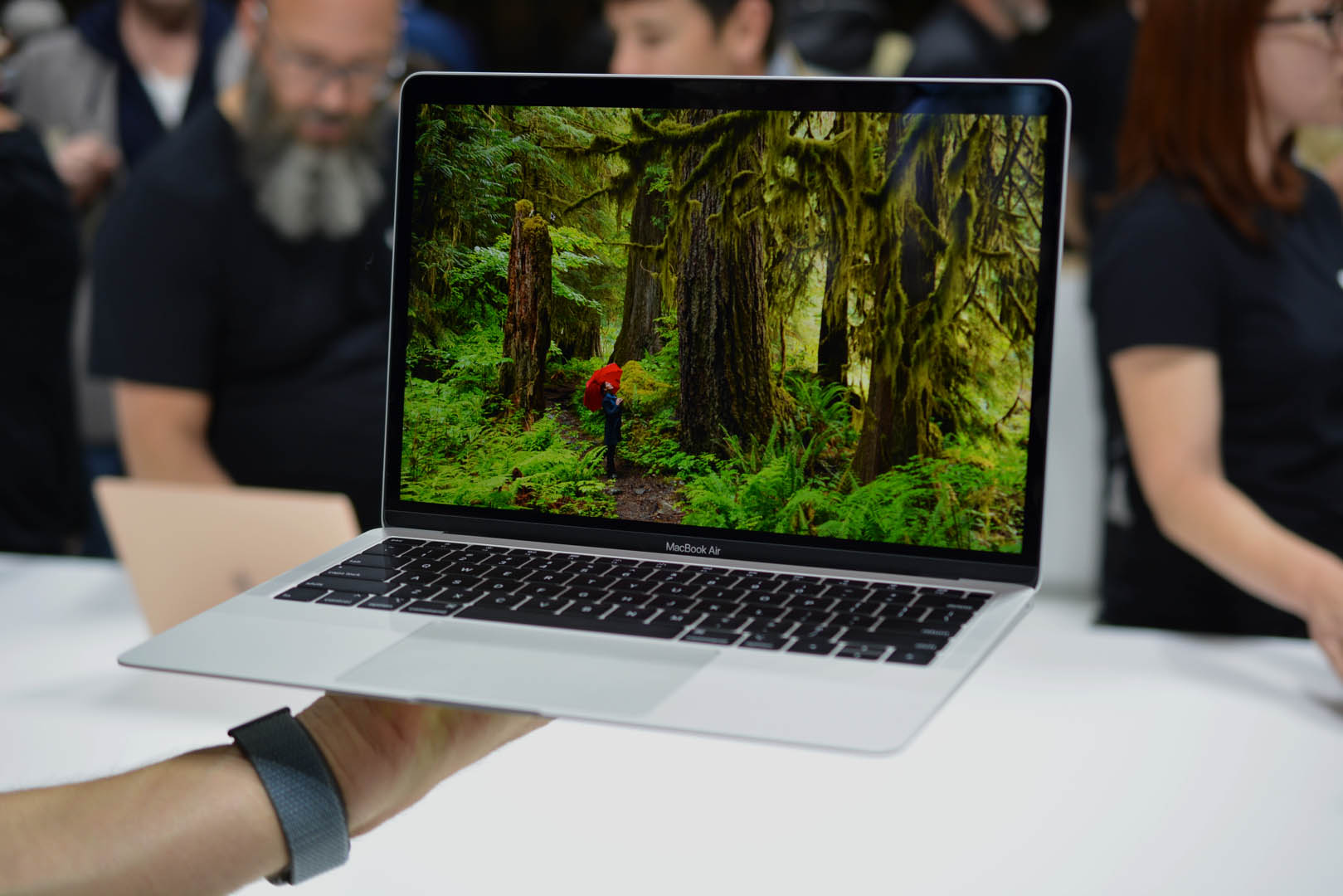
An Ars Technica colleague recently bought a new M4 MacBook Air. I have essentially nothing bad to say about this hardware, except to point out that even in our current memory shortage apocalypse, Apple is still charging higher-than-market-rates for RAM and SSD upgrades. Still, most people buying this laptop will have a perfectly nice time with it.

But for this colleague, it was also their first interaction with macOS 26 Tahoe and the Liquid Glass redesign, the Mac’s first major software design update since the Apple Silicon era began with macOS 11 Big Sur in 2020.

Negative consumer reaction to Liquid Glass has been overstated by some members of the Apple enthusiast media ecosystem, and Apple’s data shows that iOS 26 adoption rates are roughly in line with those of the last few years. But the Mac’s foray into Liquid Glass has drawn particular ire from longtime users (developers Jeff Johnson and Norbert Heger have been tracking persistently weird Finder and window resizing behavior, to pick two concrete examples, and Daring Fireball’s John Gruber has encouraged users not to upgrade).

My general approach to software redesigns is to just roll with them and let their imperfections and quirks become background noise over time—it’s part of my job to point out problems where I see them, but I also need to keep up with new releases whether I’m in love with them or not.

But this person has no such job requirement, and they had two questions: Can I downgrade this? And if so, how?

The answer to the first question is “yes, usually,” and Apple provides some advice scattered across multiple documentation pages. This is an attempt to bring all of those steps together into one page, aimed directly at new Mac buyers who are desperate to switch from Tahoe to the more-familiar macOS 15 Sequoia.

Table of Contents

A preemptive warning about security updates and older versions of macOS

Before we begin: Apple handles macOS updates differently from iOS updates. Eventually, Apple requires devices that support the latest iOS and iPadOS versions to install those updates if they want to continue getting security patches. That means if your iPhone or iPad can run iOS or iPadOS 26, it needs to be running iOS or iPadOS 26 to stay patched.

Older macOS versions, on the other hand, are updated for around three years after they’re initially released. The first year, they get both security patches and new features. The next two years, they get security patches and new versions of the Safari browser. Macs running older-but-supported macOS versions also generally continue to get the same firmware updates as those running the latest macOS version.

Generally, we’d recommend against using macOS versions after security updates have dried up. For macOS 15 Sequoia, that will happen around September or October of 2027. Apple also sometimes leaves individual vulnerabilities unpatched on older operating systems; only the latest releases are guaranteed to get every patch. If you can look past the elements of Tahoe’s design that bother you most, staying on it is the safest option.

You can follow steps similar to the ones in this guide to downgrade some Macs to even older versions of macOS, but I wouldn’t recommend it; macOS 14 Sonoma will get security and Safari updates for only another six months or so, which isn’t long enough to justify spending the time to install it.

What we won’t cover is how to transfer data you want to keep from your Tahoe install to an older version of macOS. We’re assuming you have a new and relatively pristine Mac to downgrade, one that you haven’t loaded up with data other than what you already have synced to iCloud.

Can my Mac downgrade?

Mostly, yes. Any Mac with an M4 family chip or older, including the M4 MacBook Air and everything else in Apple’s current lineup, should support the current version of Sequoia (as of this writing, 15.7.4, with Safari 26.3).

As a rule of thumb, Macs will not run any version of macOS older than the one they shipped with when they launched. Apple provides security updates for older versions of macOS, but it doesn’t bother backporting drivers and other hardware support from newer versions to older ones.

The only Mac to launch since Tahoe was released is the M5 MacBook Pro, so owners of that system will need Tahoe or newer. If Apple puts out new Macs in early March as expected, those Macs will also only work with Tahoe or newer, and downgrades won’t be possible.

Although we’re mainly talking about new Macs here, these steps should all be identical for any Apple Silicon Mac, from the original M1 computers on up. If you buy a recently used Mac that ships with Tahoe installed, a downgrade still works the same way. We won’t cover the steps for installing anything on an Intel Mac—vanishingly few of them support Tahoe in the first place, and most people certainly shouldn’t be buying them at this late date.

Option one: A bootable USB installer

Apple hasn’t shipped physical install media for macOS in 15 years, but each downloadable installer still includes the bits you need to make a bootable USB install drive. And while late-Intel-era Macs with Apple T2 chips briefly made booting from external media kind of a pain, Apple Silicon Macs will boot from a USB drive just as easily and happily as early Intel-era Macs did.

This method will be the easiest for most people because it only requires you to own a single Mac—the one you’re downgrading.

Create the USB installer
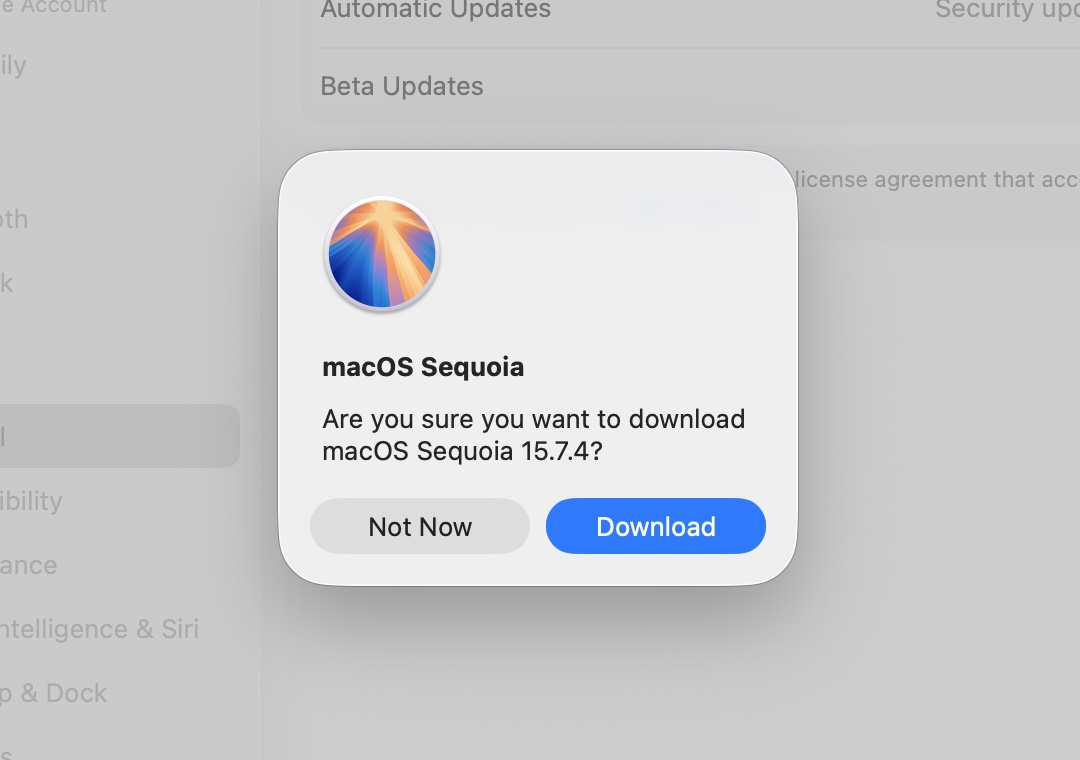
Downloading the Sequoia installer through Software Update. Downloading this way serves as an additional compatibility check; your Mac won’t download any version of macOS too old for it to run.

Credit: Andrew Cunningham

Downloading the Sequoia installer through Software Update. Downloading this way serves as an additional compatibility check; your Mac won’t download any version of macOS too old for it to run. Credit: Andrew Cunningham

To make a USB installer, you’ll need a 32GB or larger USB flash drive and the downloadable macOS Sequoia installer. A 16GB drive was large enough for macOS for many years, but Sequoia and Tahoe are too large by a couple of gigabytes.

Apple’s support page here links to every downloadable macOS installer going back to 2011’s 10.7 Lion. In Tahoe, the macOS Sequoia link takes you to the App Store, which then bounces you to Software Update in the Settings app. This process has enough points of failure that it may not work the first time; try clicking the “Get” button in the App Store again and it usually goes.

If you’re downloading the installer from within macOS Tahoe, you’ll see a pop-up when the download completes, telling you that the installer can’t be run from within that version of macOS. Since we’ll be running it off of its own USB stick, you can safely ignore this message.

While the installer is downloading, install and prepare your USB drive. Open Disk Utility, click the View button, and select “show all devices.” Click the root of your USB drive under the “external” header in the left sidebar, and click the Erase button in the upper-right control area.

Change the disk’s name to whatever you want—I use “MyVolume” so I don’t have to change Apple’s sample terminal commands when copying the installer files—and make sure the Format is set to Mac OS Extended (Journaled) and the Scheme is set to GUID Partition Map. (That’s not an error; the macOS installer still wants an HFS+ filesystem rather than APFS.)

The handy thing is that if you have a larger USB drive, you can create installers for multiple macOS versions by partitioning the disk with the Partition button. A 64GB drive split into three ~21GB partitions could boot Tahoe, Sequoia, and another past or future macOS version; I just have it split into two volumes so I can boot Sequoia and Tahoe installers from the same drive.
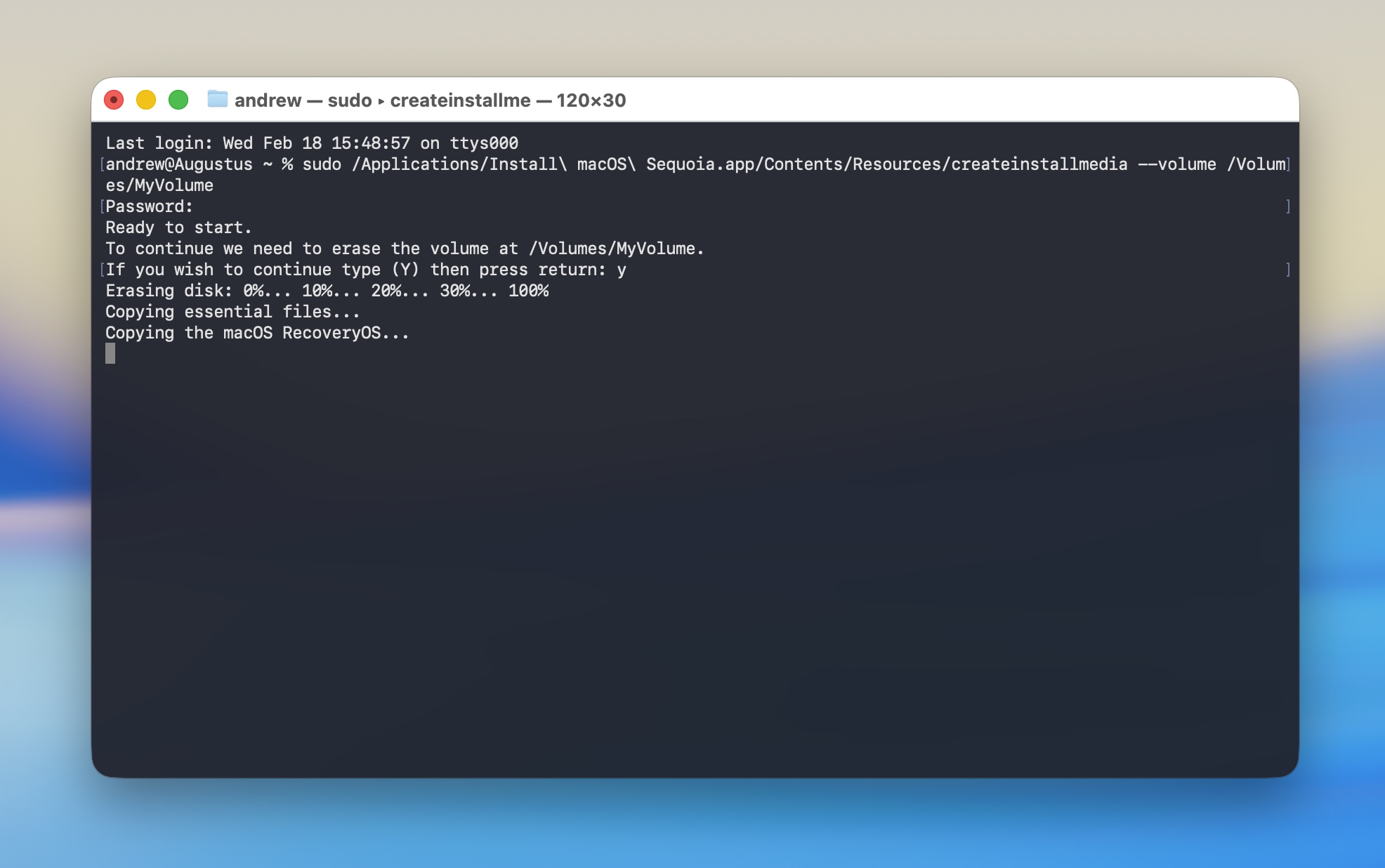
Running the Terminal command to create our macOS 15 Sequoia boot drive.

Credit: Andrew Cunningham

Running the Terminal command to create our macOS 15 Sequoia boot drive. Credit: Andrew Cunningham

Once the Sequoia installer is in your Applications folder, run a Terminal command to copy the installer files. Apple has commands for each version of macOS on this page. Use this one for Sequoia:

sudo /Applications/Install macOS Sequoia.app/Contents/Resources/createinstallmedia --volume /Volumes/MyVolume

If you named the USB drive something other than MyVolume when you formatted it, change the name in the command as well. Note that names with spaces require a backslash before each space.

The Terminal will prompt you for your password and ask you to type Y to confirm. It will then reformat the drive and copy the files over. The time this takes will vary depending on the speed of the USB drive you’re using, but for most USB 3 drives, it should only take a few minutes to create the installer. When the Terminal command is done running, leave the disk inserted and shut down your Mac.

Using the USB installer

With your Mac powered down and the USB installer drive inserted, press and hold the power button on your Mac (the Touch ID button on any laptop or the dedicated power button on a desktop) until the text under the Apple logo changes to “loading startup options.” You should see the macOS Sequoia installer listed alongside Macintosh HD as a boot option; highlight it and click Continue. If you don’t see the Sequoia installer, you may need an extra step—highlight Options, then click Continue, and we’ll talk more about this momentarily.

Once booted, the Sequoia installer will automatically launch the macOS installer to do an in-place upgrade, which isn’t what we want. Hit Command+Q to quit the installer and click through the confirmation, and you’ll get the typical menu of recovery environment options; from here, launch Disk Utility, click the top level of the internal Macintosh HD disk, and click Erase. Click through the prompts to erase the Mac and restart.
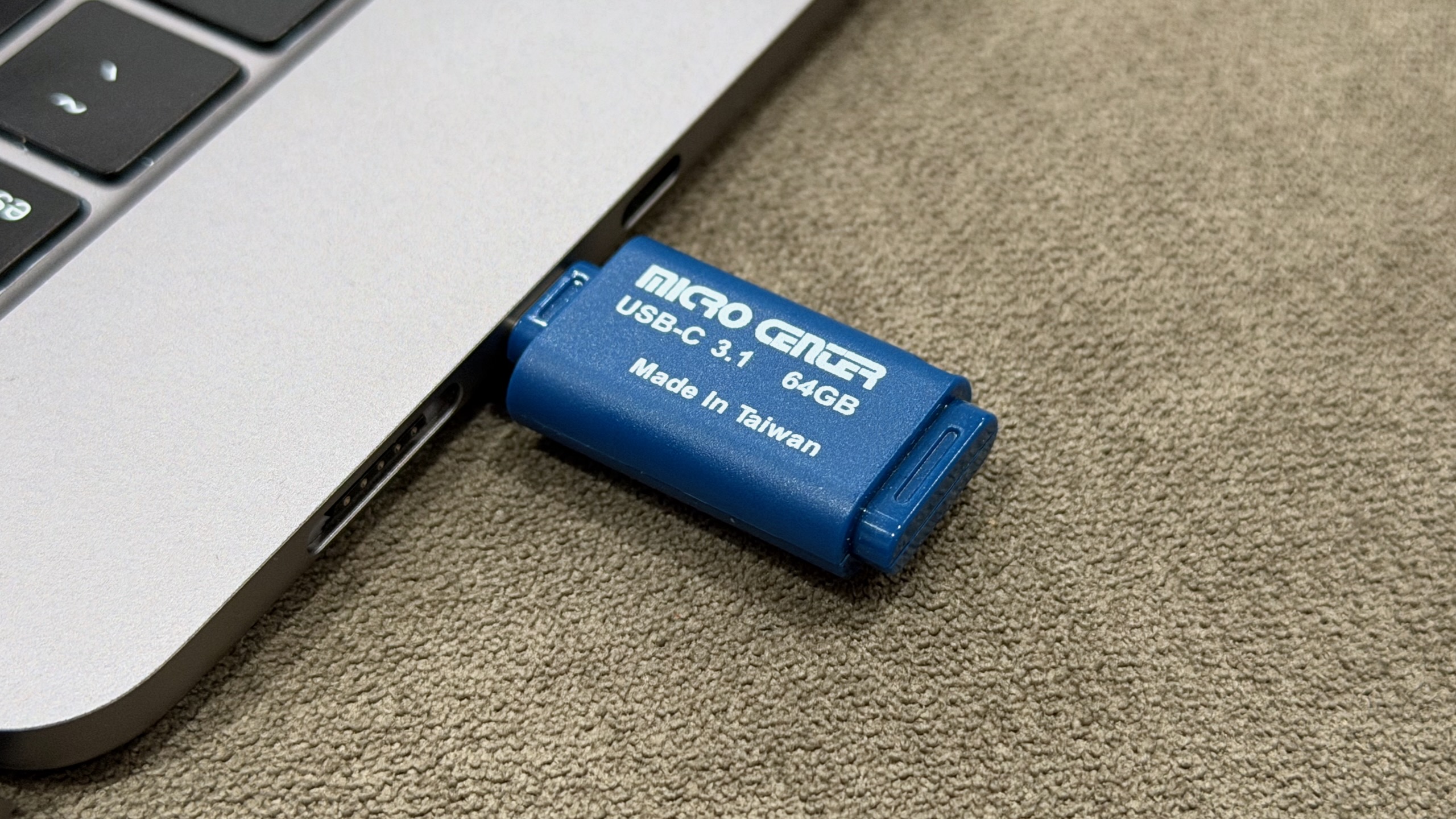
My own macOS USB installer from my beloved Micro Center.

Credit: Andrew Cunningham

My own macOS USB installer from my beloved Micro Center. Credit: Andrew Cunningham

After the Mac restarts, you’ll need an Internet connection to activate it before you can do anything else with it; connect using the Wi-Fi menu in the top-right, typing in your network SSID and password manually if the menu doesn’t auto-populate. This will activate your Mac and get you back to the recovery environment menu.

Here, select the Sequoia installer and click through the prompts—you should be able to install Sequoia on the now-empty Macintosh HD volume with no difficulty. From here, there’s nothing else to do. Wait until the installation completes, and when it’s ready, it will boot into a fresh Sequoia install, ready to be set up.

If you didn’t see your Sequoia installer in the boot menu before and you clicked the Options gear instead, it usually means that FileVault encryption or Find My was enabled on the Mac—maybe you signed into your Apple account when you were initially setting up Tahoe before you decided you wanted nothing to do with it.

When you boot into the recovery environment, you’ll be asked to select a user you know the password for, which will unlock the encrypted disk. If all you want to do is erase the Mac and make it bootable from your USB stick, don’t worry about this; just select Recovery Assistant from the menu, select Erase Mac, and click through the prompts. Then, use the steps above to boot from your USB stick, and you should be able to install a fresh copy of whatever macOS version you want to the now-erased internal drive.

The nuclear option: A DFU restore

Normally, a bootable USB installer does everything you need it to do. It wipes the data from your Mac’s internal storage and replaces it with new data. But occasionally you need to drill a little deeper, either because your Mac becomes unresponsive or you’ve been running beta software and want to switch back to a stable release. Or just because other steps haven’t worked for you.

The nuclear option for resetting a Mac is a DFU (or Device Firmware Upgrade) restore. Based on the restore process for iPhones and iPads, a DFU restore uses a compressed IPSW archive that contains not only the macOS system files but also firmware files for all Apple Silicon Macs. The USB installer just replaces macOS; the DFU restore replaces everything from the firmware on up. (These are also the same files used to create macOS virtual machines using Apple’s Virtualization Framework.)

Because a DFU restore can only be performed on a Mac that’s booted into a special DFU mode, you’ll need a second Mac with a USB-C or Thunderbolt port, plus a USB-C cable. Apple says the USB-C charging cable included with Macs will work for this but not to use a Thunderbolt cable; I’ve used a generic USB-C cable, and it has worked fine.

The first step is to download the relevant IPSW file from Apple. This page on the Mr. Macintosh site is the one I have bookmarked because it’s a good repository of virtually every macOS IPSW file Apple has ever released, including beta versions for when those are useful.

First, download the macOS 15.6.1 IPSW file linked on that page (and here) to your host Mac (Apple stops releasing IPSW files for older OSes once newer ones have been released, so this is the newest file you’ll be able to get for macOS 15). Both iPhones and iPads have model-specific IPSW files, but for macOS, there’s just one image that works with all Macs.

On the Mac you’re trying to restore—we’ll call it the “target Mac” for simplicity’s sake—figure out which of its USB-C ports is the designated DFU port. There’s only one that will work, and it’s usually the leftmost or rightmost port. Plug one end of the USB-C cable into that DFU port and the other into any USB-C port on your host Mac and follow Apple’s instructions for how to boot the system into DFU mode.
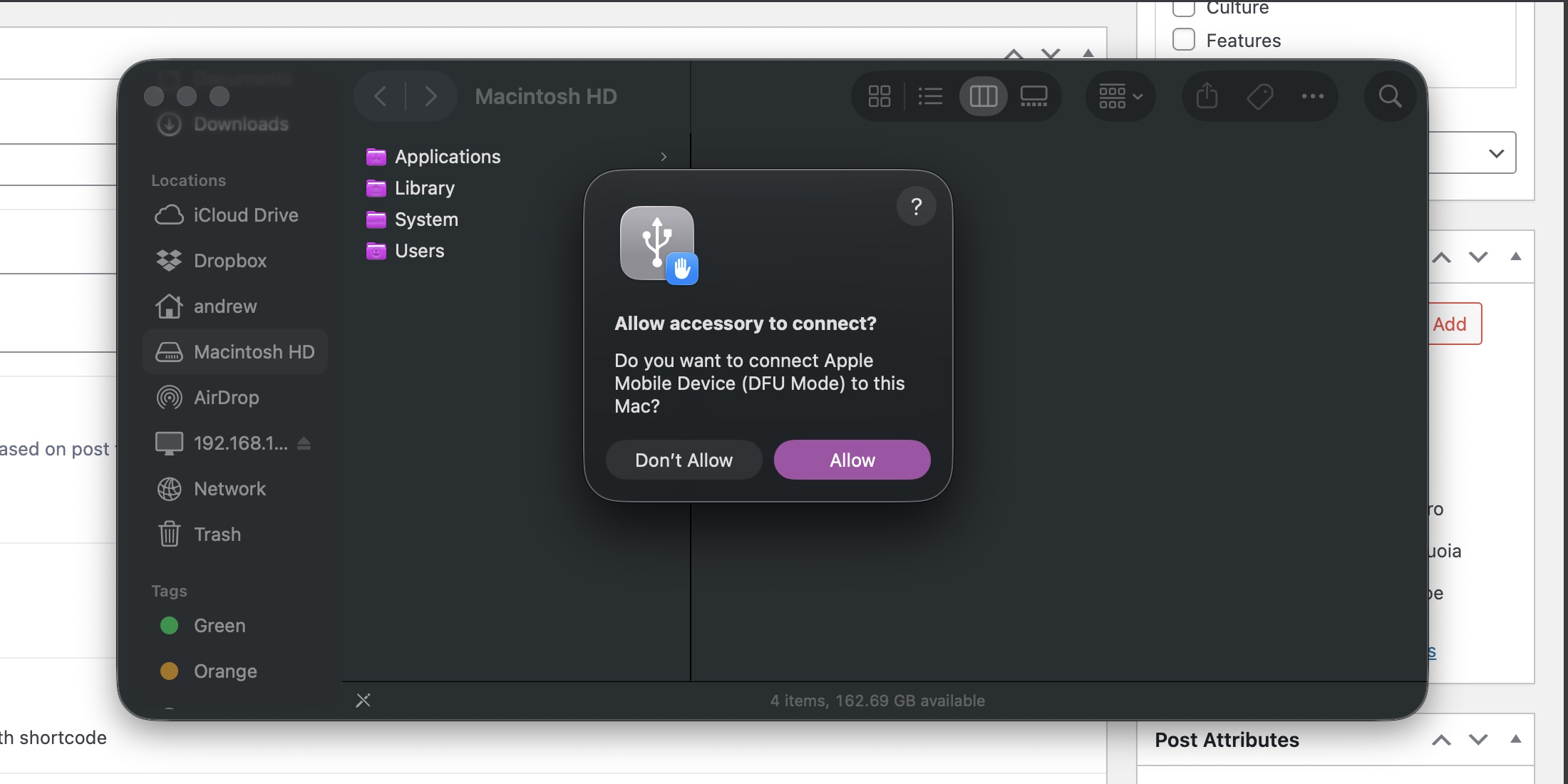
A Mac in DFU mode will need permission before your Mac can work with it.

Credit: Andrew Cunningham

A Mac in DFU mode will need permission before your Mac can work with it. Credit: Andrew Cunningham

When it’s successfully booted into DFU mode, your host Mac will see the target Mac, and you’ll see the same notification you get any time you plug in USB accessories for the first time. Allow it to connect, open a Finder window, and scroll down the left-hand sidebar until you get to “Mac” under the Locations heading.

The Finder’s DFU interface is pretty simple—a picture, a line of text, and two buttons. We want to restore, not revive, the Mac. Clicking the Revive Mac button will normally download and install the latest macOS version from Apple. But you can force it to use a different IPSW file—like the Sequoia one we just downloaded—by holding down the Option key as you click it. Navigate to the IPSW file, open it, and allow the restore process to begin.

This will take some time; you can track progress in the first phase in the Finder window. After a few minutes, the Mac you’re restoring will light back up, and you can watch its progress there. Once the target Mac reboots with its signature chime, the process is complete.

Because the IPSW file is for an outdated version of Sequoia, the first thing you’ll want to do is hit Software Update for the latest Sequoia and Safari versions; you’ll be offered a Tahoe upgrade, but you obviously won’t want to do that after the trouble you just went through. Scroll down to “other updates,” and you’ll be offered all the non-Tahoe updates available.

Downgrader’s remorse?

You will run into a handful of downsides when running an older version of macOS, especially if you’re trying to use it with iPhones and/or iPads that have been updated to version 26.

Most of the awkwardness will involve new features introduced in Messages, Notes, Reminders, and other Apple apps that sync between devices. The Messages app in Sequoia doesn’t support background images or polls, and it handles spam filtering slightly differently. They’re minor absences and annoyances, mostly, but they’re still absences and annoyances.

At least for the time being, though, you’ll find Sequoia pretty well-supported by most of Apple’s ecosystem. Core services like iCloud and iMessage aren’t going anywhere; Xcode still supports Sequoia, as does every Apple Creator Studio app update aside from the new Pixelmator Pro. App support may eventually drop off, but there’s not a lot that requires the latest and greatest version of macOS.

If and when you decide it’s time to step up to a newer version of macOS, Tahoe (or whatever macOS 27 is called) will be there in Software Update waiting for you. You’ll need to install a new version eventually if you want to keep getting app updates and security patches. But you don’t have to yet.

Photo of Andrew Cunningham

Andrew is a Senior Technology Reporter at Ars Technica, with a focus on consumer tech including computer hardware and in-depth reviews of operating systems like Windows and macOS. Andrew lives in Philadelphia and co-hosts a weekly book podcast called Overdue.

How to downgrade from macOS 26 Tahoe on a new Mac Read More »
5-changes-to-know-about-in-apple’s-latest-ios,-macos,-and-ipados-betas

5 changes to know about in Apple’s latest iOS, macOS, and iPadOS betas


The 26.3 updates were mostly invisible; these changes are more significant.

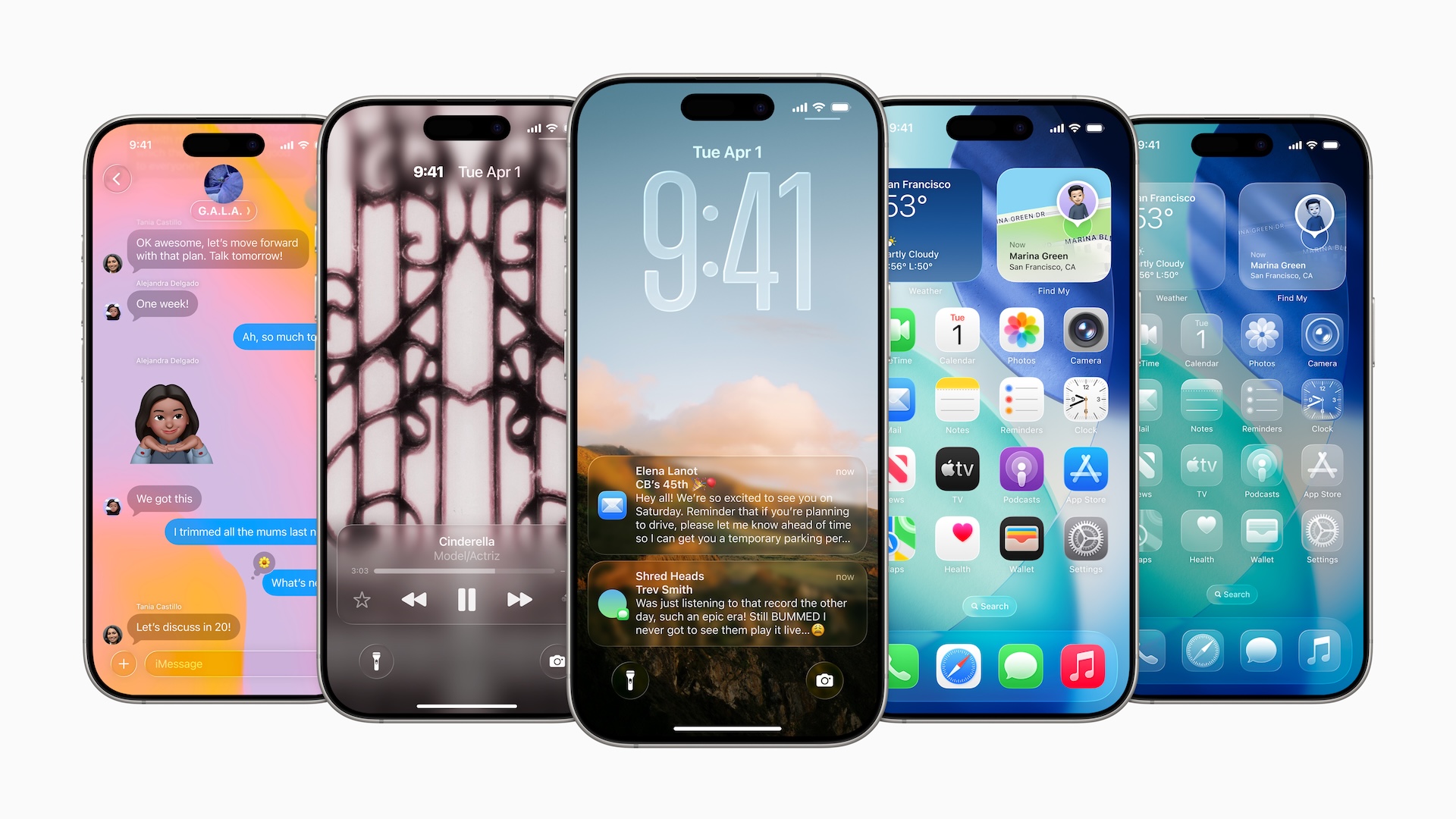
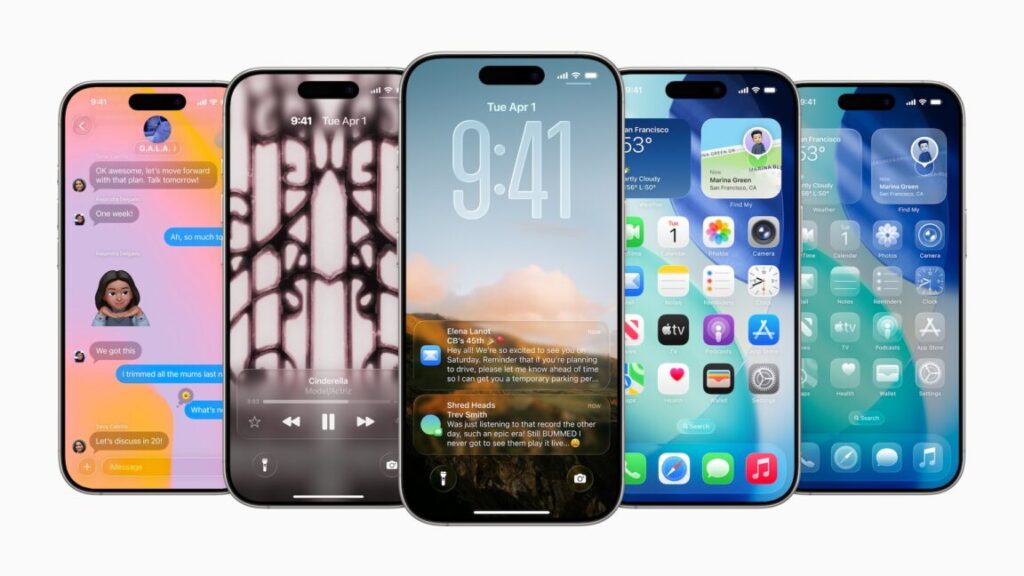
A collection of iPhones running iOS 26. Credit: Apple

A collection of iPhones running iOS 26. Credit: Apple

This week, Apple released the first developer betas for iOS 26.4, iPadOS 26.4, macOS 26.4, and its other operating systems. On Tuesday, it followed those up with public beta versions of the same updates.

Usually released around the midpoint between one major iOS release and the next, the *.4 updates to its operating system usually include a significant batch of new features and other refinements, and if the first beta is any indication, this year’s releases uphold that tradition.

A new “Playlist Playground” feature will let Apple Music subscribers generate playlists with text prompts, and native support for video podcasts is coming to the Podcasts app. The Creator Studio version of the Freeform drawing and collaboration app is also available in the 26.4 updates, allowing subscribers to access stock images from Apple’s Content Hub and to insert AI-generated images.

But we’ve spent time digging through the betas to identify some of the more below-the-surface improvements and changes that Apple is testing. Some of these changes won’t come to the public versions of the software until a later release; others may be removed or changed between now and when the 26.4 update is made available to the general public. But generally, Apple’s betas give us a good idea of what the final release will look like.

One feature that hasn’t appeared in these betas? The new “more intelligent Siri” that Apple has been promising since the iOS 18 launch in 2024. Apple delayed the feature until sometime in 2026, citing that it wasn’t meeting the company’s standards for quality and reliability.

Reports indicated that the company had been planning to make the new Siri part of the 26.4 update, but as of earlier this month, Apple has reportedly decided to push it to the 26.5 release or later; even releasing it as part of iOS 27 in the fall would technically not run afoul of the “2026” promise.

Before we begin, the standard warning about installing beta software on hardware you rely on day to day. Although these point updates are generally more stable than the major releases Apple tests in the summer and fall, they can still contain major bugs and may cause your device to behave strangely. The first beta, in particular, tends to be the roughest—more stable versions will be released in the coming weeks, and we should see the final version of the update within the next couple months.

Charging limits for MacBooks

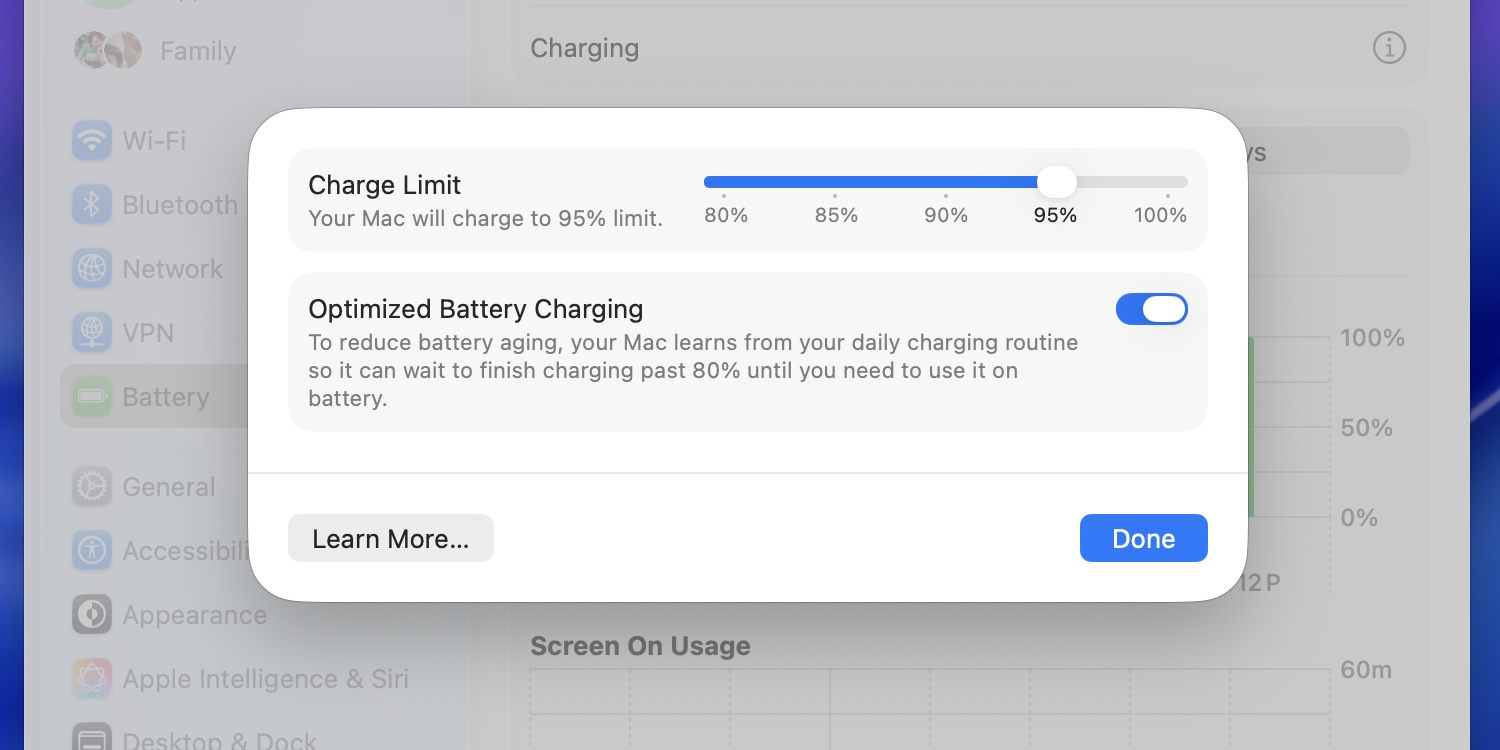
The macOS 26.4 update includes a slider for manually limiting your Mac’s battery charge percentage.

Credit: Andrew Cunningham

The macOS 26.4 update includes a slider for manually limiting your Mac’s battery charge percentage. Credit: Andrew Cunningham

In macOS 11 Big Sur, Apple added an on-by-default “Optimized Battery Charging” toggle to the operating system that would allow macOS to limit your battery’s charge percentage to 80 percent based on your usage and charging behavior. The idea is to limit the time your battery spends charging while full, something that can gradually reduce its capacity.

The macOS 26.4 update adds a new slider similar to the one in iOS, further allowing users to manually specify a maximum charge limit that is always observed, no matter what. It’s adjustable in 5 percent increments from 80 to 100 percent.

Anecdotal evidence suggests that limiting your charge percentage can lengthen the useful life of your battery and reduce wear, but there’s nothing that will fully prevent a battery from wearing out and losing capacity over time. It’s up to users to decide whether an immediately noticeable everyday hit to battery life is worth a slightly longer service life.

In the current macOS betas, enabling a charge limit manually doesn’t disable the Optimized Battery Charging feature the way it does in iOS. It’s unclear if this is an early bug or an intentional difference in how the feature is implemented in macOS.

End-to-end encryption (and other improvements) for non-Apple texting

Apple has been infamously slow to adopt support for the Rich Communication Services (RCS) messaging protocol used by most modern Android phones. Apple-to-Apple messaging was handled using iMessage, which supports end-to-end encryption among many other features. But for many years, it stuck by the aging SMS standard for “green bubble” texting between Apple’s platforms and others, to the enduring frustration of anyone with a single Android-using friend in a group chat.

Apple finally began supporting RCS messaging for major cellular carriers in iOS 18, and has slowly expanded support to other networks in subsequent releases. But Apple’s implementation still doesn’t support end-to-end encryption, which was added to the RCS standard about a year ago.

The 26.4 update is the first to begin testing encryption for RCS messages. But as with the initial RCS rollout, Apple is moving slowly and deliberately: for now, encrypted RCS messaging only works when texting between Apple devices, and not between Apple devices and Android phones. The feature also won’t be included in the final 26.4 release—it’s only included in the betas for testing purposes, and it “will be available to customers in a future software update for iOS, iPadOS, macOS, and watchOS.”

Encrypted iMessage and RCS chats will be labeled with a lock icon, much like how most web browsers label HTTPS sites.

To support encrypted messaging, Apple will jump from version 2.4 of the RCS Universal Profile to version 3.0. This should also enable support for several improvements in versions 2.5, 2.6, and 2.7 of the RCS standard, including previously iMessage-exclusive things like editing and recalling messages and replying to specific messages inline.

The return of the “Compact” Safari tab bar

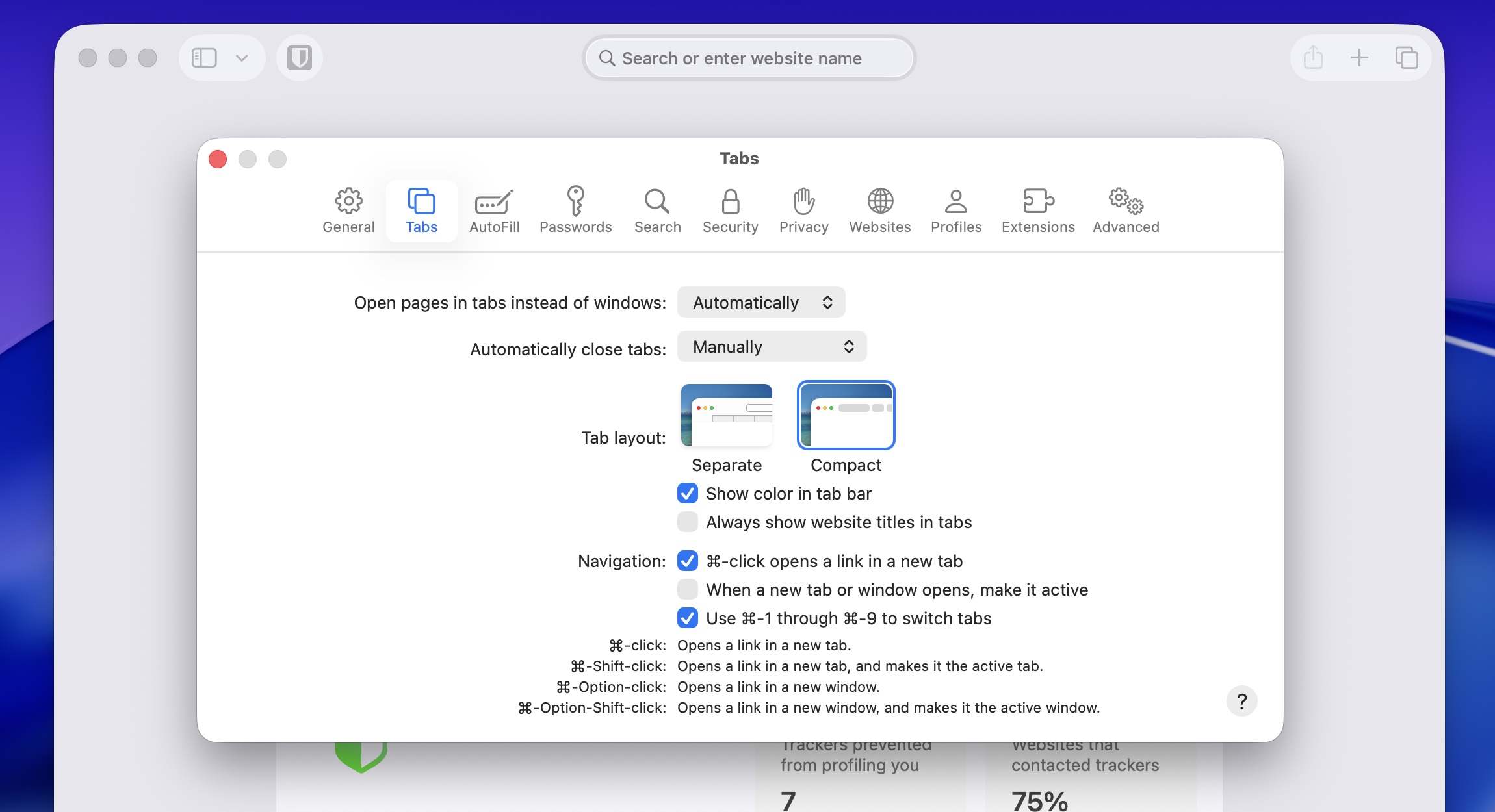
The Compact tab view returns to Safari 26.4 and iPadOS 26.4.

Credit: Andrew Cunningham

The Compact tab view returns to Safari 26.4 and iPadOS 26.4. Credit: Andrew Cunningham

As part of the macOS 12 Monterey/iPadOS 15 beta cycle in 2021, Apple attempted a pretty radical redesign of the Safari browser that combined your tabs and the address bar into one, with the goal of increasing the amount of viewable space on the pages you were viewing. By the time both operating systems were released to the public, Safari’s default design had more or less reverted to its previous state, but the “compact” tab view lived on as an optional view in the settings for those who liked it.

Tahoe, the Safari 26 update, and iPadOS 26 all removed that Compact view entirely, though a version of the Compact view became the default for the iPhone version of Safari. The macOS 26.4, Safari 26.4, and iPadOS 26.4 updates restore the Compact tab option to the other versions of Safari.

On-by-default Stolen Device Protection

Originally introduced in the iOS 17.3 update, Apple’s “Stolen Device Protection” toggle for iPhones added an extra layer of security for users whose phones were stolen by people who had learned their passcodes. With Stolen Device Protection enabled, an iPhone that had been removed from “familiar locations, such as home or work” would require biometric Face ID or Touch ID authentication before accessing stored passwords and credit cards, erasing your phone, or changing Apple Account passwords. Normally, users can enter their passcodes as a fallback; Stolen Device Protection removes that fallback.

The iOS 26.4 update will make Stolen Device Protection on by default. Generally, you won’t notice a difference in how your phone behaves, but if you’re traveling or away from places where you regularly use your phone and you can’t use your passcode to access certain information, this is why.

It’s possible to switch off Stolen Device protection, but doing so requires biometric authentication, an hour-long wait, and then a second biometric authentication. (This extended wait is also required for disabling Find My, changing your phone’s passcode, or changing Touch ID and Face ID settings.)

Rosetta’s end approaches

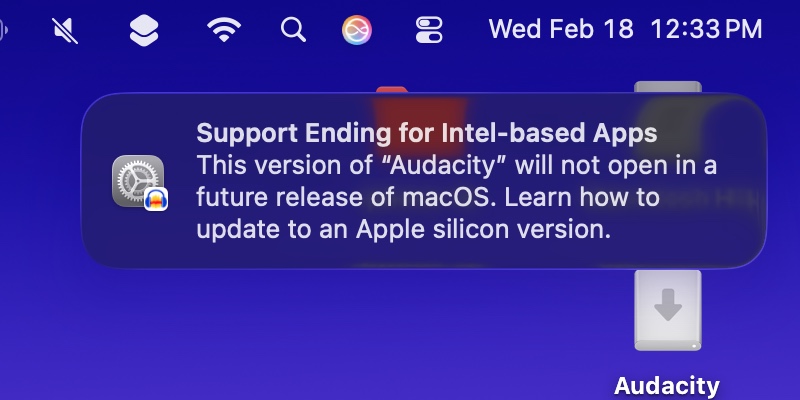
The macOS 26.4 update will add the first user-facing notifications about the end of Rosetta support, currently slated for macOS 28 in 2027.

Credit: Andrew Cunningham

The macOS 26.4 update will add the first user-facing notifications about the end of Rosetta support, currently slated for macOS 28 in 2027. Credit: Andrew Cunningham

Apple’s Rosetta 2 was a crucial support beam in the bridge from the Intel Mac era to the Apple Silicon era, enabling unmodified Intel-native apps to run on the M1 and later processors, with noticeable but manageable performance and responsiveness hits. As with the original Rosetta, it allowed Apple to execute a major CPU architecture switch while keeping it mostly invisible to Mac users, and it bought developers time to release Arm-native versions of their apps so they could take full advantage of the new chips.

But now that the transition is complete and the last Intel Macs are fading into the rearview, Apple plans to remove the translation layer from future versions of macOS, with some exceptions for games that rely on the technology.

Rosetta 2 won’t be completely removed until macOS 28, but macOS 26.4 will be the first to begin warning users about the end of Rosetta when they launch Intel-native apps. Those notifications link to an Apple support page about identifying and updating Intel-only apps to Apple Silicon-native versions (or universal binaries that support both architectures).

Apple has deployed this “adding notifications without removing functionality” approach to deprecating older apps before. Versions 10.13 and 10.14 of macOS would show users pop-ups about the end of support for 32-bit apps for a couple of years before that support was removed in macOS 10.15, for example.

Photo of Andrew Cunningham

Andrew is a Senior Technology Reporter at Ars Technica, with a focus on consumer tech including computer hardware and in-depth reviews of operating systems like Windows and macOS. Andrew lives in Philadelphia and co-hosts a weekly book podcast called Overdue.

5 changes to know about in Apple’s latest iOS, macOS, and iPadOS betas Read More »

software-leaks-point-to-the-first-apple-silicon-“imac-pro,”-among-other-devices

Software leaks point to the first Apple Silicon “iMac Pro,” among other devices

Apple doesn’t like to talk about its upcoming products before it’s ready, but sometimes the company’s software does the talking for it. So far this week we’ve had a couple of software-related leaks that have outed products Apple is currently testing—one a pre-release build of iOS 26, and the other some leaked files from a kernel debug kit (both via MacRumors).

Most of the new devices referenced in these leaks are straightforward updates to products that already exist: a new Apple TV, a HomePod mini 2, new AirTags and AirPods, an M4 iPad Air, a 12th-generation iPad to replace the current A16 version, next-generation iPhones (including the 17e, 18, and the rumored foldable model), a new Studio Display model, some new smart home products we’ve already heard about elsewhere, and M5 updates for the MacBook Air, Mac mini, Mac Studio, and the other MacBook Pros. There’s also yet another reference to the lower-cost MacBook that Apple is apparently planning to replace the M1 MacBook Air it still sells via Walmart for $599.

For power users, though, the most interesting revelation might be that Apple is working on a higher-end Apple Silicon iMac powered by an M5 Max chip. The kernel debug kit references an iMac with the internal identifier J833c, based on a platform identified as H17C—and H17C is apparently based on the M5 Max, rather than a lower-end M5 chip. (For those who don’t have Apple’s branding memorized, “Max” is associated with Apple’s second-fastest chips; the M5 Max would be faster than the M5 or M5 Pro, but slower than the rumored M5 Ultra.)

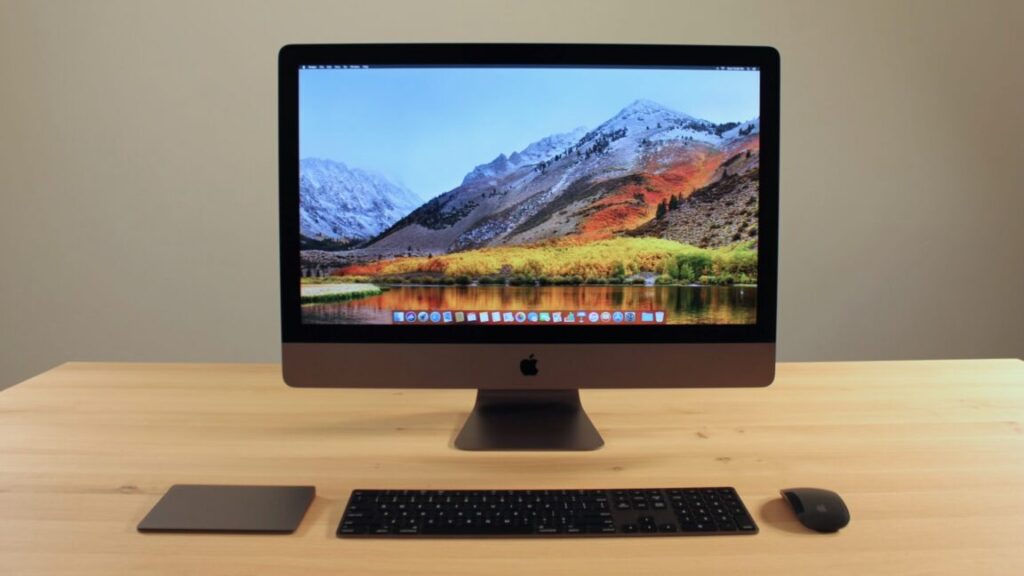
This device could be the long-awaited, occasionally-rumored-but-never-launched replacement to Apple’s 27-inch iMac, which was discontinued in 2022 with no direct replacement. An M5 Max chip would also make this machine the closest thing we’ve seen to a direct replacement for the iMac Pro, a 27-inch iMac variant that was launched in late 2017 but likewise discontinued without an update or replacement.

The current M4 Max chip includes 14 or 16 CPU cores, 32 or 40 GPU cores, and between 36GB and 128GB of unified memory, specs we’d expect an M5 Max to match or beat. And because the Max chips already fit into the 14- and 16-inch MacBook Pros, it should be no problem to fit one into an all-in-one desktop PC.

Software leaks point to the first Apple Silicon “iMac Pro,” among other devices Read More »

apple-releases-ios-261,-macos-26.1,-other-updates-with-liquid-glass-controls-and-more

Apple releases iOS 26.1, macOS 26.1, other updates with Liquid Glass controls and more

After several weeks of testing, Apple has released the final versions of the 26.1 update to its various operating systems. Those include iOS, iPadOS, macOS, watchOS, tvOS, visionOS, and the HomePod operating system, all of which switched to a new unified year-based version numbering system this fall.

This isn’t the first update that these operating systems have gotten since they were released in September, but it is the first to add significant changes and tweaks to existing features, addressing the early complaints and bugs that inevitably come with any major operating system update.

One of the biggest changes across most of the platforms is a new translucency control for Liquid Glass that tones it down without totally disabling the effect. Users can stay with the default Clear look to see the clearer, glassier look that allows more of the contents underneath Liquid Glass to show through, or the new Tinted look to get a more opaque background that shows only vague shapes and colors to improve readability.

For iPad users, the update re-adds an updated version of the Slide Over multitasking mode, which uses quick swipes to summon and dismiss an individual app on top of the apps you’re already using. The iPadOS 26 version looks a little different and includes some functional changes compared to the previous version—it’s harder to switch which app is being used in Slide Over mode, but the Slide Over window can now be moved and resized just like any other iPadOS 26 app window.

Apple releases iOS 26.1, macOS 26.1, other updates with Liquid Glass controls and more Read More »

upcoming-ios-and-macos-26.1-update-will-let-you-fog-up-your-liquid-glass

Upcoming iOS and macOS 26.1 update will let you fog up your Liquid Glass

Apple’s new Liquid Glass user interface design was one of the most noticeable and divisive features of its major software updates this year. It added additional fluidity and translucency throughout iOS, iPadOS, macOS, and Apple’s other operating systems, and as we noted in our reviews, the default settings weren’t always great for readability.

The upcoming 26.1 update for all of those OSes is taking a step toward addressing some of the complaints, though not by changing things about the default look of Liquid Glass. Rather, the update is adding a new toggle that will let users choose between a Clear and Tinted look for Liquid Glass, with Clear representing the default look and Tinted cranking up the opacity and contrast.

The new toggle adds a half-step between the default visual settings and the “reduce transparency” setting, which, aside from changing a bunch of other things about the look and feel of the operating system, is buried further down inside the Accessibility options. The Tinted toggle does make colors and vague shapes visible beneath the glass panes, preserving the general look of Liquid Glass while also erring on the side of contrast and visibility, where the “reduce transparency” setting is more of an all-or-nothing blunt instrument.

Upcoming iOS and macOS 26.1 update will let you fog up your Liquid Glass Read More »

macos-26-tahoe:-the-ars-technica-review

macOS 26 Tahoe: The Ars Technica Review

Game Overlay

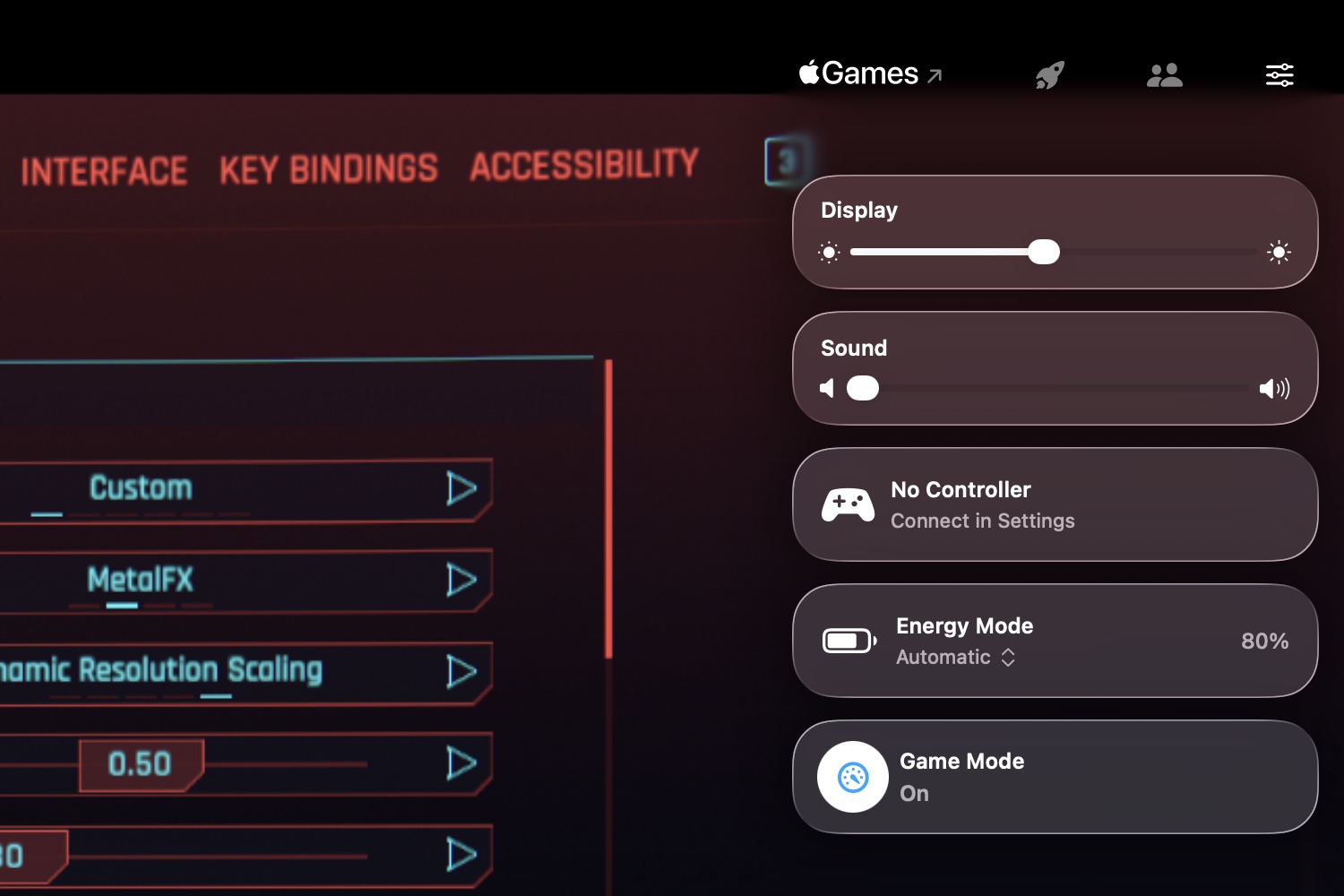
The Game Overlay in macOS Tahoe. Credit: Andrew Cunningham

Tahoe’s new Game Overlay doesn’t add features so much as it groups existing gaming-related features to make them more easily accessible.

The overlay makes itself available any time you start a game, either via a keyboard shortcut or by clicking the rocketship icon in the menu bar while a game is running. The default view includes brightness and volume settings, toggles for your Mac’s energy mode (for turning on high-performance or low-power mode, when they’re available), a toggle for Game Mode, and access to controller settings when you’ve got one connected.

The second tab in the overlay displays achievements, challenges, and leaderboards for the game you’re playing—though only if they offer Apple’s implementation of those features. Achievements for games installed from Steam, for example, aren’t visible. And the last tab is for social features, like seeing your friends list or controlling chat settings (again, when you’re using Apple’s implementation).

More granular notification summaries

I didn’t think the Apple Intelligence notification summaries were very useful when they launched in iOS 18 and macOS 15 Sequoia last year, and I don’t think iOS 26 or Tahoe really changes the quality of those summaries in any immediately appreciable way. But following a controversy earlier this year where the summaries botched major facts in breaking news stories, Apple turned notification summaries for news apps off entirely while it worked on fixes.

Those fixes, as we’ve detailed elsewhere, are more about warning users of potential inaccuracies than about preventing those inaccuracies in the first place.

Apple now provides three broad categories of notification summaries: those for news and entertainment apps, those for communication and social apps, and those for all other kinds of apps. Summaries for each category can be turned on or off independently, and the news and entertainment category has a big red disclaimer warning users to “verify information” in the individual news stories before jumping to conclusions. Summaries are italicized, get a special icon, and a “summarized by Apple Intelligence” badge, just to make super-ultra-sure that people are aware they’re not taking in raw data.

Personally, I think if Apple can’t fix the root of the problem in a situation like this, then it’s best to take the feature out of iOS and macOS entirely rather than risk giving even one person information that’s worse or less accurate than the information they already get by being a person on the Internet in 2025.

As we wrote a few months ago, asking a relatively small on-device language model to accurately summarize any stack of notifications covering a wide range of topics across a wide range of contexts is setting it up to fail. It does work OK when summarizing one or two notifications, or when summarizing straightforward texts or emails from a single person. But for anything else, be prepared for hit-or-miss accuracy and usefulness.

Relocated volume and brightness indicators

The pop-ups you see when adjusting the system volume or screen brightness have been redesigned and moved. The indicators used to appear as large rounded squares, centered on the lower half of your primary display. The design had changed over the years, but this was where they’ve appeared throughout the 25-year existence of Mac OS X.

Now, both indicators appear in the upper-right corner of the screen, glassy rectangles that pop out from items on the menu bar. They’ll usually appear next to the Control Center menu bar item, but the volume indicator will pop out of the Sound icon if it’s visible.

New low battery alert

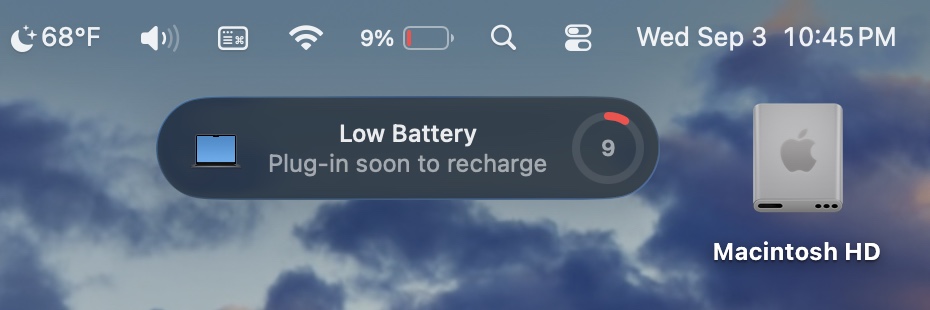
Tahoe picks up an iPhone-ish low-battery alert on laptops. Credit: Andrew Cunningham

Tahoe tweaks the design of macOS’ low battery alert notification. A little circle-shaped meter (in the same style as battery meters in Apple’s Batteries widgets) shows you in bright red just how close your battery is to being drained.

This notification still shows up separately from others and can’t be dismissed, though it doesn’t need to be cleared and will go away on its own. It starts firing off when your laptop’s battery hits 10 percent and continues to go off when you drop another percentage point from there (it also notified me without the percentage readout changing, seemingly at random, as if to annoy me badly enough to plug my computer in more quickly).

The notification frequency and the notification thresholds can’t be changed, if this isn’t something you want to be reminded about or if it’s something you want to be reminded about even earlier. But you could possibly use the battery level trigger in Shortcuts to customize your Mac’s behavior a bit.

Recovery mode changes

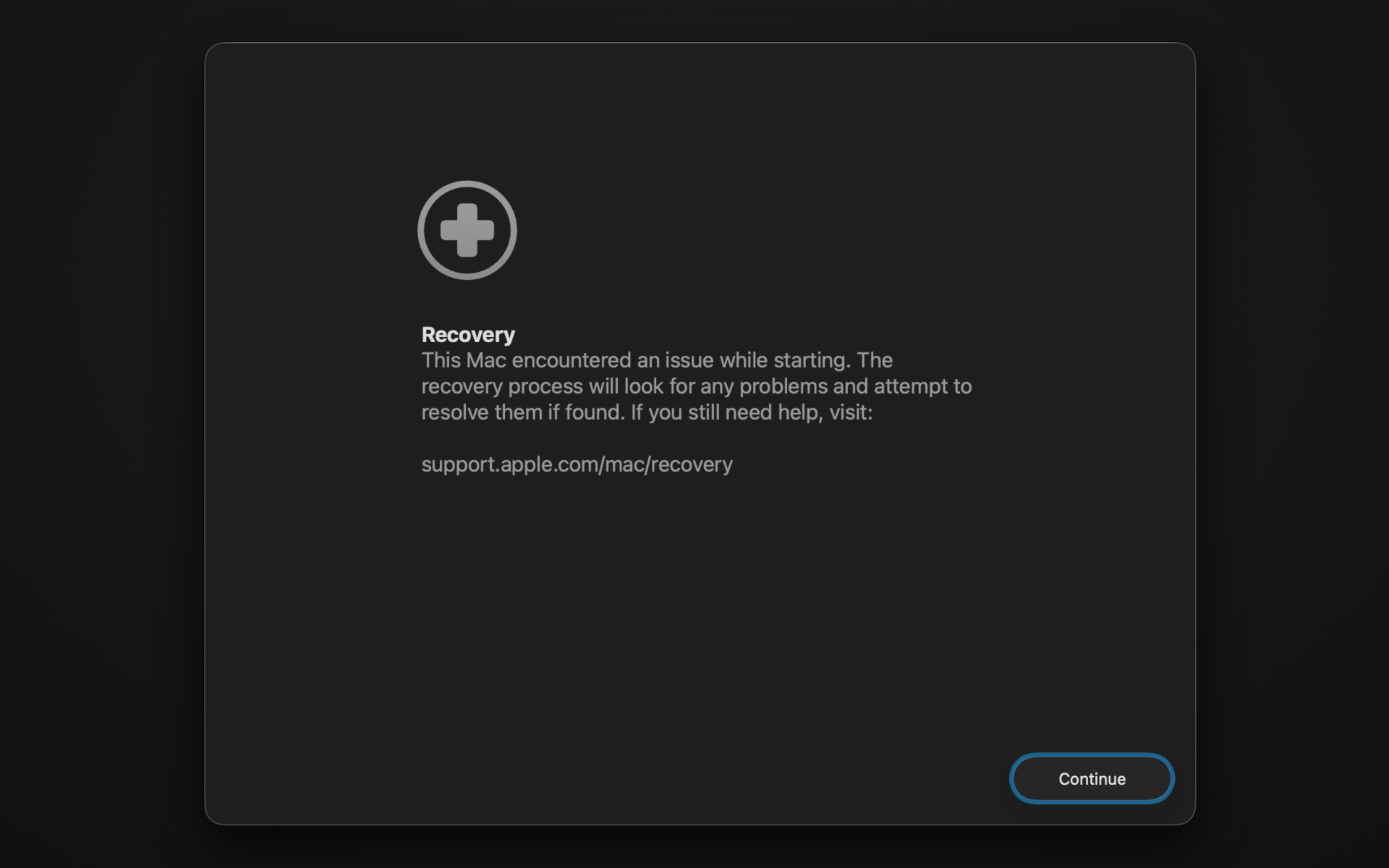
A new automated recovery tool in macOS Tahoe’s recovery volume. Credit: Andrew Cunningham

Tahoe’s version of the macOS Recovery mode gets a new look to match the rest of the OS, but there are a few other things going on, too.

If you’ve ever had a problem getting your Mac to boot, or if you’ve ever just wanted to do a totally fresh install of the operating system, you may have run into the Mac’s built-in recovery environment before. On an Apple Silicon Mac, you can usually access it by pressing and holding the power button when you start up your Mac and clicking the Options button to start up using the hidden recovery volume rather than the main operating system volume.

Tahoe adds a new tool called the Device Recovery Assistant to the recovery environment, accessible from the Utilities menu. This automated tool “will look for any problems” with your system volume “and attempt to resolve them if found.”

Maybe the Recovery Assistant will actually solve your boot problems, and maybe it won’t—it doesn’t tell you much about what it’s doing, beyond needing to unlock FileVault on my system volume to check it out. But it’s one more thing to try if you’re having serious problems with your Mac and you’re not ready to countenance a clean install yet.

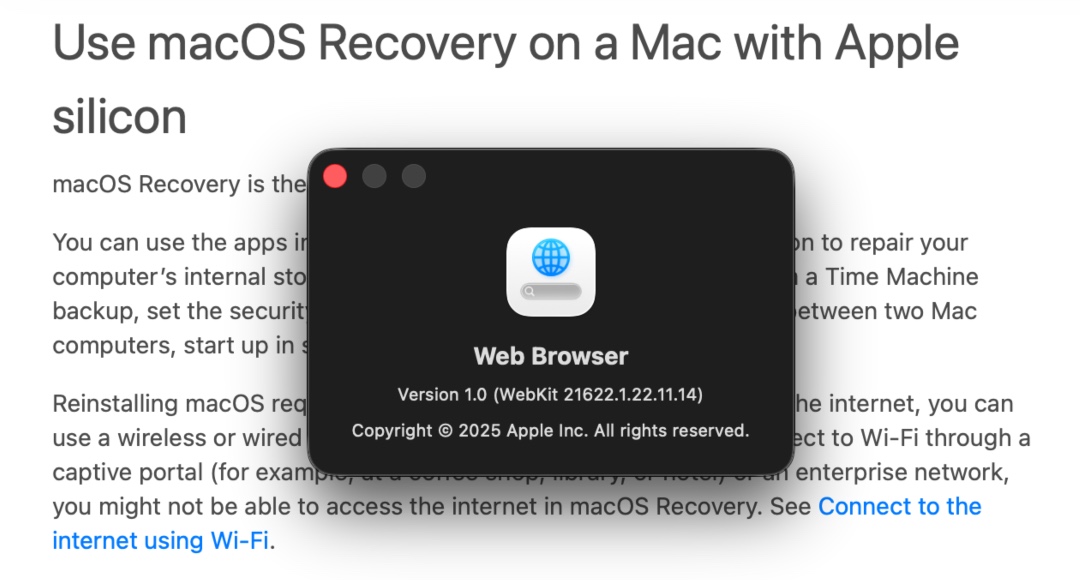
The web browser in the recovery environment is still WebKit, but it’s not Safari-branded anymore, and it sheds a lot of Safari features you wouldn’t want or need in a temporary OS. Credit: Andrew Cunningham

Apple has made a couple of other tweaks to the recovery environment, beyond adding a Liquid Glass aesthetic. The recovery environment’s built-in web browser is simply called Web Browser, and while it’s still based on the same WebKit engine as Safari, it doesn’t have Safari’s branding or its settings (or other features that are extraneous to a temporary recovery environment, like a bookmarks menu). The Terminal window picks up the new Clear theme, new SF Mono Terminal typeface, and the new default 120-row-by-30-column size.

A new disk image format

Not all Mac users interact with disk images regularly, aside from opening them up periodically to install an app or restore an old backup. But among other things, disk images are used by Apple’s Virtualization framework, which makes it relatively simple to run macOS and Linux virtual machines on the platform for testing and other things. But the RAW disk image format used by older macOS versions can come with quite severe performance penalties, even with today’s powerful chips and fast PCI Express-connected SSDs.

Enter the Apple Sparse Image Format, or ASIF. Apple’s developer documentation says that because ASIF images’ “intrinsic structure doesn’t depend on the host file system’s capabilities,” they “transfer more efficiently between hosts or disks.” The upshot is that reading files from and writing files to these images should be a bit closer to your SSD’s native performance (Howard Oakley at The Eclectic Light Company has some testing that suggests significant performance improvements in many cases, though it’s hard to make one-to-one comparisons because testing of the older image formats was done on older hardware).

The upshot is that disk images should be capable of better performance in Tahoe, which will especially benefit virtual machines that rely on disk images. This could benefit the lightweight virtualization apps like VirtualBuddy and Viable that mostly exist to provide a front end for the Virtualization framework, as well as virtualization apps like Parallels that offer support for Windows.

Quantum-safe encryption support

You don’t have a quantum computer on your desk. No one does, outside of labs where this kind of technology is being tested. But when or if they become more widely used, they’ll render many industry-standard forms of encryption relatively easy to break.

macOS 26 Tahoe: The Ars Technica Review Read More »

what-to-expect-(and-not-expect)-from-yet-another-september-apple-event

What to expect (and not expect) from yet another September Apple event


An all-new iPhone variant, plus a long list of useful (if predictable) upgrades.

Apple’s next product announcement is coming soon. Credit: Apple

Apple’s next product announcement is coming soon. Credit: Apple

Apple’s next product event is happening on September 9, and while the company hasn’t technically dropped any hints about what’s coming, anyone with a working memory and a sense of object permanence can tell you that an Apple event in the month of September means next-generation iPhones.

Apple’s flagship phones have changed in mostly subtle ways since 2022’s iPhone 14 Pro added the Dynamic Island and 2023’s refreshes switched from Lightning to USB-C. Chips get gradually faster, cameras get gradually better, but Apple hasn’t done a seismic iPhone X-style rethinking of its phones since, well, 2017’s iPhone X.

The rumor mill thinks that Apple is working on a foldable iPhone—and such a device would certainly benefit from years of investment in the iPad—but if it’s coming, it probably won’t be this year. That doesn’t mean Apple is totally done iterating on the iPhone X-style design, though. Let’s run down what the most reliable rumors have said we’re getting.

The iPhone 17

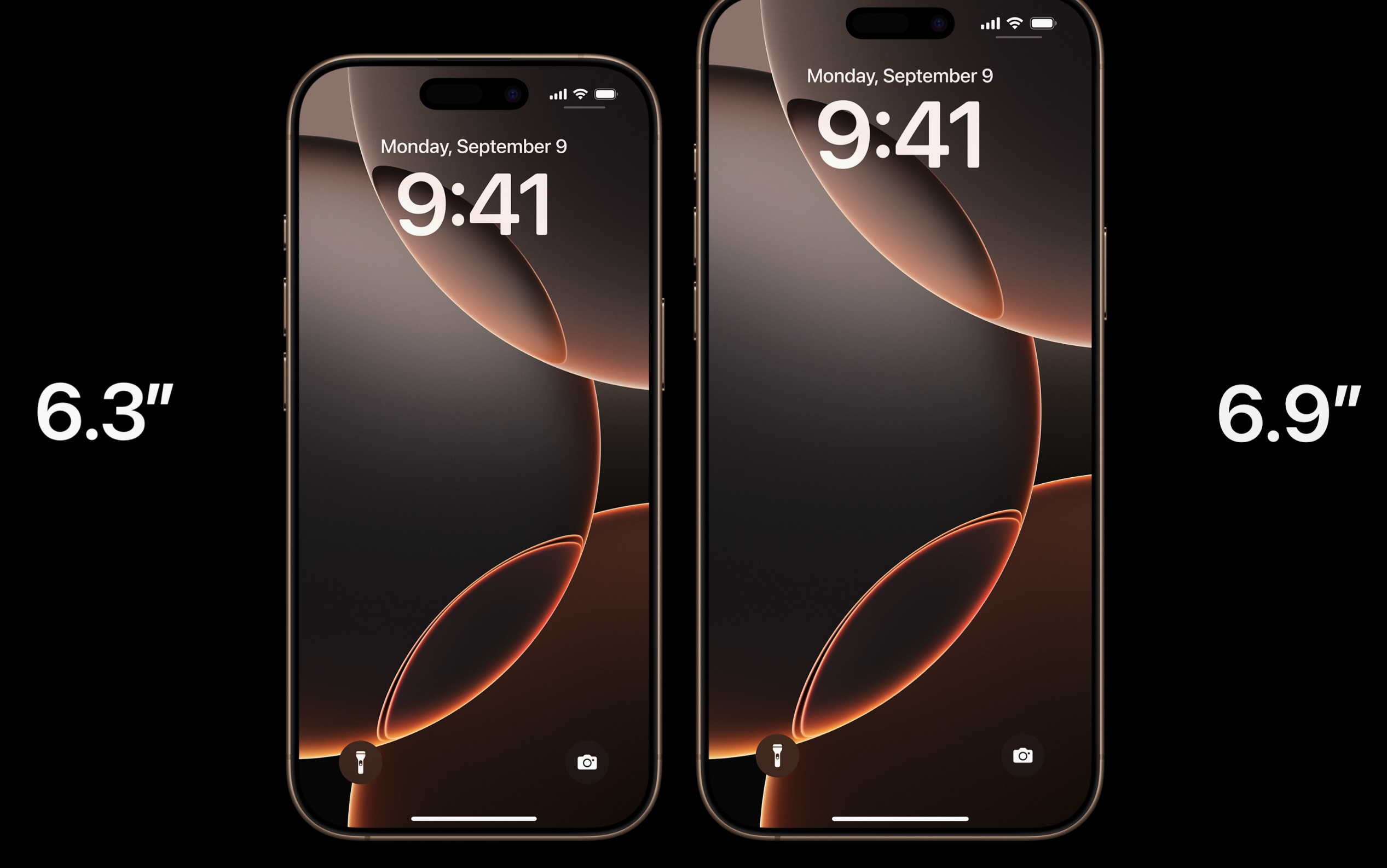
Last year’s iPhone 16 Pro bumped the screen sizes from 6.1 and 6.7 inches to 6.3 and 6.9 inches. This year’s iPhone 17 will allegedly get a 6.3-inch screen with a high-refresh-rate ProMotion panel, but the iPhone Plus is said to be going away. Credit: Apple

Apple’s vanilla one-size-fits-most iPhone is always the centerpiece of the lineup, and this year’s iteration is expected to bring the typical batch of gradual iterative upgrades.

The screen will supposedly be the biggest beneficiary, upgrading from 6.1 inches to 6.3 inches (the same size as the current iPhone 16 Pro) and adding a high-refresh-rate ProMotion screen that has typically been reserved for the Pro phones. Apple is always careful not to add too many “Pro”-level features to the entry-level iPhones, but this one is probably overdue—even less-expensive Android phones like the Pixel 9a ship often ship with 90 Hz or 120 Hz screens at this point. It’s not clear whether that will also enable the always-on display feature that has also historically been exclusive to the iPhone Pro, but the fluidity upgrade will be nice regardless.

Aside from that, there aren’t many specific improvements we’ve seen reported on, but there are plenty we can comfortably guess at. Improved front- and rear-facing cameras and a new Apple A19-series chip with at least the 8GB of RAM needed to support Apple Intelligence are both pretty safe bets.

But there’s one thing we supposedly won’t get, which is a new large-sized iPhone Plus. That brings us to our next rumor.

The “iPhone Air”

For the last few years, every new iPhone launch has actually brought us four iPhones—a regular iPhone in two different sizes and an iPhone Pro with a better camera, better screen, faster chip, and other improvements in a regular size and a large size.

It’s the second size of the regular iPhone that has apparently given Apple some trouble. It made a couple of generations of “iPhone mini,” an attempt to address a small-but-vocal contingent of Phones Are Just Too Big These Days people that apparently didn’t sell well enough to continue making. That was replaced by the iPhone Plus, aimed at people who wanted a bigger screen but who weren’t ready to pay for an iPhone Pro Max.

The Plus phones at least gave the iPhone lineup a nice symmetry—two tiers of phone, with a regular one and a big one at each tier—but rumors suggest that the Plus phone is also going away this year. Like the iPhone mini before it, it apparently just wasn’t selling well enough to be worth the continued effort.

That brings us to this year’s fourth iPhone: Apple is supposedly planning to release an “iPhone Air,” which will weigh less than the regular iPhone and is said to be 5.5 or 6 mm thick, depending on who you ask (the iPhone 16 is 7.8 mm).

A 6.3-inch ProMotion display and A19-series chip are also expected to be a part of the iPhone Air, but rather than try to squeeze every feature of the iPhone 17 into a thinner phone, it sounds like the iPhone 17 Air will cater to people who are willing to give a few things up in the interest of getting a thinner and lighter device. It will reportedly have worse battery life than the regular iPhone and just a single-lens camera setup (though the 48 MP sensors Apple has switched to in recent iPhones do make it easier to “fake” optical zoom features than it used to be).

We don’t know anything about the pricing for any of these phones, but Bloomberg’s Mark Gurman suggests that the iPhone Air will be positioned between the regular iPhone and the iPhone Pro—more like the iPad lineup, where the Air is the mid-tier choice, and less like the Mac, where the Air is the entry-level laptop.

iPhone 17 Pro

Apple’s Pro iPhones are generally “the regular iPhone, but more,” and sometimes they’re “what all iPhones will look like in a couple of years, but available right now for people who will pay more for it.” The new ones seem set to continue in that vein.

The most radical change will apparently be on the back—Apple is said to be switching to an even larger camera array that stretches across the entire top-rear section of the phone, an arrangement you’ll occasionally see in some high-end Android phones (Google’s Pixel 10 is one). That larger camera bump will likely enable a few upgrades, including a switch from a 12 MP sensor for the telephoto zoom lens to a 48 MP sensor. And it will also be part of a more comprehensive metal-and-glass body that’s more of a departure from the glass-backed-slab design Apple has been using since the iPhone 12.

A 48MP telephoto sensor could increase the amount of pseudo-optical zoom that the iPhone can offer. The main iPhones will condense a 48 MP photo down to 12 MP when you’re in the regular shooting mode, binning pixels to improve image quality. For zoomed-in photos, it can just take a 12 MP section out of the middle of the 48 MP image—you lose the benefit of pixel binning, but you’re still getting a “native resolution” photo without blurry digital zoom. With a better sensor, Apple could do exactly the same thing with the telephoto lens.

Apple reportedly isn’t planning any changes to screen size this year—still 6.3 inches for the regular Pro and 6.9 inches for the Max. But they are said to be getting new “A19 Pro” series chips that are superior to the regular A19 processors (though in what way, exactly, we don’t yet know). But it could shrink the amount of screen space dedicated to the Dynamic Island.

New Apple Watches

Apple Watch Series 10

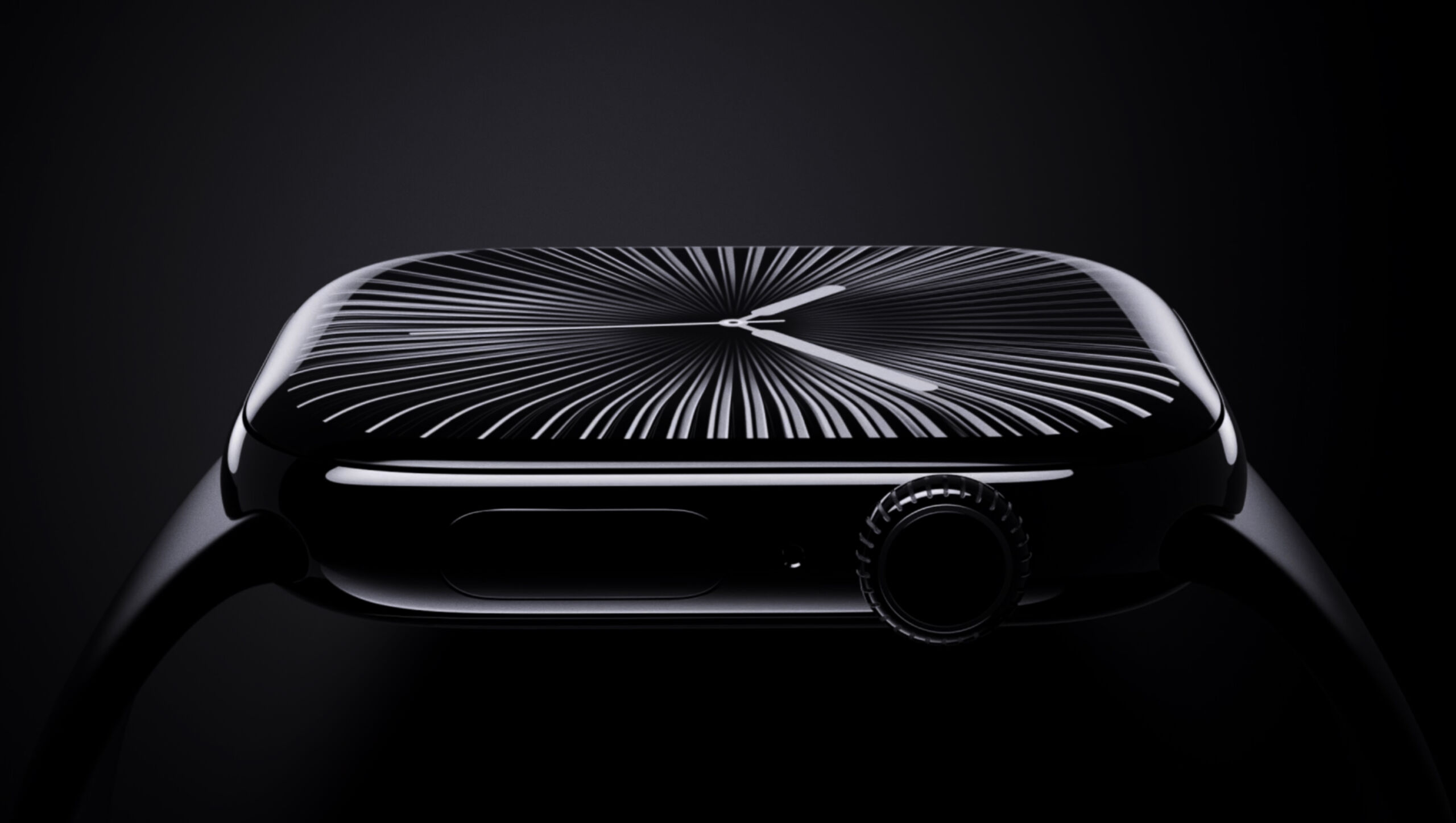
The Apple Watch Series 10 from 2024. Credit: Apple

New iPhone announcements are usually paired with new Apple Watch announcements, though if anything, the Watch has changed even less than the iPhone has over the last few years.

The Apple Watch Series 11 won’t be getting a screen size increase—the Series 10 bumped things up a smidge just last year, from 41 and 45 mm to 42 and 46 mm. But the screen will apparently have a higher maximum brightness—always useful for outdoor visibility—and there will be a modestly improved Apple S11 chip on the inside.

The entry-level Apple Watch SE is also apparently due for an upgrade. The current second-generation SE still uses an Apple S8 chip, and Apple Watch Series 4-era 40 and 44 mm screens that don’t support always-on operation. In other words, there’s plenty that Apple could upgrade here without cannibalizing sales of the mainstream Series 11 watch.

Finally, after missing out on an update last year, Apple also reportedly plans to deliver a new Apple Watch Ultra, with the larger 46 mm screen from the Series 10/11 watches and the same updated S11 chip as the regular Apple Watch. The current Apple Watch Ultra 2 already has a brighter screen than the Series 10—3,000 nits, up from 2,000—so it’s not clear whether the Apple Watch Ultra 3’s screen would also get brighter or if the Series 11’s screen is just getting a brightness boost to match what the Ultra can do.

Smart home, TV, and audio

Though iPhones and Apple Watches are usually a lock for a September event, other products and accessory updates are also possible.

Of these, the most high-profile is probably a refresh for the Apple TV 4K streaming box, which would be its first update in three years. Rumors suggest that the main upgrade for a new model would be an Apple A17 Pro chip, introduced for the iPhone 15 Pro and also used in the iPad mini 7. The A17 Pro is paired with 8GB of RAM, which makes it Apple’s smallest and cheapest chip that’s capable of Apple Intelligence. Apple hasn’t done anything with Apple Intelligence on the Apple TV directly, but to date, that has been partly because none of the hardware is capable of it.

Also in the “possible but not guaranteed” column: new high-end AirPods Pro, the first-ever internal update to 2020’s HomePod Mini speaker, a new AirTag location tracker, and a straightforward internals-only refresh of the Vision Pro headset. Any, all, or none of these could break cover at the event next week, but Gurman claims they’re all “coming soon.”

New software updates

Devices running Apple’s latest beta operating systems. Credit: Apple

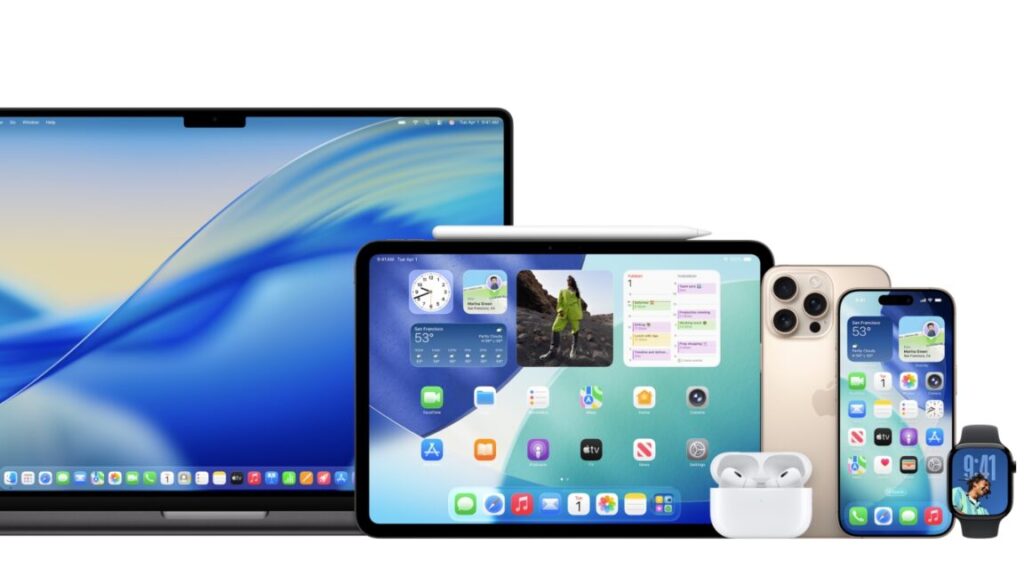
We know most of what there is to know about iOS 26, iPadOS 26, macOS 26, and Apple’s other software updates this year, thanks to a three-month-old WWDC presentation and months of public beta testing. There might be a feature or two exclusive to the newest iPhones, but that sort of thing is usually camera-related and usually pretty minor.

The main thing to expect will be release dates for the final versions of all of the updates. Apple usually releases a near-final release candidate build on the day of the presentation, gives developers a week or so to finalize and submit their updated apps for App Review, and then releases the updates after that. Expect to see them rolled out to everyone sometime the week of September 15th (though an earlier release is always a possibility).

What’s probably not happening

We’d be surprised to see anything related to the Mac or the iPad at the event next week, even though several models are in a window where the timing is about right for an Apple M5 refresh.

Macs and iPads have shared the stage with the iPhone before, but in more recent years, Apple has held these refreshes back for another, smaller event later in October or November. If Apple has new MacBook Pro or iPad Pro models slated for 2025, we’d expect to see them in a month or two.

Photo of Andrew Cunningham

Andrew is a Senior Technology Reporter at Ars Technica, with a focus on consumer tech including computer hardware and in-depth reviews of operating systems like Windows and macOS. Andrew lives in Philadelphia and co-hosts a weekly book podcast called Overdue.

What to expect (and not expect) from yet another September Apple event Read More »

rip-to-the-macintosh-hd-hard-drive-icon,-2000–2025

RIP to the Macintosh HD hard drive icon, 2000–2025

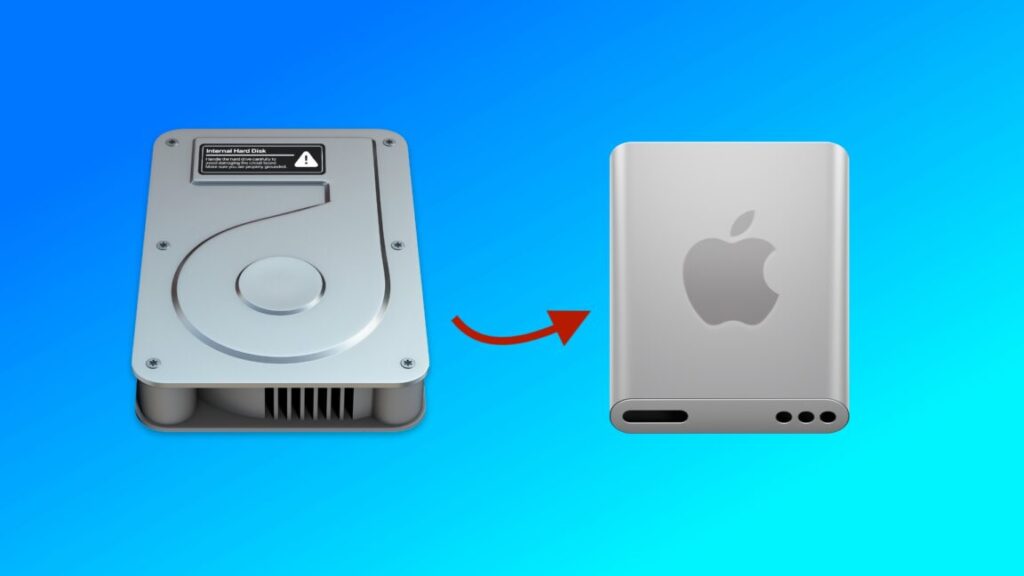
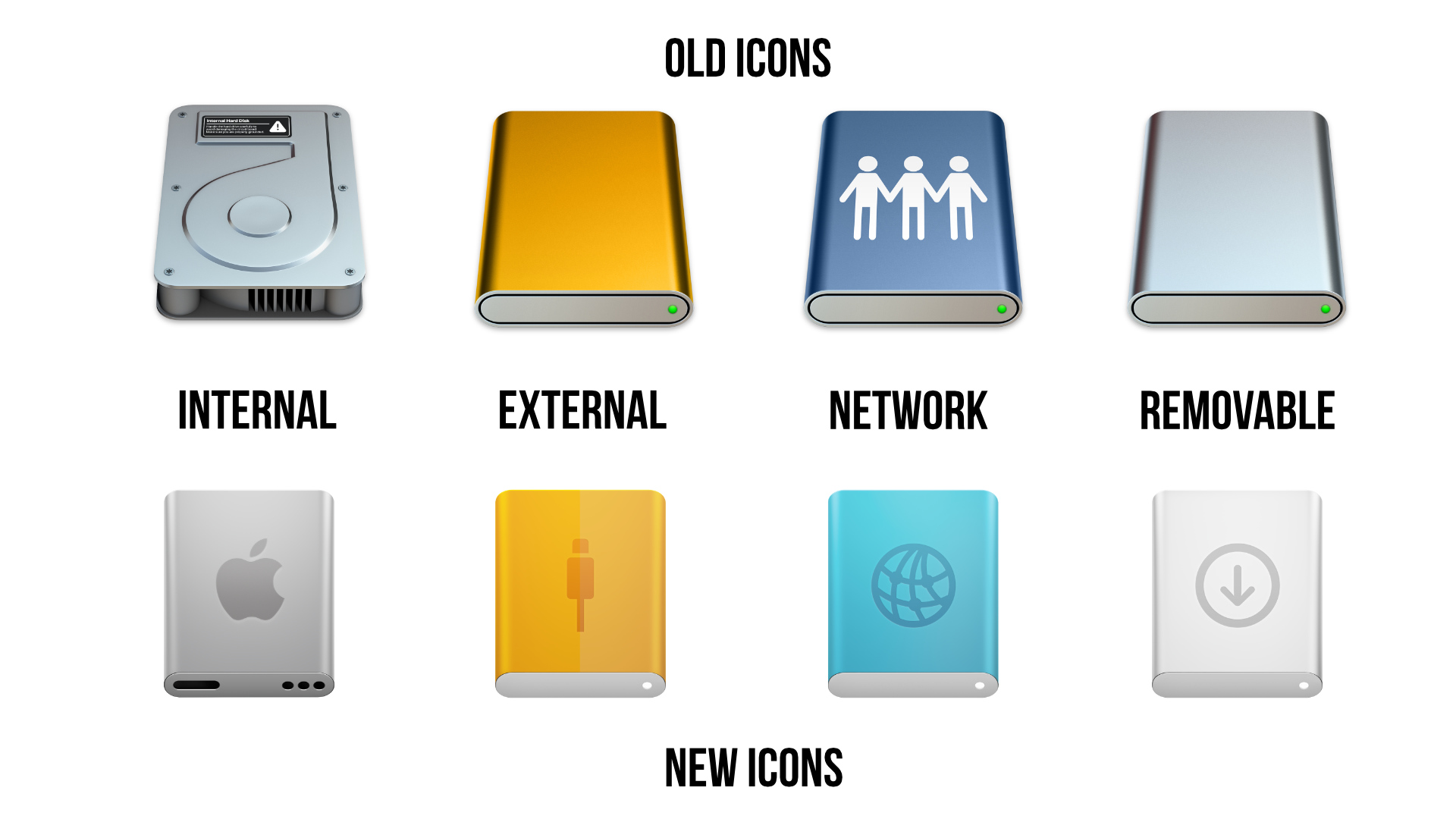
That version of the icon persisted through the Apple Silicon-era Big Sur redesign and was still with us in the first public beta build for macOS 26 Tahoe that Apple released last week. The new beta also updates the icons for external drives (orange, with a USB-C connector on top), network shares (blue, with a globe on top), and removable disk images (white, with an arrow on top).

All of the system’s disk icons get an update in the latest macOS 26 Tahoe developer beta. Credit: Apple/Andrew Cunningham

Other icons that reused or riffed on the old hard drive icon have also been changed. Disk Utility now looks like a wrench tightening an Apple-branded white bolt, for some reason, and drive icons within Disk Utility also have the new SSD-esque icon. Installer apps use the new icon instead of the old one. Navigate to the /System/Library/CoreServices folder where many of the built-in operating system icons live, and you can see a bunch of others that exchange the old HDD icon for the new SSD.

Apple first offered a Mac with an SSD in 2008, when the original MacBook Air came out. By the time “Retina” Macs began arriving in the early 2010s, SSDs had become the primary boot disk for most of them; laptops tended to be all-SSD, while desktops could be configured with an SSD or a hybrid Fusion Drive that used an SSD as boot media and an HDD for mass storage. Apple stopped shipping spinning hard drives entirely when the last of the Intel iMacs went away.

This doesn’t actually matter much. The old icon didn’t look much like the SSD in your Mac, and the new one doesn’t really look like the SSD in your Mac either. But we didn’t want to let the old icon’s passing go unremarked. So, thanks for the memories, Macintosh HD hard drive icon! Keep on spinning, wherever you are.

RIP to the Macintosh HD hard drive icon, 2000–2025 Read More »

the-macbook-air-is-the-obvious-loser-as-the-sun-sets-on-the-intel-mac-era

The MacBook Air is the obvious loser as the sun sets on the Intel Mac era


In the end, Intel Macs have mostly gotten a better deal than PowerPC Macs did.

For the last three years, we’ve engaged in some in-depth data analysis and tea-leaf reading to answer two questions about Apple’s support for older Macs that still use Intel chips.

First, was Apple providing fewer updates and fewer years of software support to Macs based on Intel chips as it worked to transition the entire lineup to its internally developed Apple Silicon? And second, how long could Intel Mac owners reasonably expect to keep getting updates?

The answer to the first question has always been “it depends, but generally yes.” And this year, we have a definitive answer to the second question: For the bare handful of Intel Macs it supports, macOS 26 Tahoe will be the final new version of the operating system to support any of Intel’s chips.

To its credit, Apple has also clearly spelled this out ahead of time rather than pulling the plug on Intel Macs with no notice. The company has also said that it plans to provide security updates for those Macs for two years after Tahoe is replaced by macOS 27 next year. These Macs aren’t getting special treatment—this has been Apple’s unspoken, unwritten policy for macOS security updates for decades now—but to look past its usual “we don’t comment on our future plans” stance to give people a couple years of predictability is something we’ve been pushing Apple to do for a long time.

With none of the tea leaf reading left to do, we can now present a fairly definitive look at how Apple has handled the entire Intel transition, compare it to how the PowerPC-to-Intel switch went two decades ago, and predict what it might mean about support for Apple Silicon Macs.

The data

We’ve assembled an epoch-spanning spreadsheet of every PowerPC or Intel Mac Apple has released since the original iMac kicked off the modern era of Apple back in 1998. On that list, we’ve recorded the introduction date for each Mac, the discontinuation date (when it was either replaced or taken off the market), the version of macOS it shipped with, and the final version of macOS it officially supported.

For those macOS versions, we’ve recorded the dates they received their last major point update—these are the feature-adding updates these releases get when they’re Apple’s latest and greatest version of macOS, as macOS 15 Sequoia is right now. After replacing them, Apple releases security-only patches and Safari browser updates for old macOS versions for another two years after replacing them, so we’ve also recorded the dates that those Macs would have received their final security update. For Intel Macs that are still receiving updates (versions 13, 14, and 15) and macOS 26 Tahoe, we’ve extrapolated end-of-support dates based on Apple’s past practices.

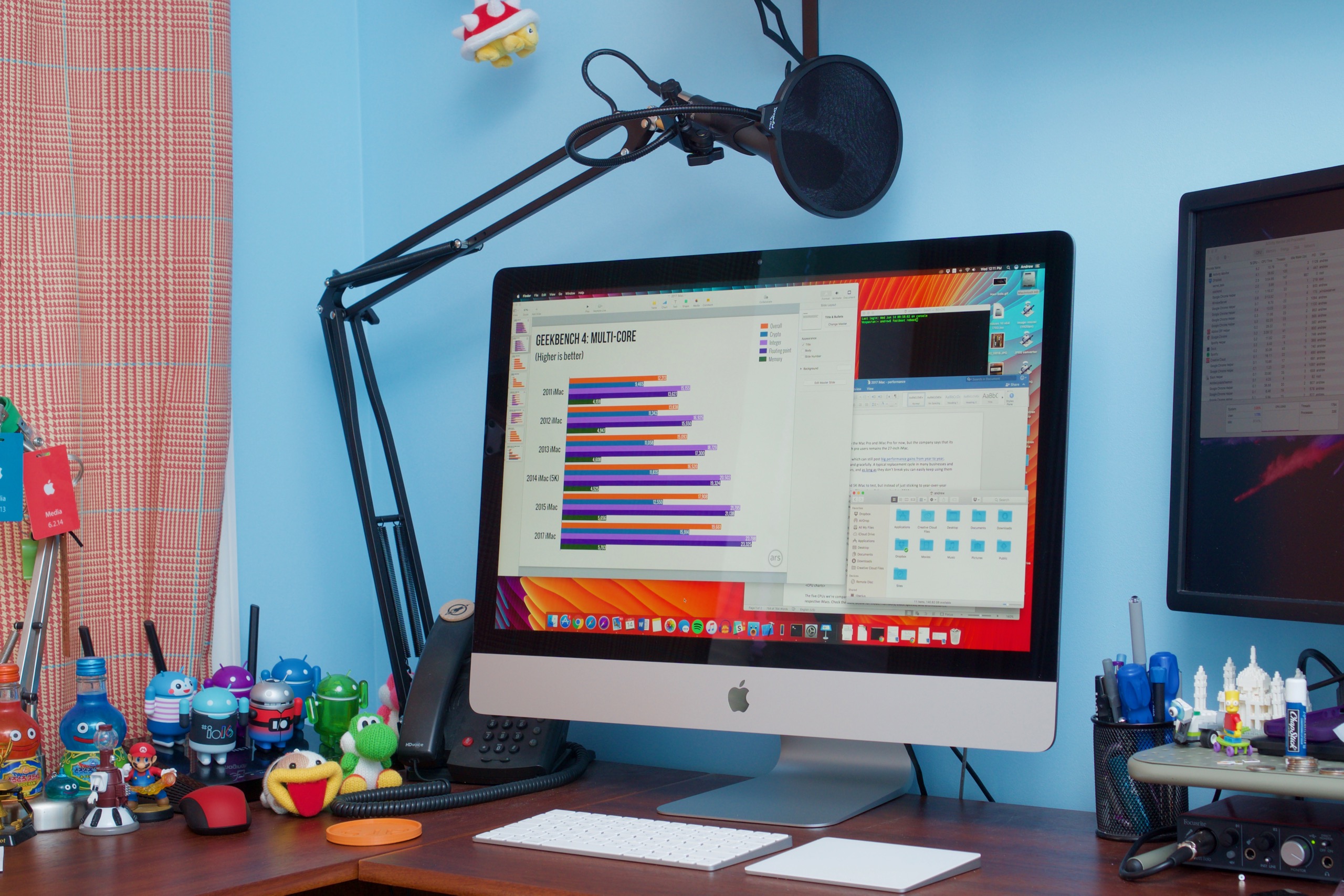
A 27-inch iMac model. It’s still the only Intel Mac without a true Apple Silicon replacement. Credit: Andrew Cunningham

We’re primarily focusing on two time spans: from the date of each Mac’s introduction to the date it stopped receiving major macOS updates, and from the date of each Mac’s introduction to the date it stopped receiving any updates at all. We consider any Macs inside either of these spans to be actively supported; Macs that are no longer receiving regular updates from Apple will gradually become less secure and less compatible with modern apps as time passes. We measure by years of support rather than number of releases, which controls for Apple’s transition to a once-yearly release schedule for macOS back in the early 2010s.

We’ve also tracked the time between each Mac model’s discontinuation and when it stopped receiving updates. This is how Apple determines which products go on its “vintage” and “obsolete” hardware lists, which determine the level of hardware support and the kinds of repairs that the company will provide.

We have lots of detailed charts, but here are some highlights:

  • For all Mac models tracked, the average Mac receives about 6.6 years of macOS updates that add new features, plus another two years of security-only updates.
  • If you only count the Intel era, the average is around seven years of macOS updates, plus two years of security-only patches.
  • Most (though not all) Macs released since 2016 come in lower than either of these averages, indicating that Apple has been less generous to most Intel Macs since the Apple Silicon transition began.
  • The three longest-lived Macs are still the mid-2007 15- and 17-inch MacBook Pros, the mid-2010 Mac Pro, and the mid-2007 iMac, which received new macOS updates for around nine years after their introduction (and security updates for around 11 years).
  • The shortest-lived Mac is still the late-2008 version of the white MacBook, which received only 2.7 years of new macOS updates and another 3.3 years of security updates from the time it was introduced. (Late PowerPC-era and early Intel-era Macs are all pretty bad by modern standards.)

The charts

If you bought a Mac any time between 2016 and 2020, you’re generally settling for fewer years of software updates than you would have gotten in the recent past. If you bought a Mac released in 2020, the tail end of the Intel era when Apple Silicon Macs were around the corner, your reward is the shortest software support window since 2006.

There are outliers in either direction. The sole iMac Pro, introduced in 2017 as Apple tried to regain some of its lost credibility with professional users, will end up with 7.75 years of updates plus another two years of security updates when all is said and done. Buyers of 2018–2020 MacBook Airs and the two-port version of the 2020 13-inch MacBook Pro, however, are treated pretty poorly, getting not quite 5.5 years of updates (plus two years of security patches) on average from the date they were introduced.

That said, most Macs usually end up getting a little over six years of macOS updates and two more years of security updates. If that’s a year or two lower than the recent past, it’s also not ridiculously far from the historical average.

If there’s something to praise here, it’s interesting that Apple doesn’t seem to treat any of its Macs differently based on how much they cost. Now that we have a complete overview of the Intel era, breaking out the support timelines by model rather than by model year shows that a Mac mini doesn’t get dramatically more or less support than an iMac or a Mac Pro, despite costing a fraction of the price. A MacBook Air doesn’t receive significantly more or less support than a MacBook Pro.

These are just averages, and some models are lucky while others are not. The no-adjective MacBook that Apple has sold on and off since 2006 is also an outlier, with fewer years of support on average than the other Macs.

If there’s one overarching takeaway, it’s that you should buy new Macs as close to the date of their introduction as possible if you want to maximize your software support window. Especially for Macs that were sold continuously for years and years—the 2013 and 2019 Mac Pro, the 2018 Mac mini, the non-Retina 2015 MacBook Air that Apple sold some version of for over four years—buying them toward the end of their retail lifecycle means settling for years of fewer updates than you would have gotten if you had waited for the introduction of a new model. And that’s true even though Apple’s hardware support timelines are all calculated from the date of last availability rather than the date of introduction.

It just puts Mac buyers in a bad spot when Apple isn’t prompt with hardware updates, forcing people to either buy something that doesn’t fully suit their needs or settle for something older that will last for fewer years.

What should you do with an older Intel Mac?

The big question: If your Intel Mac is still functional but Apple is no longer supporting it, is there anything you can do to keep it both secure and functional?

All late-model Intel Macs officially support Windows 10, but that OS has its own end-of-support date looming in October 2025. Windows 11 can be installed, but only if you bypass its system requirements, which can work well, but it does require additional fiddling when it comes time to install major updates. Consumer-focused Linux distributions like Ubuntu, Mint, or Pop!_OS may work, depending on your hardware, but they come with a steep learning curve for non-technical users. Google’s ChromeOS Flex may also work, but ChromeOS is more functionally limited than most other operating systems.

The OpenCore Legacy Patcher provides one possible stay of execution for Mac owners who want to stay on macOS for as long as they can. But it faces two steep uphill climbs in macOS Tahoe. First, as Apple has removed more Intel Macs from the official support list, it has removed more of the underlying code from macOS that is needed to support those Macs and other Macs with similar hardware. This leaves more for the OpenCore Configurator team to have to patch in from older OSes, and this kind of forward-porting can leave hardware and software partly functional or non-functional.

Second, there’s the Apple T2 to consider. The Macs with a T2 treat it as a load-bearing co-processor, responsible for crucial operating system functions such as enabling Touch ID, serving as an SSD controller, encoding and decoding videos, communicating with the webcam and built-in microphone, and other operations. But Apple has never opened the T2 up to anyone, and it remains a bit of a black box for both the OpenCore/Hackintosh community and folks who would run Linux-based operating systems like Ubuntu or ChromeOS on that hardware.

The result is that the 2018 and 2019 MacBook Airs that didn’t support macOS 15 Sequoia last year never had support for them added to the OpenCore Legacy Patcher because the T2 chip simply won’t communicate with OpenCore firmware booted. Some T2 Macs don’t have this problem. But if yours does, it’s unlikely that anyone will be able to do anything about it, and your software support will end when Apple says it does.

Does any of this mean anything for Apple Silicon Mac support?

Late-model Intel MacBook Airs have fared worse than other Macs in terms of update longevity. Credit: Valentina Palladino

It will likely be at least two or three years before we know for sure how Apple plans to treat Apple Silicon Macs. Will the company primarily look at specs and technical capabilities, as it did from the late-’90s through to the mid-2010s? Or will Apple mainly stop supporting hardware based on its age, as it has done for more recent Macs and most current iPhones and iPads?

The three models to examine for this purpose are the first ones to shift to Apple Silicon: the M1 versions of the MacBook Air, Mac mini, and 13-inch MacBook Pro, all launched in late 2020. If these Macs are dropped in, say, 2027 or 2028’s big macOS release, but other, later M1 Macs like the iMac stay supported, it means Apple is likely sticking to a somewhat arbitrary age-based model, with certain Macs cut off from software updates that they are perfectly capable of running.

But it’s our hope that all Apple Silicon Macs have a long life ahead of them. The M2, M3, and M4 have all improved on the M1’s performance and other capabilities, but the M1 Macs are much more capable than the Intel ones they supplanted, the M1 was used so widely in various Mac models for so long, and Mac owners can pay so much more for their devices than iPhone and iPad owners. We’d love to see macOS return to the longer-tail software support it provided in the late-’00s and mid-2010s, when models could expect to see seven or eight all-new macOS versions and another two years of security updates afterward.

All signs point to Apple using the launch date of any given piece of hardware as the determining factor for continued software support. But that isn’t how it has always been, nor is it how it always has to be.

Photo of Andrew Cunningham

Andrew is a Senior Technology Reporter at Ars Technica, with a focus on consumer tech including computer hardware and in-depth reviews of operating systems like Windows and macOS. Andrew lives in Philadelphia and co-hosts a weekly book podcast called Overdue.

The MacBook Air is the obvious loser as the sun sets on the Intel Mac era Read More »